# phpList manual
# Introduction
# System overview
Welcome to the phpList Manual!
This first chapter will explain what phpList is used for and give you a basic overview of how it works.
## What is phpList?
phpList is used for sending email newsletters, announcements and notifications. It is designed to send a single message (a **campaign**), by email to large numbers of recipients (**subscribers**).
You organize your subscribers into **lists** and you can import email addresses from your email account, online shop, blog or database. You can also import **attribute** data, for example, subscriber name, city or shoe size.
Campaigns are composed in a web interface and can be **personalized** for each subscriber. Personalization is done with the use of placeholders which display attribute data within the text of the emails, as well as unique links that **allow subscribers to join or leave** lists easily. You can use plain text, HTML and templates.
Once a campaign has been sent, phpList will show **statistics** about it. This will include **opens/views** (who read the campaign), **clicks** (who clicked which link in the campaign) and **bounces** (which addresses were incorrect and delivery failed). Bounced mails and unsubscribes are automatically removed from the system, which will benefit future **delivery of campaigns**.
phpList is Open Source software and it is published under the AGPLv3 license. You can install and host phpList on your own servers or you can use it via the phpList Hosted service.
## A quick tour of phpList
phpList has an attractive web interface and a wealth of features to explore.
### Campaigns
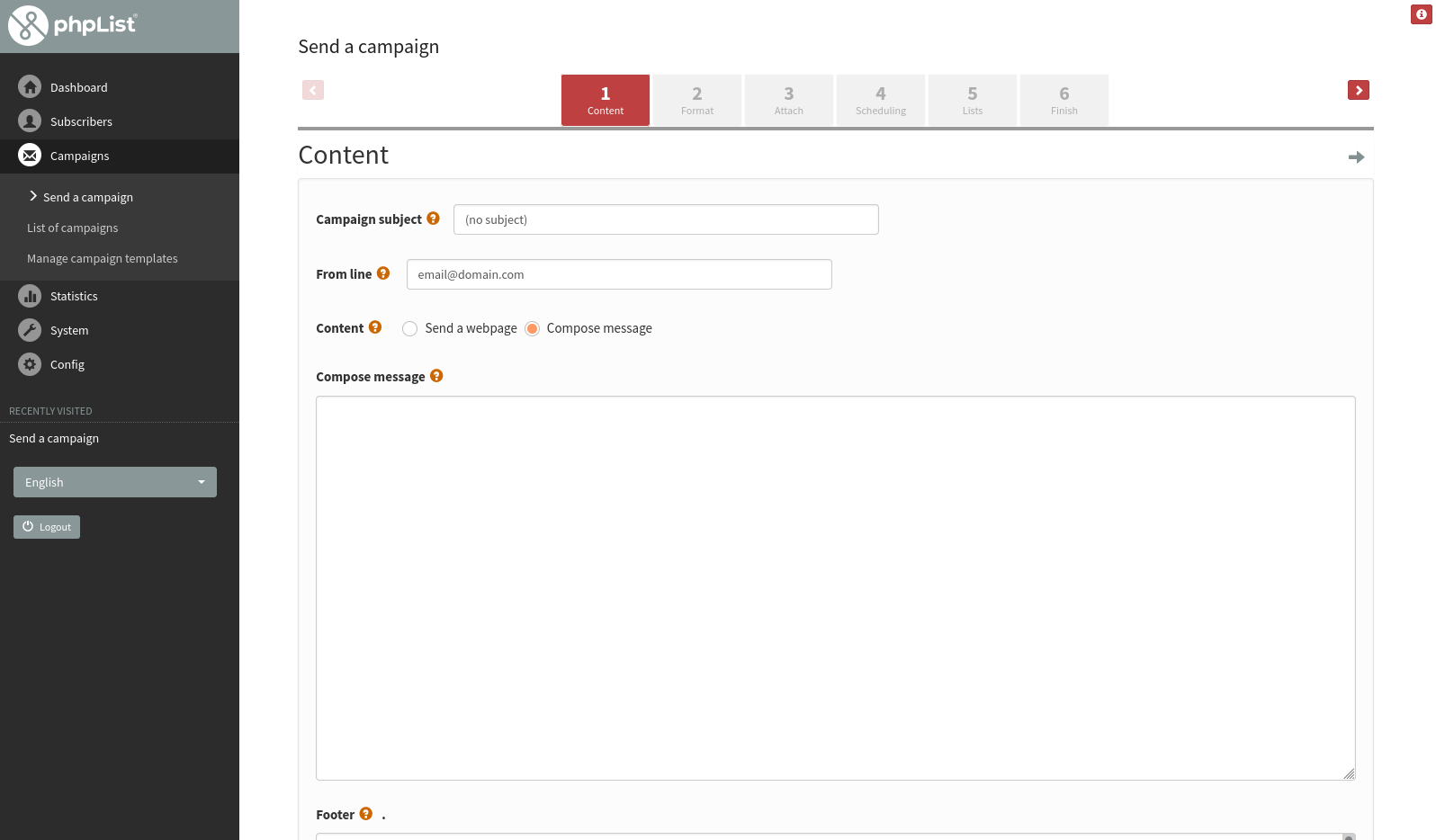
Composing and sending campaigns is achieved by following a step by step process.
[](https://www.phplist.org/manual/uploads/images/gallery/2021-05/7Ni4wYIR0FbwLWGr-Screenshot-from-2021-05-24-11-52-00.png)
### Subscribers
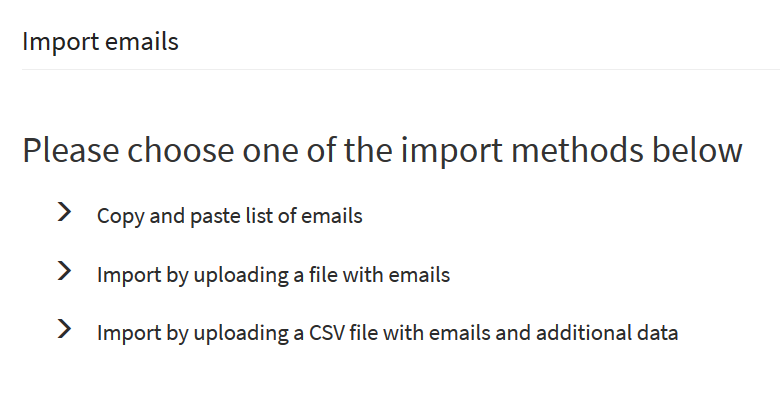
In phpList you upload your contacts once and the information is ready to use every time you send a campaign.
[](https://www.phplist.org/manual/uploads/images/gallery/2019-05/SyHvggPHzsbcWBz9-phpList_import_emails_13.png)
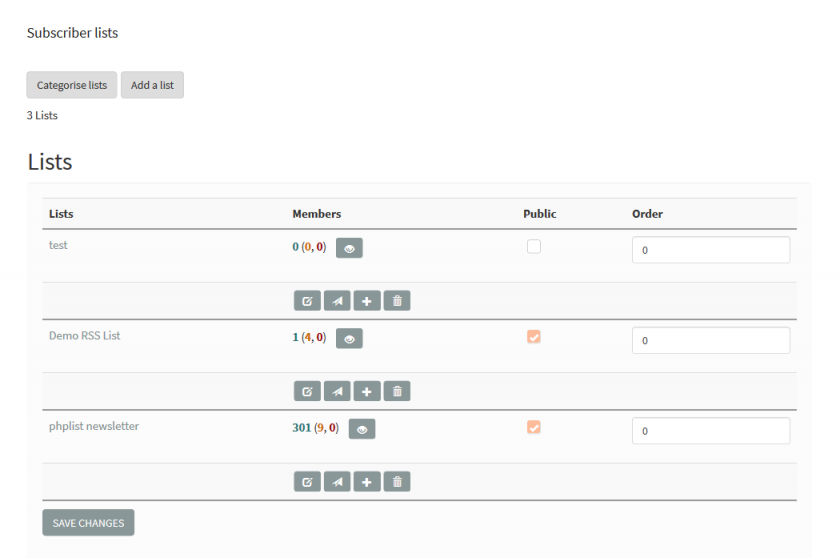
You can group subscribers into one or more lists
[](https://www.phplist.org/manual/uploads/images/gallery/2019-05/SsUjTldTzNj9DFRz-overview_lists.png)
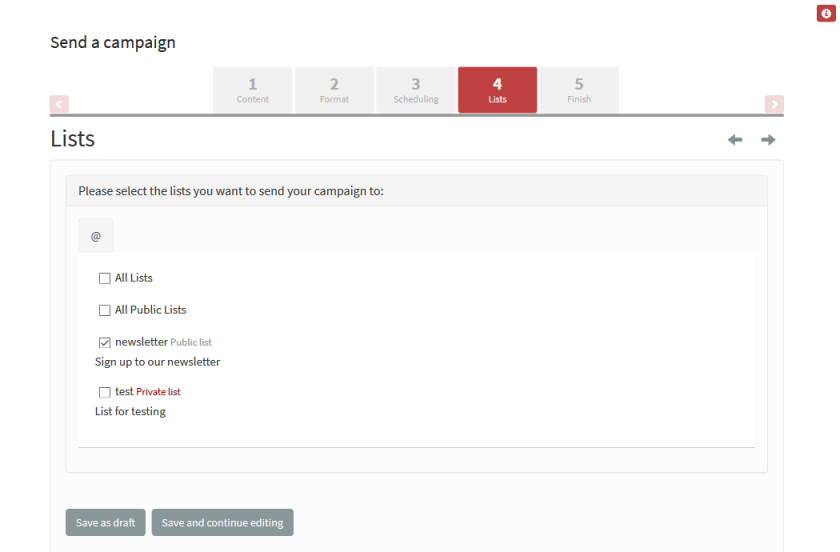
Simply choose which list you want to send to when you create your campaign.
[](https://www.phplist.org/manual/uploads/images/gallery/2019-05/lkgyegtthHLY3dp0-overview_lists_2.png)
### Subscribe pages
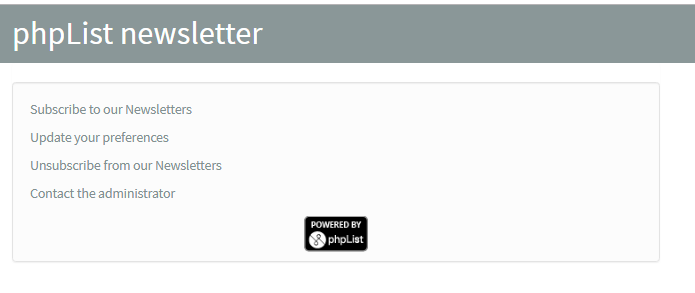
Subscribers can sign up to your lists though subscribe pages, which are fully customizable.
[](https://www.phplist.org/manual/uploads/images/gallery/2019-05/uRgFRawXf7IKxiyr-create_a_subscribe_page_in_phpList_9.png)
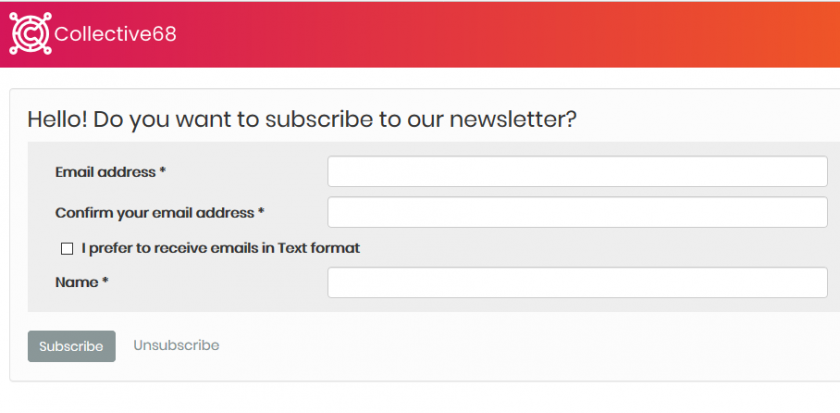
...and can be integrated with your website.
[](https://www.phplist.org/manual/uploads/images/gallery/2019-05/MnO8RnrcXS2AoIY4-website_integration.PNG)
### Campaign Statistics
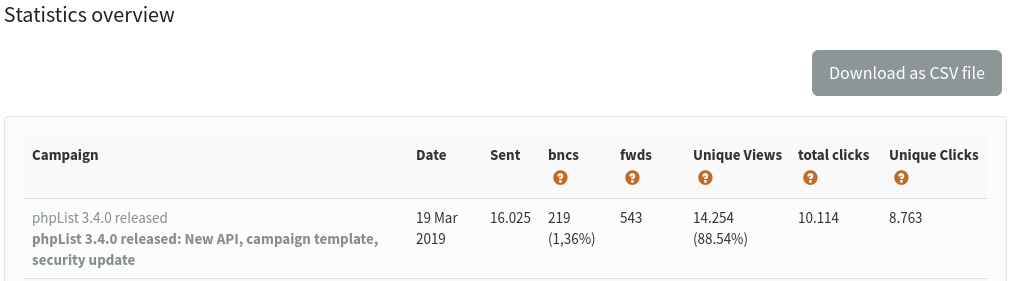
You can view basic and detailed statistics about every campaign you send to help you learn more about your subscribers.
[](https://www.phplist.org/manual/uploads/images/gallery/2019-07/ZYclccHQOsHD1mfx-phpList_statistics_overview.png)
## What is Open Source?
Open Source, or "Free Software", means that the original programming code is made freely available and may be modified. In practice this means that; phpList is very adaptable, easy to change and improve. Open Source development relies on communities of users contributing to the project they use. You pay nothing for the software, but you are encouraged to collaborate with the project though contributing code and/or though bug reports, translations, documentation, spreading the word and if you feel it has enriched your life, you can even donate!
## What is phpList.com?
phpList.com offers phpList as a service is the cheapest way to have a fully working installation without having to worry about servers, blacklisting, bounces and deliverability. We manage the day to day maintenance of the software including updates and security.
Using phpList.com is also a great way to support the future development of phpList.
## What does phpList not do?
phpList is a one-to-many email program. It cannot easily be used to have "email conversations" many-to-many as you might do on software such as mailman
## Feedback
[Discuss this chapter here.](https://discuss.phplist.org/t/system-overview-manual-chapter-feedback-and-discussion/196)
# Case studies
Below are six examples of how phpList is used, including a small business, a large business, a city and a community group. They are ordered by the number of emails sent per month.
- Large Business - 500,000 to 6 million emails per month
- Artist & Record label - 10,000 emails per month
- Re-seller - facilitating several phpList installations
- Small business - 500-1000 emails a month
- Government department - 500 emails a month
- Community Group - less than 100 emails a month
# Large Business
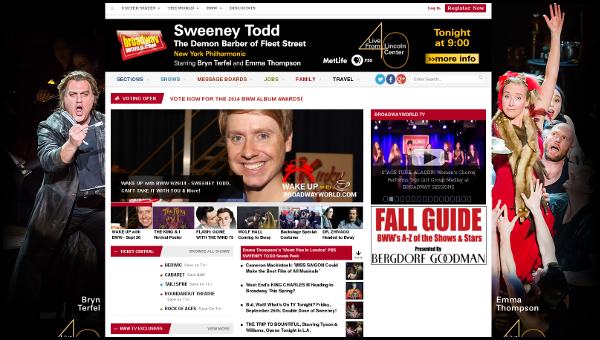
BroadwayWorld.com is "the largest theatre website in the world" and is devoted to all things Broadway and theatre. Their website has news about shows, audition listings, user forums and a blog.
[](https://www.phplist.org/manual/uploads/images/gallery/2019-05/HXm7mdtAUoZRebTH-broad_way_world_homepage.png)
BroadwayWorld.com has around 500,000 subscribers on their phpList system, and these are divided into smaller lists by State and/or Country, for example.
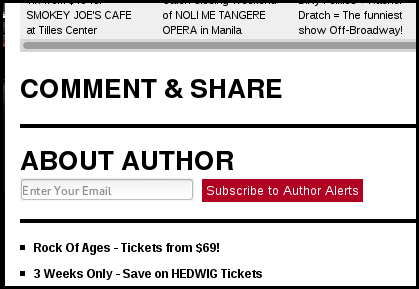
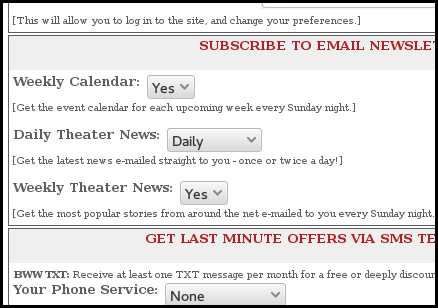
They grow their lists by sign up's though their website and from special offers and promotions throughout the year.
[](https://www.phplist.org/manual/uploads/images/gallery/2019-05/dlezImZVCTpS0pgM-broad_way_world_signup_2.png)
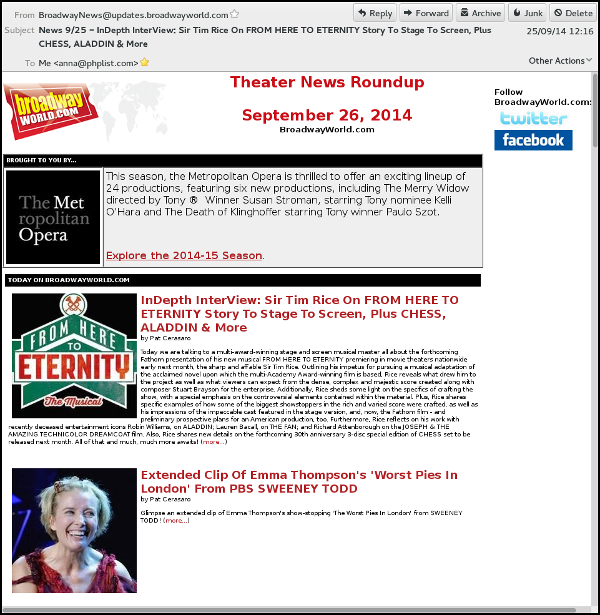
They send 2 to 3 campaigns per week which provide news and information to theatre lovers. They have an average open rate of 3-8%.
[](https://www.phplist.org/manual/uploads/images/gallery/2019-05/0ENJsWMbnvV5veIT-broad_way_world_signup_1.png)
The aim of the BroadwayWorld.com newsletter is to provide readers with relevant information and special offers for Broadway shows and related media on behalf of advertisers.Their phpList system is managed by two staff members: one who collects the information from the advertisers and assembles campaigns and another who updates the lists and sends the campaigns, as well as dealing with any technical issues. They sometimes seek additional paid technical support from phpList Ltd.
[](https://www.phplist.org/manual/uploads/images/gallery/2019-05/Y70zfP8J6c9ey8L1-broad_way_world_email_1.png)
BroadwayWorld started their newsletter in 2003 when they launched their website: a newsletter has always been integral to their business model. Initially they used proprietary hosted solutions which they found too expensive. They then tried using a 'homegrown' solution but they soon outgrew its capabilities. For them phpList was the happy medium: easy to scale, free and within their technical capabilities to host. BroadwayWord has been using phpList since 2009.
### Artist & Record label
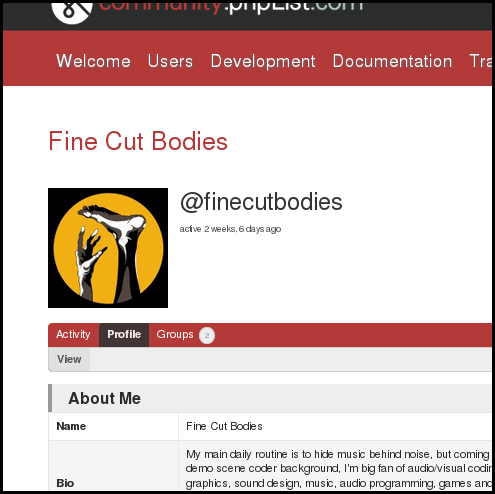
Attila Fodor (FineCutBodies) is a musician, producer and a former developer (of playstation games!).
He runs an indie record label which has had more than 60 releases and hundreds of gigs since 2000. He goes on world tours and has aired over 700 hours of radio content in the last 15 years. He also teaches at the Budapest School of Music Technology, running a regular class on digital technology and basic sound design paradigms. He is a regular phpList contributor.
[](https://www.phplist.org/manual/uploads/images/gallery/2019-05/WEXy2m6T4qmStbx4-profile.png)
FineCutBodies started a newsletter when he founded his record label in 2001. He began by pasting email lists into the Bcc line in his mail software. When the list started to grow he tried a few different newsletter programs.
In 2014 he started searching for a newsletter software which could provide bespoke functionality and smooth website integration. As an audiovisual coder and video game developer, FineCutBodies has used his coding experience to customise phpList to his needs.
[](https://www.phplist.org/manual/uploads/images/gallery/2019-05/JmkRyOcvJANoVGrX-signup_for_download.png)
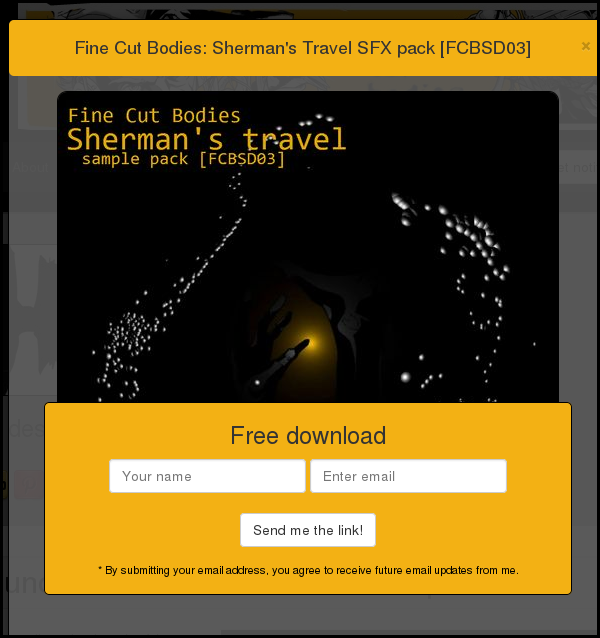
One example of this customisation is his download-for-signup system, where a visitor to the FineCutBodies.com website requests a free track/tool download in exchange for signing up to the mailing list.They then receive an email with the download url in: when the url is clicked the visitor is subscribed to the list on his phpList system.Additionally, subscribers are integrated seamlessly into the phpList system using javascript, rather than using the standard phpList subscribe pages.
[](https://www.phplist.org/manual/uploads/images/gallery/2019-05/W5qFqdYmhztFZYPw-signup_button.png)
FineCutBodies has a total of 10k emails across several public lists, as well as a private list for pre-release news aimed at music journalists.
The subscribers come from various online contact and sign up forms (see screenshot as well as the subscribe-for-download deal). FineCutBodies send one campaign per month per list and have an average recorded open rate of 20-30%.
## Re-seller
Marsha Perry is a website developer. She specializes in small business websites, WordPress websites and WordPress coaching. Her company also provides phpList installations, migration, updates and integration.
[](https://www.phplist.org/manual/uploads/images/gallery/2019-05/qUZXvYUQSwAqFrSy-marsha_website_1.png)
Marsha also uses phpList for her own newsletter and it is her software of choice for newsletters in most circumstances. As a developer she finds it reliable: she said “some applications are ‘twitchy’ or delicate. phpList is a workhorse.”Her customers like phpList for a whole variety of reasons:
- They can have multiple lists and sign up forms with one installation.
- They can migrate to phpList without making subscribers opt-in again.
- They love that the software is free to use and well-supported via the forum
- They appreciate the flexibility and control they get.
Marsha does not think many of her customers are really aware of what Open Source means, but she feels they do appreciate some of the consequences of phpList’s Open Source status, especially that Marsha can tweak the code for them.
[](https://www.phplist.org/manual/uploads/images/gallery/2019-05/3r9sasLW8kP2HGsJ-marsha_website_2.png)
Marsha also offers phpList Hosted, as it is the perfect solution for one of her customers with a large mailing list. They had previously considered moving that customer’s website to a host that allowed more outgoing emails per hour. Then she realized that with the Hosted version of phpList the website did not need to be moved.
## Small Business
[](https://www.phplist.org/manual/uploads/images/gallery/2019-05/0JshFgc9OmDV59ov-ethical_pets_newsletter.png)
Ethical Pets is an online store based in the UK which sells Bio/Organic, ecological and fairly traded pet products.They began using phpList Hosted to send out a newsletter called *The Ethical Pets Gazette* five months after they launched their store, and have now been running the list for nearly three years.
Ethical Pets
- Publicise the ethical qualities of new products
- Share blog articles about environmental and animal welfare campaigns
- Encourage the feeling of friendship and community present in fairs and festivals
The Ethical Pets Gazette now has 750 subscribers. Most are customers whose addresses were exported from online shop software. There is an AJAX sign up form on their shop front and they sometimes segment their lists to target specific customer groups, for example, dog owners or cat owners.
Their average open rate is as high as 36%.>
## Government Department
The Parliament of South Africa is legally required to inform the citizens of South Africa about their work. Responsibility for this task falls on the manager of the Content and Information Unit at Parliamentary Communication Services, who is mandated to spread this information to as broad a range of readers as possible.
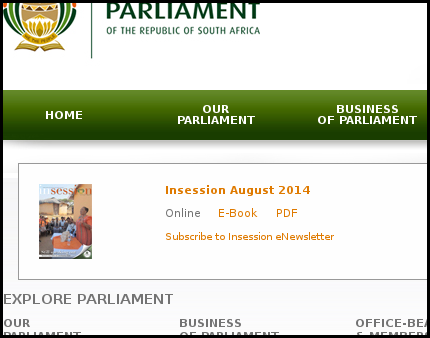
One of the methods used is the [Insession](http://www.parliament.gov.za/live/content.php?Item_ID=3026) newsletter, which is published on a monthly basis on their website as a pdf and e-book.
[](https://www.phplist.org/manual/uploads/images/gallery/2019-05/gyhX2pwDFmTYcczT-gov_subscribe_and_download_page.png)
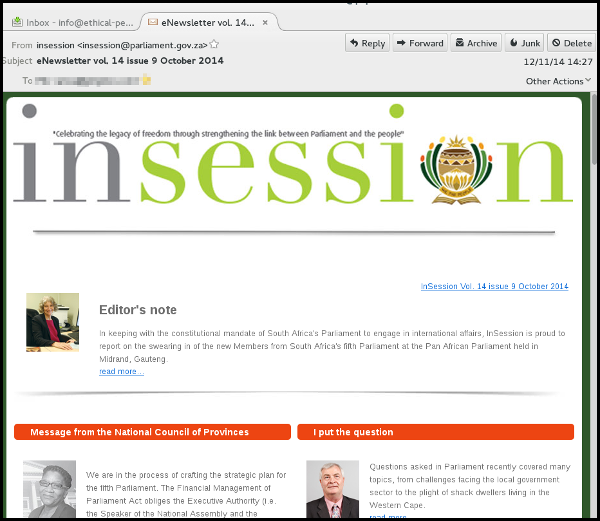
phpList is used to target the audience that wish to receive this newsletter digitally. *insession* is sent to subscribers as an HTML email with links to longer articles on the government website.
[](https://www.phplist.org/manual/uploads/images/gallery/2019-05/1qNLxvjYEheIzsPQ-in_session_mag_1.png)
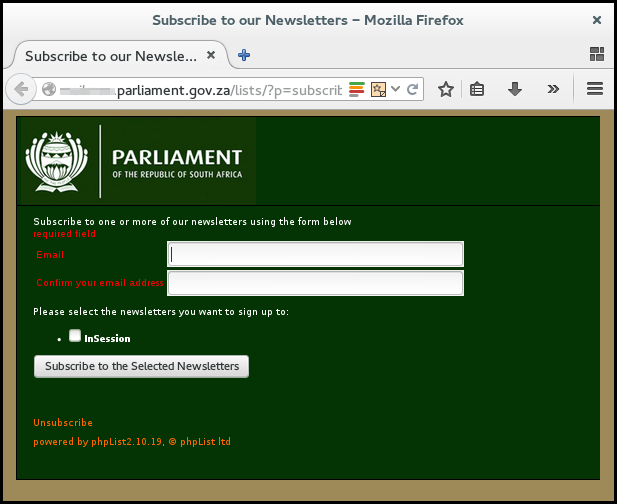
The Content and Information Unit have used phpList since March 2013, and the software was chosen by the IT department. Currently the *Insession* list has about 450 members, all of whom subscribed themselves via a web form during the normal course of parliamentary business.
[](https://www.phplist.org/manual/uploads/images/gallery/2019-05/5BXZcHQBq6aM2sWy-gov_subscribe_page.png)
Four staff of the Content and Information Unit manage the phpList installation. Two have access to the subscribers' replies and two upload the newsletters as an ebook and pdf onto the parliament.gov.za website.The government of South Africa also uses phpList to run an internal parliamentary list.
## Community Group
The student group アナグマ・エイサー (Anaguma Eisa) at UW-Madison teaches and preforms Eisa, a form of Japanese folk dance, originating from the Ryukyu islands of southern Japan.
The group have been using phpList since 2014 to further their mission to encourage people of all ages and abilities to develop their full potential through cultural understanding and performing arts.
[](https://www.phplist.org/manual/uploads/images/gallery/2019-05/9IK4YQtKcYb4FgZQ-paper_sign-up_to_phpList.png)
Before adopting phpList they had been copy-and-pasting a small list of addresses into Bcc for each email update. Now in their second year of being an officially registered student organisation this method become untenable.They decided to set up a newsletter and list management system to:
- Keep prospective and current members engaged with the latest activities and concerts
- Communicate better with those who do not regularly check Facebook and Twitter
- Communicate by email more often, because this channel is more visible/high impact than social media
- Tell people about events in a way that is easier to refer back to (than social media)
- Create a system which can be run by multiple group members so they can share administrative responsibilities
Lucas Schneider, the president of Anaguma Eisa, chose phpList because:
- It is Open Source software
- Liked the clean look of the interface
- Felt it would be easy to manage several different lists
- Wanted to be able to embargo and end campaigns relating to performances (scheduling)
- Wanted the flexibility to compose anytime but send at a regular time (scheduling)
- Wanted to edit the 'from line' with ease
- Wanted to take advantage of the detailed statistics provided with each campaign
[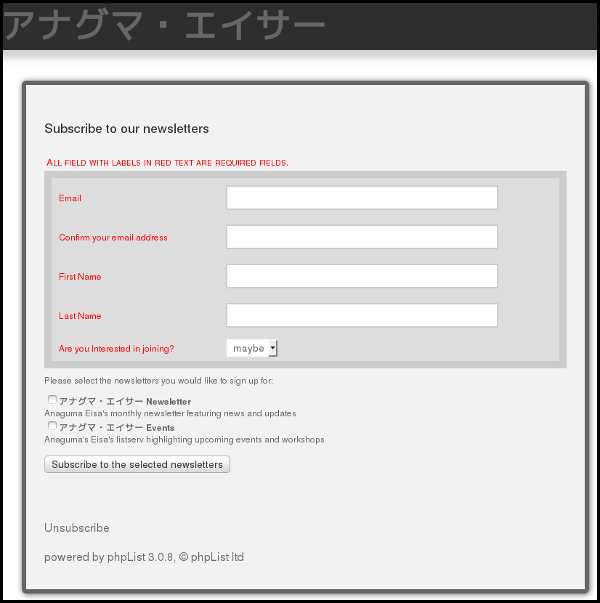](https://www.phplist.org/manual/uploads/images/gallery/2019-05/tGXoozf5LmYu562c-uni_group_subscribe_page.png)
In the first few months of using phpList their list grew from 15 emails to 35 emails, across 3 lists. The society run:
- A list of active members of the organization
- A list for announcing upcoming performances
- A list for a general newsletter
[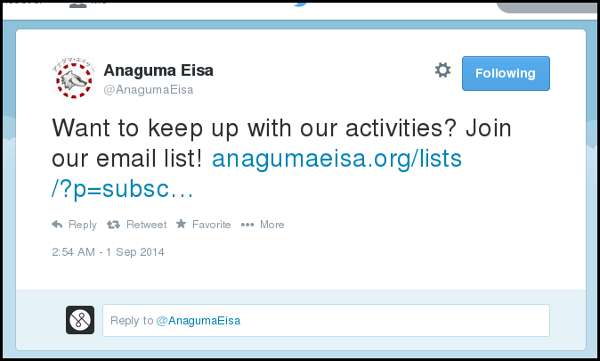](https://www.phplist.org/manual/uploads/images/gallery/2019-05/zwi9AcF8z1vjz70d-uni_group_twitter_1_1.png)
The group add new members to their lists in three ways:
- Manually adding addresses from paper lists from student organization/freshers week fairs (photo 1)
- New sign ups from the form integrated into their website (photo 2)
- Sharing the subscription link on social media (photo 3)
They send 6 to 7 email campaigns each month: one email a week to active members with information about rehearsals and administration, one email a month to announce performances and a more general newsletter every couple of months. Their emails have an impressive average open rate of 50%.
# Feedback
Discuss this chapter [here](https://discuss.phplist.org/t/case-studies-manual-chapter-feedback-and-discussion/197).
# About this manual
This manual has been written by the phpList community documentation team, individual volunteers, companies and phpList Ltd staff. This Manual is a self-hosted [BookStack](https://www.bookstackapp.com/) installation.
#### Aims
This manual will teach you how to use phpList. It provides real life examples where possible and chapters are goal oriented. We hope you will come away from each chapter with inspiration and motivation as well as an education!
#### Target audience and assumptions
The manual is aimed at users with average tech skills who are starting at the beginning with phpList. The first sections of the book assume that the reader has access to a pre-configured phpList install to play with, perhaps on phpList.com or provided by their employer. If this is not the case, then there are chapters about installing phpList later in the book which can be used to get started.
#### Disclaimer
Software is not static, it continuously changes. phpList is no different from other software, in that it is regularly updated to fix issues, add new features and respond to a changing environment of browsers and internet technology. This manual attempts to provide you with a guide to how phpList works, but the version you are using may be different from what is described here. The manual should help you to work phpList in a general way, but you may need to interpret it for your situation to make phpList do what you want it to do.
#### How to use this manual
Most chapters will walk you through a task, with a screenshot for each stage. It may be that you only require assistance with one aspect of a task, in which case skips ahead.
#### Styles
In this manual, words in **Bold** generally mirror the word in the application itself. Additionally, each level of a menu is signified with a >. If you need to go to Subscribers in the main menu, and then click Add new in the sub menu, then we would annotate this as **Subscribers** > **Add new**.
#### Documentation team
Thanks to all of the following contributors, in no particular order:
[Dragonrider](https://phplist.org/our-team/dragonrider/), [Nikita Lyalin](http://phplist.org/our-team/tinman321/), [Paul Mellors](http://phplist.org/our-team/paulmellors/), [Dan Waterloo](http://phplist.org/our-team/danwaterloo/), Elisa, [Michiel](http://phplist.org/our-team/michiel/), [Mariela](http://phplist.org/our-team/mariez/), [Orsiris de Jong](http://phplist.org/our-team/deajan/), [JoJo](https://phplist.org/our-team/moderndayfreak/), [Lucas Schneider](https://phplist.org/our-team/lschneider94/), [Guido Hornig](https://phplist.org/our-team/actxcellence/), [Vedran](https://phplist.org/our-team/veki/)[ Vucic](https://phplist.org/our-team/veki/), [Sylvain](https://phplist.org/our-team/sylvain/), [Andreas Tolfsen](http://.phplist.org/our-team/tolfsen/), [Titano](http://phplist.org/our-team/titano/), [Charlie Russell](http://phplist.org/our-team/charlizegirl/), [Joseph Morris](http://phplist.org/our-team/sirromeoj/), [Björn Balazs](http://phplist.org/our-team/bjoernbalazs/), [Mindhack](https://phplist.org/our-team/mwastling/), [Alexandru Berendei](http://phplist.org/our-team/alexberendei/), [Marius](http://phplist.org/our-team/clorith/), [Sam Tuke](http://phplist.org/our-team/samtuke/), [Marcela Lopez Levy](http://phplist.org/our-team/marcela/), [kitchm](http://phplist.org/our-team/kitchm/), [Rodrigo](http://phplist.org/our-team/rata/) and [Linda Ainsworth](http://phplist.org/our-team/redlinda5/).
#### Feedback
Each chapter in this manual has a corresponding discussion thread on our forums, linked at the bottom of the chapter. For example:
Discuss this chapter [here](https://discuss.phplist.org/t/about-this-manual-manual-chapter-feedback-and-discussion/198).
You can use these forum threads to discuss a chapter, for example, if something on your system differs from the description in the chapter, if an instruction in the chapter does not work for you or if have an idea to improve a chapter generally. For more information see the [documenters home page](https://www.phplist.org/documentation/).
# GDPR
### Using phpList for compliance with the GDPR
This chapter provides an overview of features and functionality of phpList version 3.3.3 and higher, implemented for phpList administrators seeking to be compliant with the [General Data Protection Regulation](https://ico.org.uk/for-organisations/guide-to-the-general-data-protection-regulation-gdpr/) in their data management practices.
The GDPR is a regulation in EU law which includes legal requirements for how the data of people in the EU is handled, including the kind of data collected by installations of phpList. The laws affect all entities which handle such data [regardless of where they are based](https://gdpr-info.eu/art-3-gdpr/). In addition, the EU's [directive on electronic privacy](https://eur-lex.europa.eu/legal-content/EN/TXT/HTML/?uri=CELEX:32002L0058&from=EN) contains rules on the use of email for the purposes of direct marketing.
Ultimately it is the [administrators of a given installation](https://gdpr-info.eu/issues/data-protection-officer/) of phpList who are responsible for managing data responsibly. The following technical features of phpList relate to common strategies for complying with the regulations as they stand.
***Note:*** GDPR is a comprehensive set of regulations which covers much more than just technical operation of the newsletter software that you use. For comprehensive information about entities' responsibilities, consult the [Information Commissioner’s Office](https://ico.org.uk/for-organisations/guide-to-the-general-data-protection-regulation-gdpr/), the [European Commission website](https://ec.europa.eu/info/law/law-topic/data-protection_en), or independent legal advice. You can find the full text of the GDPR [here](https://eur-lex.europa.eu/legal-content/EN/TXT/?uri=CELEX%3A32016R0679).
***Note:*** Features which are not present in older versions are labelled (⇮phpList-3.3.3) for convenience.
### Sensitive ("special category") data
The GDPR makes distinctions between different types of data and the protections they require.
- Do not store particularly [sensitive data](https://gdpr-info.eu/art-9-gdpr/) within phpList (e.g. as user attributes). Examples of data in this category are data relating to medical history, sexuality, or ethnicity.
- If children are not your target audience, consider adding a required attribute to your subscribe pages and sign up forms for age confirmation
- (⇮phpList-3.3.3) A Default Attribute exists for convenience which requires subscribers to confirm they are 16 or older – you can load it easily via the Config → Configure Attributes page
### Justification for data processing
The GDPR requires that organisations have one of six possible legal justifications for processing subscriber data.
#### Consent
The justification most commonly used by newsletter and email marketers is that [consent](https://gdpr-info.eu/art-7-gdpr/) has been obtained from all their subscribers. In some situations, [marketing by email can only be carried out with consent](https://ico.org.uk/for-organisations/guide-to-pecr/electronic-and-telephone-marketing/electronic-mail-marketing/). The GDPR uses a specific definition of consent, and defines how it may be acquired and managed. phpList can easily be used to obtain and manage subscriber consent.
- If your subscribers sign up to phpList directly using subscribe pages, widgets, or custom forms:
- Consider adding a required consent checkbox which links to your legal policies
- (⇮phpList-3.3.3) A Default Attribute exists for convenience which requires consent to the website Terms of Service – you can load it easily via the Config → Configure Attributes page
- Consider adding a comprehensive explanation of why, how, and for how long their data will be used, to either:
- The confirmation email message text which they automatically receive
- The subscribe page or form which into which they initially add their details
- Only import subscribers into phpList for which you have auditable evidence of adequate consent
- Send [re-permission campaigns](https://www.econsultancy.com/blog/69966-gdpr-15-good-bad-examples-of-repermissioning-emails-campaigns) using the [Invite Plugin](https://resources.phplist.com/plugin/invite) to re-obtain consent from inactive subscribers
- (⇮phpList-3.3.3) The Invite Plugin is included with phpList by default but must be enabled on the Config → Manage Plugins page
- (⇮phpList-3.3.3) A template re-permission campaign is included by default as a draft for easy use and reference
- Use the “Delete subscribers who signed up and have not confirmed their subscription” option on the Reconcile Subscribers page to remove subscribers who have not provided adequate consent
- (⇮phpList-3.3.3) Use the “Delete subscribers who are blacklisted because they unsubscribed” button on the Subscribers → Reconcile Subscribers page to delete all blacklisted subscribers who unsubscribed from your lists
- Use the “Delete all blacklisted subscribers” button on the Subscribers → Reconcile Subscribers page to delete all blacklisted subscribers, including those who were blacklisted due to consecutive bounces, and are therefore unreachable
#### Legitimate interest
Another common legal justification for processing subscriber data is that the organisation responsible has a "[legitimate interest](https://gdpr-info.eu/art-6-gdpr/)" in doing so. "Legitimate interest" can apply in cases where a service has been requested by a subscriber, and storing their subscriber data is necessary for providing this service, or where an employer is processing the data in order to communicate with their staff. It can also apply to public relations professionals who maintain lists of journalists and associated data, [depending on the circumstances](https://www.prca.org.uk/GDPR).
### Right of access
The GDPR grants people in the EU the [right to access](https://gdpr-info.eu/art-15-gdpr/) the data you have which relates to them.
- Check that your Admin Email address (“Person in charge of this system”) is accurately set so that subscribers can [contact you](https://gdpr-info.eu/issues/data-protection-officer/)
- (⇮phpList-3.3.3) When a subscriber requests their data, use the Data Export feature to download a report containing their data
- If you store data about subscribers in third party applications (e.g. Wordpress or a CRM system), export and include that data for the subscriber in response to their request as well
### Right to rectification
The GDPR grants people in the EU the [right to update inaccurate data](https://gdpr-info.eu/art-16-gdpr/) which you store about them.
- Do not remove the preferences link placeholder within your campaigns to ensure easy access for subscribers
- (⇮phpList-3.3.3) Refer them to your phpList installation homepage ( `http://your-domain.com/lists` by default) so they can find the preferences page if they don’t have a link
- (⇮phpList-3.3.3) Use the Preferences Page button on a Subscriber Details page to obtain a personalised preferences page link for a subscriber directly
### Right to erasure
The GDPR grants people in the EU the [right to have their data erased](https://gdpr-info.eu/art-17-gdpr/) in some situations.
- To permanently delete a subscriber and all records related to them, first blacklist them and then Use the “Delete all blacklisted subscribers” button described above
# Basic usage
# Logging In
The first thing you do to use phpList is log in. This chapter assumes that you already have an installation and that you have a user name and password.
#### phpList when you are logged out
When you are not logged in, any page you visit in your phpList installation will prompt you to enter your username and password. For example, if I visit my dashboard, which usually resides at my-domain.com/lists/admin:
[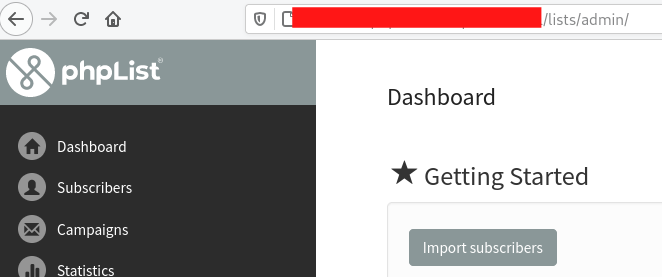](https://www.phplist.org/manual/uploads/images/gallery/2021-05/aChn8UH3YbRDv9w8-Login.png)
I would see my login prompt, marked below in red.
[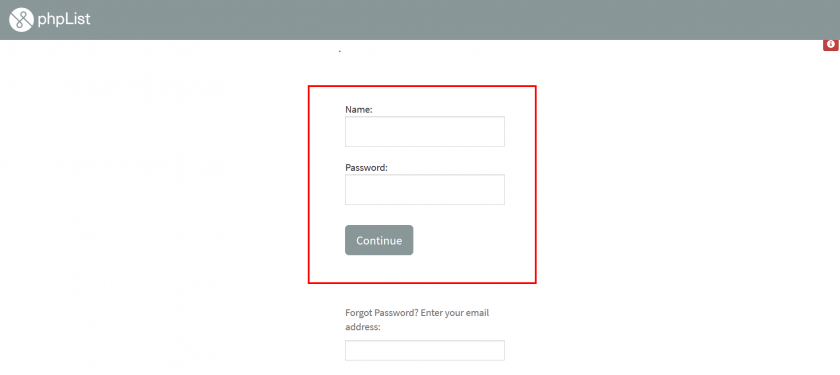](https://www.phplist.org/manual/uploads/images/gallery/2019-05/2Ipkj8DFwlxA77pr-logging_in_fullscreen.png)
#### How to log in to phpList
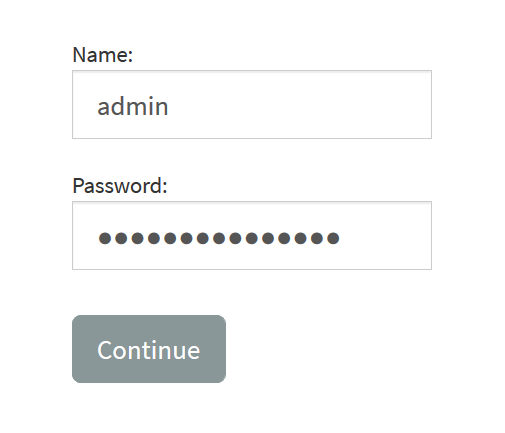
To log in, enter the username in the **Name:** box and password in the **Password:** box, then click **Continue**. The default username is **admin**, however, your system administrator may give you a more personalised login.
[](https://www.phplist.org/manual/uploads/images/gallery/2019-05/PuytdUGnDUFcU9na-enter_username_and_password.png)
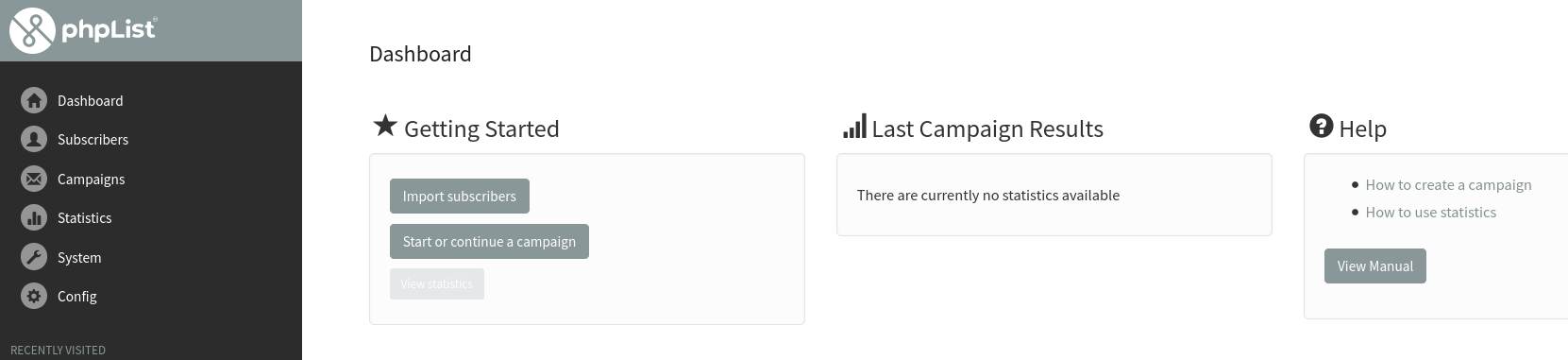
When you have successfully entered your username and password, you will see the page you were trying to access. In this case, the **Dashboard**.
[](https://www.phplist.org/manual/uploads/images/gallery/2021-05/Z7B76yfN9r9zDNAO-Screenshot-from-2021-05-24-11-44-23.png)
It is a good idea to bookmark your dashboard and use it as the primary way to access your phpList. Depending on your configuration, your dashboard might look a little different, for example there might be more items on your menu bar.
#### How to log out of phpList
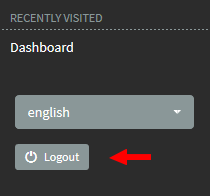
The **Logout** button will always display in the top right of your installation.
*Remember to logout when you are not using phpList: your installation contains the personal data of your subscribers and it is your responsibility to keep it secure.*
[](https://www.phplist.org/manual/uploads/images/gallery/2019-05/QtNWQ5Ui13fnGzkq-phpList_log_out.png)
## Feedback
Discuss this chapter [here](https://discuss.phplist.org/t/logging-in-manual-chapter-feedback-and-discussion/199).
# Adding your first subscribers
This chapter will explain how to make a ***list*** of email recipients, called ***subscribers***, and how to send your email ***campaigns***.
phpList is a powerful tool: there are several ways to add subscribers and demographic information about them (name, location, interests etc).
In this chapter we are going to cover the most basic scenario.
## How to get your first subscribers
The chances are, if you are planning to use phpList, you have some subscribers already. You may have a complex database of contact information, a list you exported from an application, or a simple list of emails on a sheet of paper.
In this example, we will be following the progress of Ethical Pets, who we introduced in the Case Studies chapter. They will be emailing customers of their online shop. The list of emails was obtained by exporting a list of customer emails from their shop software.
## Create a list in phpList
First of all you need to create a subscriber list. This will help you organize your subscribers. In phpList, you *must* have at least one list, but you can have many of them. In this example, we will create just one list called *The Ethical Pets Gazette,* which is the name of the Ethical Pets newsletter.
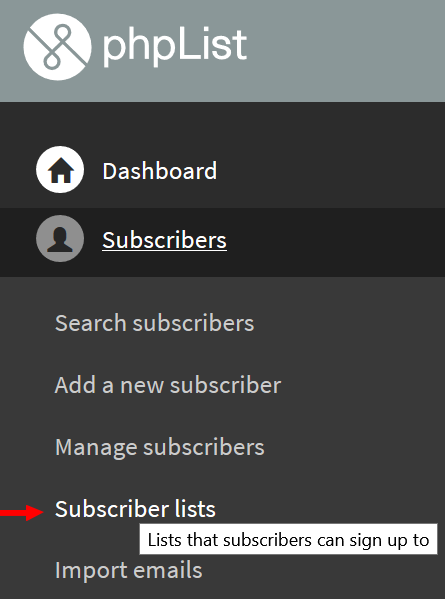
First, navigate to **Subscribers** > **Subscriber lists** in the main menu.
[](https://www.phplist.org/manual/uploads/images/gallery/2019-05/Cs3VddlcrVnjGT65-create_a_new_list_phpList_menu.png)
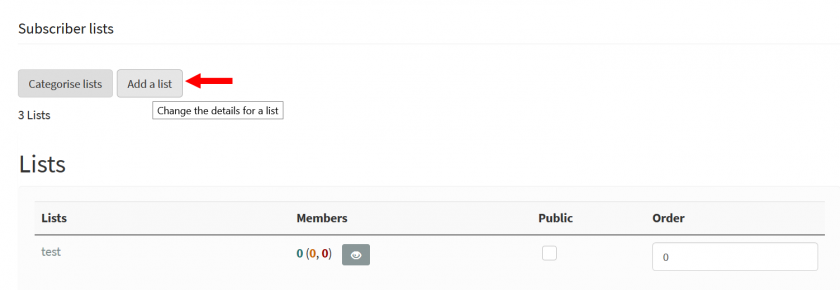
This will take you to a page which shows you all your lists. Currently you can see just one list, a system default list called **test**.
To create a new list click the **Add a list** button.
[](https://www.phplist.org/manual/uploads/images/gallery/2019-05/PAXcI7XH1Okm20ex-create_a_new_list_phpList_subscriber_list_page.png)
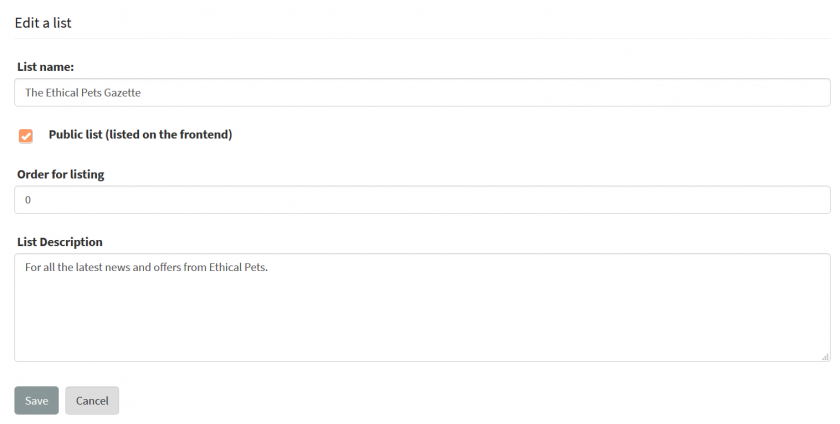
You then need to enter your **List name** and **List description** (which may be displayed publicly).
In this case, you tick the **Public list** box too, because we want people to know about the list.
[](https://www.phplist.org/manual/uploads/images/gallery/2019-05/UE6jYn8zcUXOs4hg-create_a_new_list_name_and_save.png)
## Add Subscribers to phpList by copy and paste
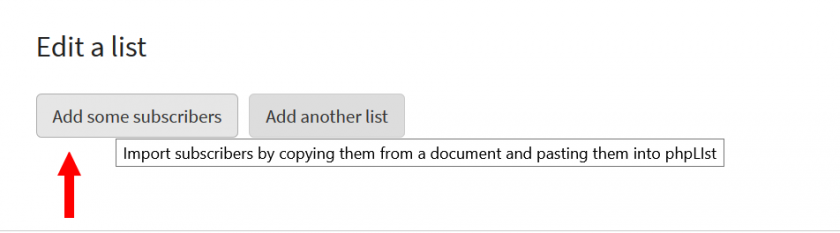
Once this page is complete, click **Save**. You can edit this page again later if you need to. Next we click **Add some subscribers**
[](https://www.phplist.org/manual/uploads/images/gallery/2019-05/oXXOY5aGRwEndAdV-add_subscribers_phpList.png)
This will bring us to the **Import** **Subscribers by Copy and Paste** page.
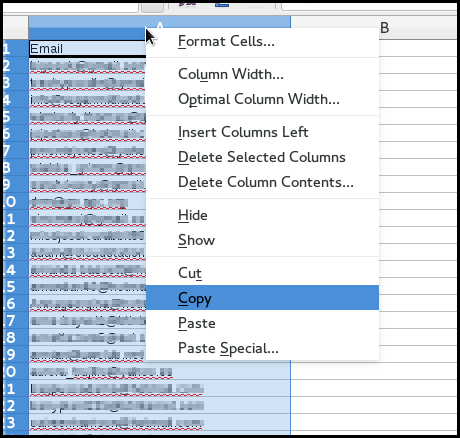
We now need to copy our list of subscribers. In this case, the list has been stored in Libreoffice Calc. Right click the column which contains the emails and click **Copy**.
[](https://www.phplist.org/manual/uploads/images/gallery/2019-05/Qnmcg3jZHT1mlccD-copy_subscribers_phpList.png)
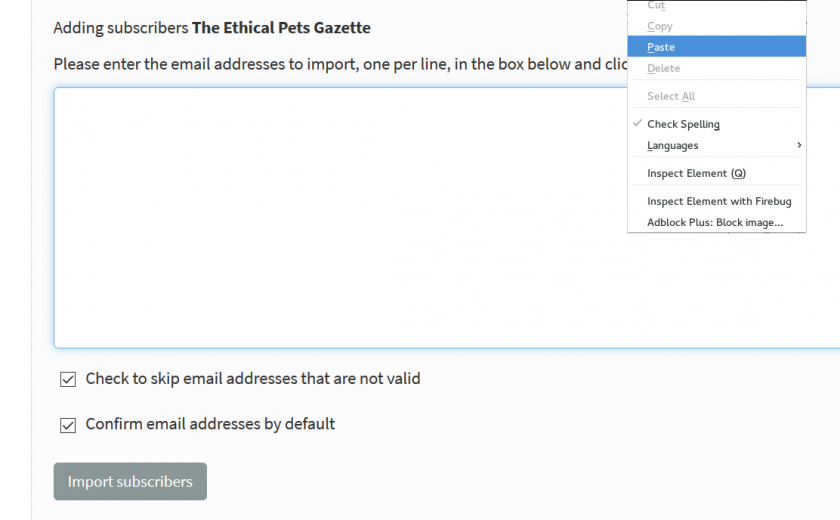
Then, returning to phpList, we right click in the input box and select **Paste**.
[](https://www.phplist.org/manual/uploads/images/gallery/2019-05/XNSaa2WVGAAC4MVp-paste_subscribers_phpList.png)
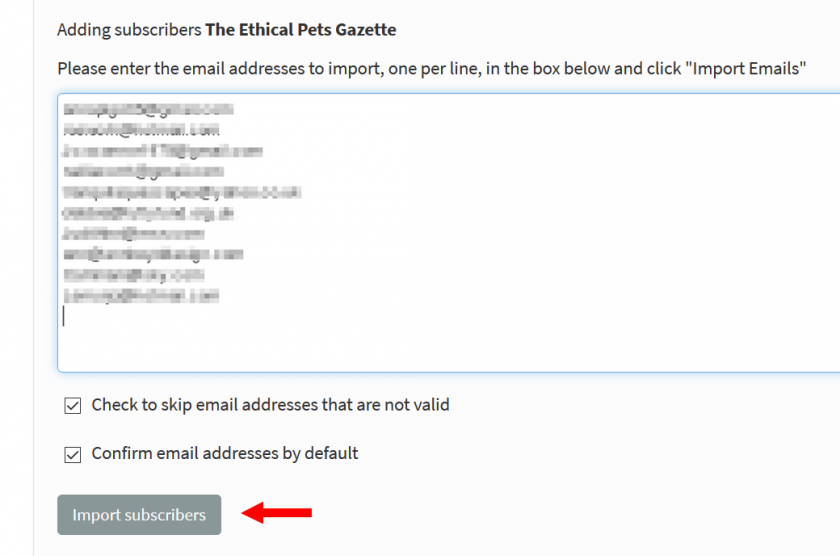
Finally, we click **Import emails**.
[](https://www.phplist.org/manual/uploads/images/gallery/2019-05/A4ZRKq87rTi91lgW-paste_subscribers_phpList_2_1.png)
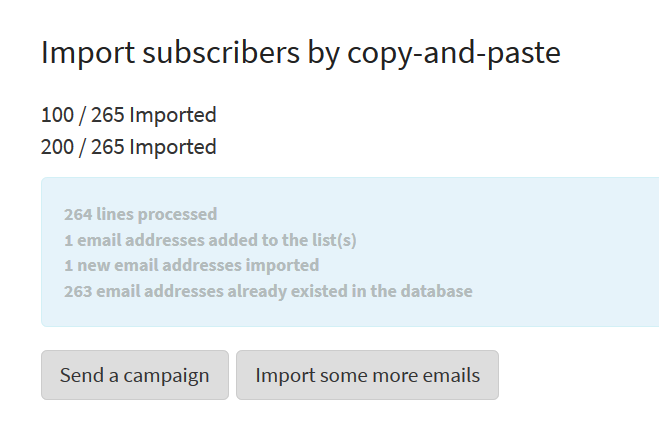
And we are informed of the results of our import.
[](https://www.phplist.org/manual/uploads/images/gallery/2019-05/9WCzOlDusFq69RCH-paste_subscribers_results_phpList.png)
## Check it out!
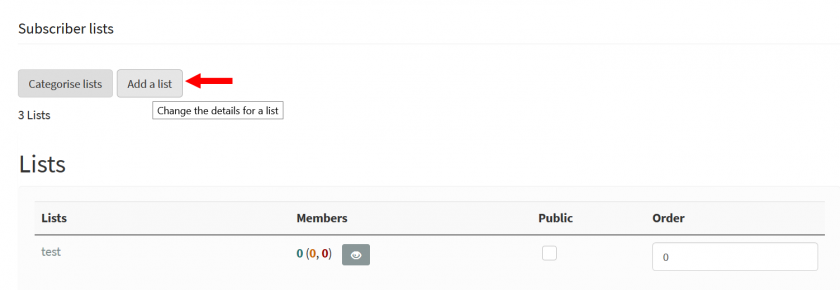
If we return to **Subscribers** > **Subscriber lists** in the main menu, we can see the new list and its subscribers.
[](https://www.phplist.org/manual/uploads/images/gallery/2019-05/MZmye4WaoE6r84yr-create_a_new_list_phpList_subscriber_list_page.png)
## Asking and assuming permission
Before you start to make lists, take some time to consider who you add. A healthy email list is full of people who *want* to receive your mail: they should have given you their email address voluntarily and ideally been asked for permission before you add them to the system.
There are legal requirements in some countries which reflect the importance of informed or assumed permission, for example, anti-spam laws in Canada.
## Long term subscriber list health
The ideal situation is for your list members to join and leave your list as they please. You can set up ***Subscribe pages***, so people can subscribe themselves to your lists, and the (mandatory) ***Unsubscribe*** link in your emails will allow people to leave if they want to. These are discussed in detail in other chapters.
While you may be keen to spread your message as far and wide as possible, always bear in mind that excessive, aggressive and intrusive emails can tarnish your brand. Don't become a spammer!
## Feedback
Discuss this chapter [here](https://discuss.phplist.org/t/adding-your-first-subscribers-manual-chapter-feedback-and-discussion/200).
# Composing your first campaign
In this chapter we will talk through composing and sending a very basic email campaign, which contains a simple piece of news and a single image.
The example follows on from the previous chapter, using Ethical Pets. In this scenario a "short dated" cat food needs to sell quickly. They decide to email all their customers to tell them about the special offer.
## Getting Started
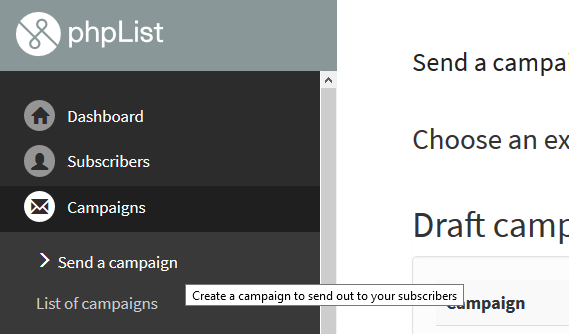
To start a new campaign in phpList, navigate to **Campaigns** > **Send a campaign** from the main menu.
[](https://www.phplist.org/manual/uploads/images/gallery/2019-05/xbF5GTX0vpgnHRbW-phpList_menu_send_a_campaign.png)
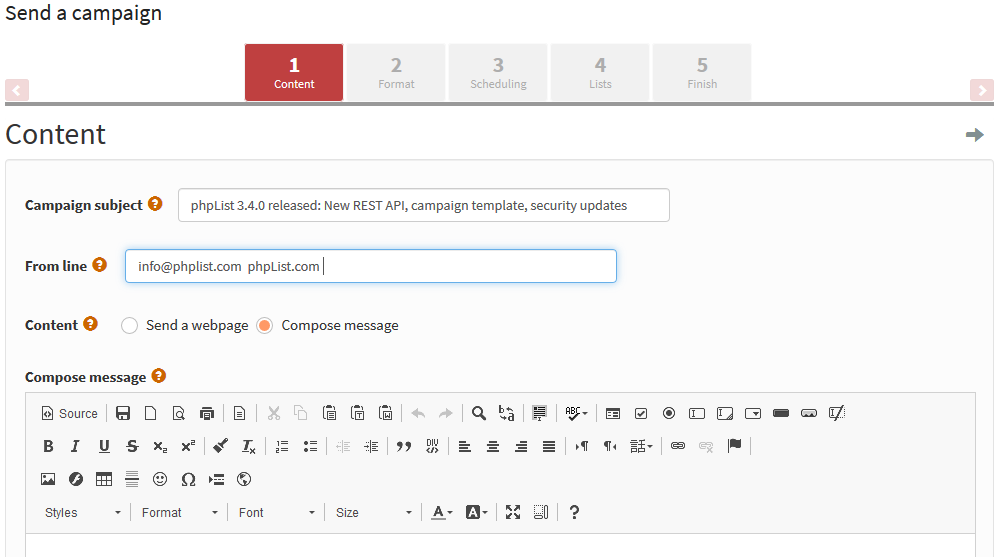
This will open up a five-tab dialogue which will guide you through the build-and-send process. *Please note that various settings and plugins add more tabs.*
Message composition of the campaign is done in the first tab - the **Content** tab.
### The Content Tab
There are three tasks to complete in this tab. You must write your **subject**, edit the **From line** and create your message in the **compose message** window.
[](https://www.phplist.org/manual/uploads/images/gallery/2019-06/IrIhkicNoi00Wnom-composing_phpList_1.png)
## Subject line
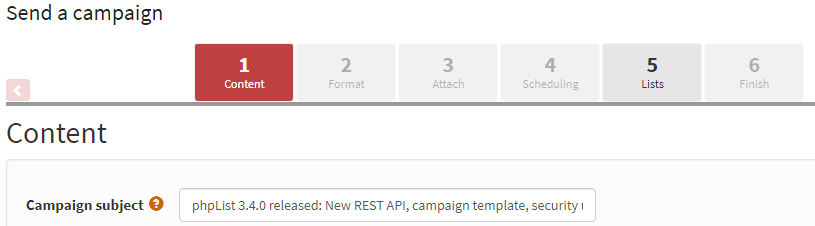
The subject of the email is the first thing that your subscribers will see, so it's very important. Make sure that your subject line:
- Is *honest* about the content of the email
- Avoids spammy sounding words or phases (Free, hot, opportunity, risk free, etc)
- Is less than 50 characters long if possible
- Is eye-catching and appealing
- Is easy to understand, with a clear meaning or appealing hint
- Contains a "call to action" if possible/appropriate (so Read, Buy, Sign, Donate)
[](https://www.phplist.org/manual/uploads/images/gallery/2019-06/xVZNFG0UKteY9Lks-subject_line_phpList_1.png)
Sometimes you will have to compromise, prioritizing some of these points above others.
Here is what Ethical Pets said about this subject line:
"The most urgent goal was to sell the food, so the subject needed to be eye-catching. 50% off is pretty eye-catching, however, we know that it could get flagged as spammy by filters, so the wording was a little risky. We also needed to be super clear that the food was short-dated.
To both things to make this possible within the 50 characters we had to shorten the super clear "Best Before Date: 20th of August" to the more concise" (BB: 20/8/14). This would make sure that the best before date would be visible in the subject line.
We also decided that the tactile and soothing "Puuuur" sound in the little joke at the beginning was worth sacrificing a direct call to action such as "Buy Organic Cat Food, 50% off", especially as using "buy" and "50% off" in the same subject line would make it even more likely that the mail would get flagged as spam.".
## The From Line
The second step is to edit the **From line** - your subscribers will also see this information. In phpList this information is usually auto-filled from settings in your system configuration, and is formatted Name \[space\] email. In this case the automatic information was originally: admin info@ethical-pets.co.uk.
Ethical Pets changed it to "Admin" to "The Ethical Pets Humans". They said
"Admin seemed a little unfriendly for the purposes of this email, so we changed the name to something more fun, and it really fitted into our campaign. However, the email remains the same. We usually just write Ethical Pets though. We always use our real email, because sometimes we get replies from customers too, which is great."
[](https://www.phplist.org/manual/uploads/images/gallery/2019-06/3Yl7kOw8tBlGGwwh-from_line_phplist.png)
Ethical Pets allowed replies to their email, however, you may wish to use a "do-not-reply@example.com" style email: this depends on the number of replies you tend to get, what they are about, and the purpose of the email.
For detailed information about formatting the **From line** click in the **i** information button next to it.
## The Content
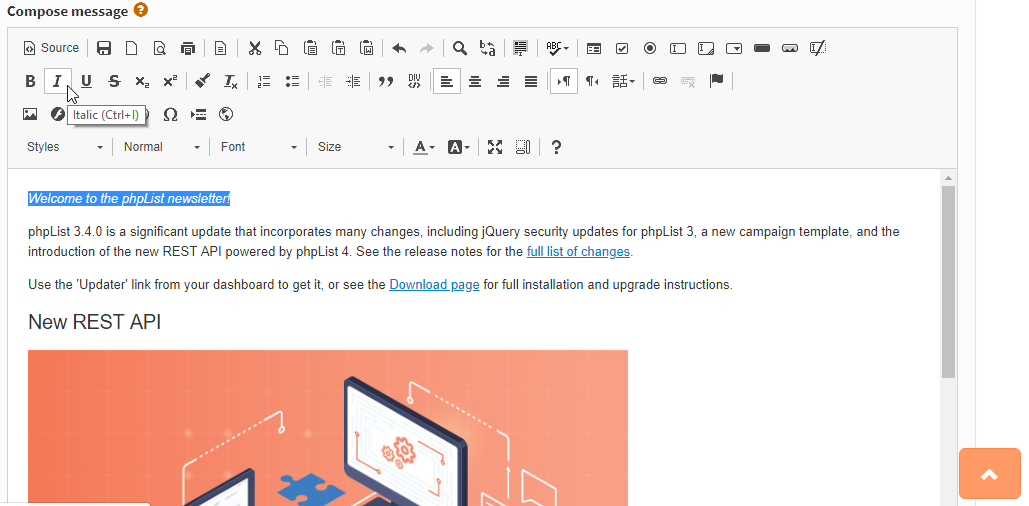
The next step is to compose your message. In this example, we will compose the message directly in the phpList **Content** window.
Assuming you have your What-You-See-Is-What-You-Get (WYSIYWG) composer plugin installed and enabled (usually FCKEditor) you will be able to edit in a way that is similar to a Word-Processor or a blog site. In the example below, we have composed our text, and are using the **Italic** button to draw attention to some text.
[](https://www.phplist.org/manual/uploads/images/gallery/2019-06/ecsl0sfHctoIDVE6-phpList_compose_message.png)
## Adding an Image
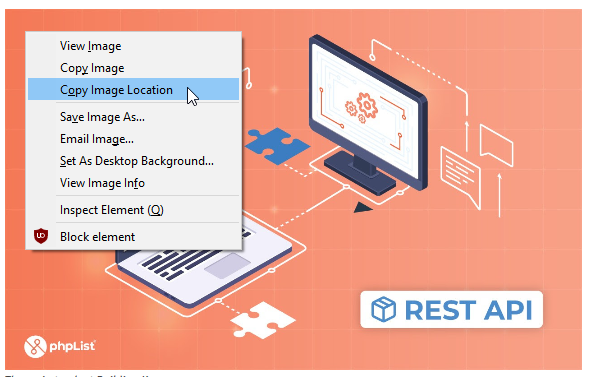
The simplest way to add an image to your campaign is to embed one from your website, or from an external source such as Wikimedia Commons. To do this you need to find the URL of the image from your site.
Depending on your browser, this may be done by right-clicking on the image and clicking **Copy Image Location** or similar (in Internet Explorer it may be under right click **Properties**).
[](https://www.phplist.org/manual/uploads/images/gallery/2019-06/8nzYpLd4ueEl9F8s-add_an_image_phpList.png)
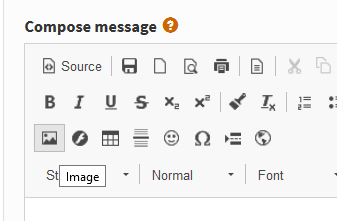
Then, in your phpList window click the **Insert/Edit** Image button in the WYSIWYG toolbar.
[](https://www.phplist.org/manual/uploads/images/gallery/2019-05/KnI11PlWnJeq5ZJy-insert_or_add_image_phpList.png)
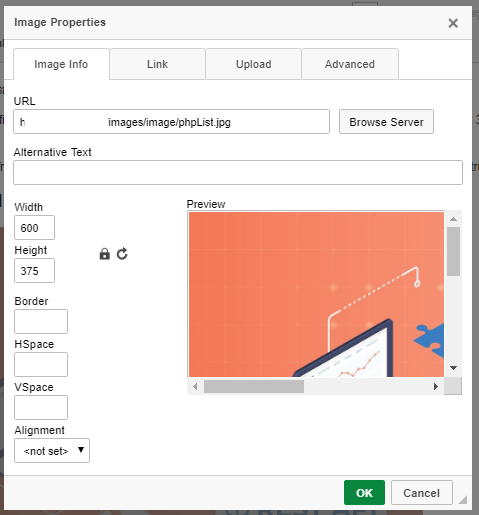
You will then see the **Image Properties** dialogue.
Paste the image url into the **URL** box (highlighted in red below) by using control-v or right click **Paste**. You should see the image in the **Preview** box below. If there is an error, the most likely culprit is the URL.
[](https://www.phplist.org/manual/uploads/images/gallery/2019-06/J6PmmRsuTO4eyPFw-phpList_image_properties_dialouge.png)
### Image formatting and metadata
You should include an **Alternative Text** for the image. This will show in place of the image when the image is suppressed by the recipients email software, which is quite common. A good alternative text helps encourage your reader to decide to view the images in the email: this in turn makes your **Campaign Statistics** more accurate.
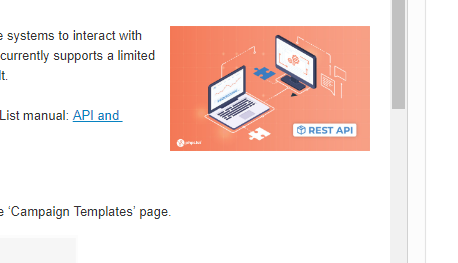
You may also wish to change the display size of the image: Ethical Pets chose a **Width** of 200, and the height was adjusted automatically because the **Lock Ratio** padlock is locked). You can also chose to **Align** the image, in this case they chose **Right**, to make it display on the right hand side of the email. They also gave it an **HSpace** and **VSpace** of 5, which added 5px (just a little bit) of space between the email text and the image.
Once you are done, click **OK.**
[](https://www.phplist.org/manual/uploads/images/gallery/2019-06/WzSOm2MUqQ7QynU7-insert_or_add_image_phpList_two.png)
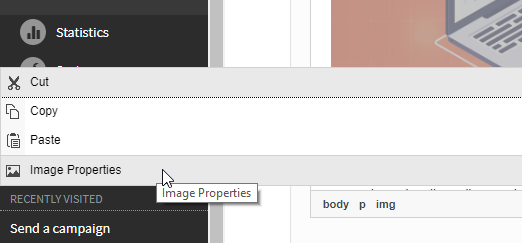
You will now see the image displayed in your email. If you wish to edit it again, right click the image and click **Image Properties**.
## Creating a Text Link
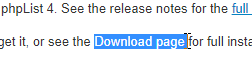
Now a link to the store was needed, to show subscribers where to buy the food. To create a link, first highlight (with your cursor) the bit of text that you want to become a link:
[](https://www.phplist.org/manual/uploads/images/gallery/2019-06/mmAXUot0Z262lKgA-edit_an_image.png)
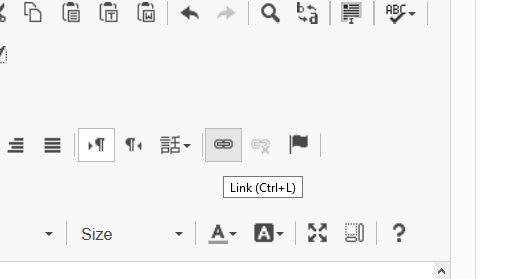
Next you click the **Inset/Edit Link** button
[](https://www.phplist.org/manual/uploads/images/gallery/2019-05/aLduz2sqtUWK8fRO-phpList_insert-edit_link_button.png)
Finally, you paste the URL of the page you wish to link to into the URL box, and press okay.
[](https://www.phplist.org/manual/uploads/images/gallery/2019-06/fHtkpFdaC8LqIoX3-phpList_add_a_test_link_select_text.png)
When your subscribers receive your mail they will see the link, as below, and will be able to click the text to go directly to your website. In your campaign statistics you will see how many clicks you had.
Note that links which use the URL which they point to as the link anchor text will not be tracked by phpList. This is because link-tracking requires automatic link rewriting, but doing so would result in a link which would trigger spam filtering systems. Therefore links like this will not be tracked on statistics pages [http://my-website.com](http://my-website.com).
Once you have finished composing your message, you are ready to move onto sending your campaign.
## Test your campaign
It is easy to skip this step because sending the mail is so exciting, but it is *really* important to check... and after all, it only takes a few minutes.
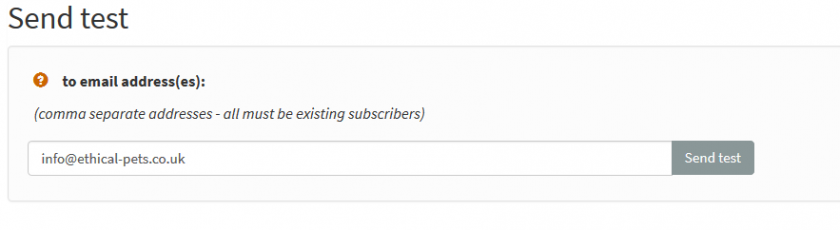
To send a test you need to enter your email into the **Send text** box at the bottom of every screen in the campaign workflow. You can send multiple test emails by separating the addresses with a comma - it is a good idea to test in both Webmail (like googlemail) and a client (like Thunderbird).
All the emails you send a test to must already be on one of your lists: if they are not, you will be prompted to add them.
Once you have entered the email, click **Send test**.
[](https://www.phplist.org/manual/uploads/images/gallery/2019-05/lu2HGfEVbNy31lIz-send_test_phpList.PNG)
Check that the
- formatting is displaying as expected
- your links go to the right places
- you have not made any spelling errors.
If you find a mistake, edit your campaign and test again. Once happy with your text part of your Campaign, click on the **Next** button**.**
**[](https://www.phplist.org/manual/uploads/images/gallery/2021-05/ekGhbOv9IgztEn6s-next.png)**
## Feedback
Discuss this chapter [here](https://discuss.phplist.org/t/composing-your-first-campaign-manual-chapter-feedback-and-discussion/201).
# Sending your first campaign
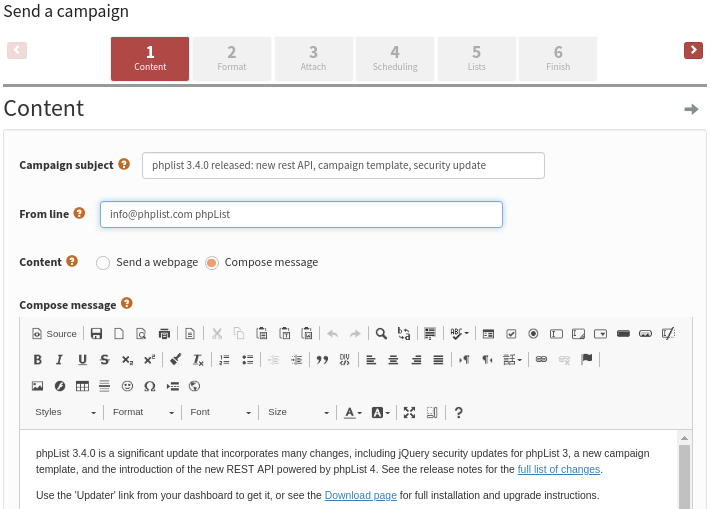
Once you have composed your HTML message, you are ready to move though the tabs (highlighted in red below) which will guide you through the process of sending your first mail.
[](https://www.phplist.org/manual/uploads/images/gallery/2019-06/dVmDAfV7C3QcwTal-Screenshot-from-2019-06-11-14-33-40.png)
## Format
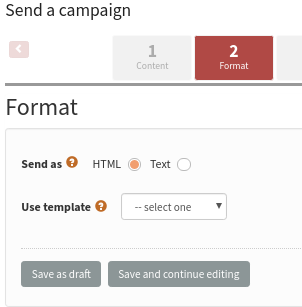
If you have a template set up already then the **Format** gives you the opportunity to choose it by selecting it from the **Use template** drop down. Your HTML message will then be wrapped in the template during the sending phase.
You can send a test message using the **Send test** box at the bottom of the page, to see what your email will look like.
Click **next** when you have selected your template. If you do not yet have a template, leave the **-- select one** in the dropdown and click **next**.
[](https://www.phplist.org/manual/uploads/images/gallery/2019-06/NYboAoFum6jjAtQn-Screenshot-from-2019-06-11-14-34-32.png)
## Schedule your campaign
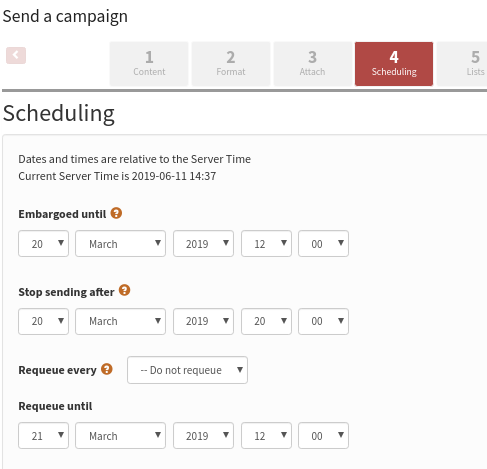
After your tests you need to schedule your campaign should now be on tab **3**: **Scheduling**. *Remember, some plugins and settings add extra tabs, so the tab number may change (but the name should stay the same).*
In this case we want to send the mail straight away, so the **Embargoed until** time needs to be left as the default, which is slightly in the past.
Additionally, because this campaign is not time sensitive, for example there is no deadline for the special offer, we can leave the **Stop sending after** time and date as the default too (far in the future).
When you have finished entering the scheduling information, click **next**.
[](https://www.phplist.org/manual/uploads/images/gallery/2019-06/64bpAoaQPmz34Wqx-Screenshot-from-2019-06-11-14-37-41.png)
## Select your lists
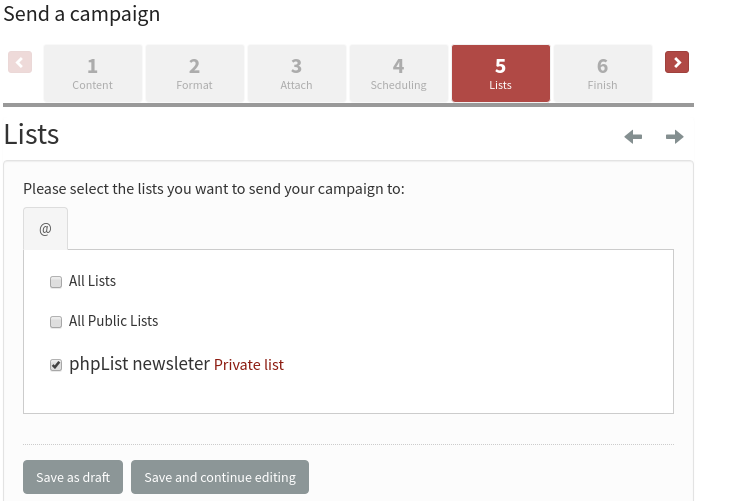
One of the final stages in the campaign workflow is to choose the list(s). In this case there is only one list to choose from, which is **T**. The options for **All Lists** and **All Active Lists** are also useful; the former sends to every list, public or private, and the latter sends to all public lists.
*Remember that phpList will only send each subscriber one copy of each campaign, even if they are on several lists: you don't need to worry about sending people duplicate copies.*
[](https://www.phplist.org/manual/uploads/images/gallery/2019-06/Hgzrl3qVNNDEjPwU-Screenshot-from-2019-06-11-15-39-59.png)
Once you have chosen your lists click **Next**
## Sending your campaign
*Sending in phpList is a powerful tool with many possible configurations. It is possible that your system administrator will give you different instructions for sending or will send on your behalf*.
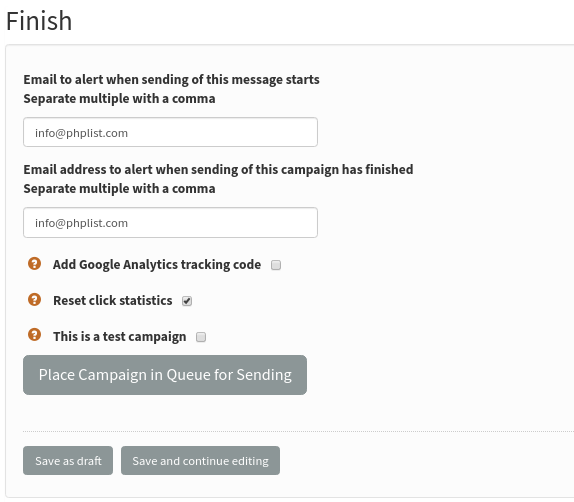
The final tab in the sequence contains a few useful details and the button which triggers sending.
First you can choose some emails that you wish to alert when your campaign starts sending and finishes sending. This can help you stay organized.
You can also choose to **Reset click statistics** - this means that any clicks or opens recorded when you were testing your campaign will be forgotten, so when you get new clicks and opens you know they are from your subscribers.
[](https://www.phplist.org/manual/uploads/images/gallery/2019-06/S6h1VMbklTRG2kLP-Screenshot-from-2019-06-11-15-45-15.png)
When you are ready to send, click **send campaign**.
## Process your queue
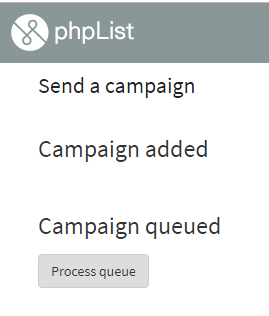
Clicking **send** will add your campaign to your **queue**. There may be only one campaign in the queue, or there may be several. Click **process queue to** send the campaign now.
[](https://www.phplist.org/manual/uploads/images/gallery/2019-05/1aTCdzk8aZMxaLAh-process_queue.PNG)
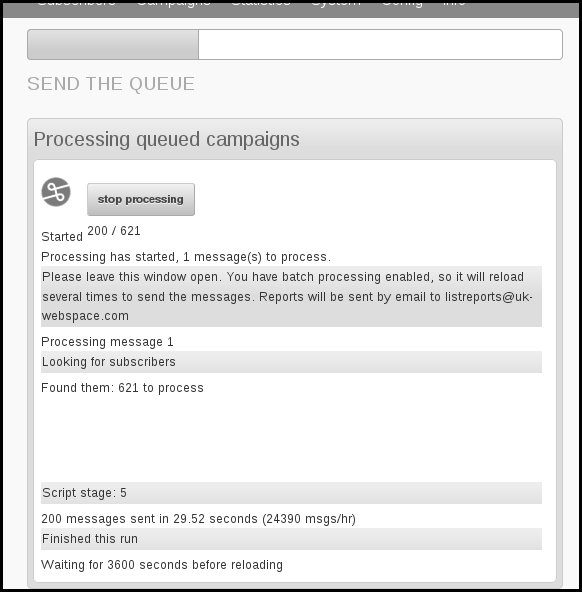
You will see the queue start to process, with a spinning phpList logo.
Next you will see something like the image below, depending on how your system is configured.
*Do not close your browser window until the process is complete, unless your system administrator tells you otherwise.*
**[](https://www.phplist.org/manual/uploads/images/gallery/2020-05/Q5CLKm39mdzmPzjt-phpList_processing_queue_2.png)**
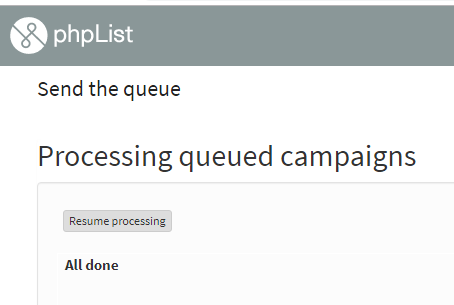
All done?
When your queue has finished processing you should see the following screen:
[](https://www.phplist.org/manual/uploads/images/gallery/2019-05/hAsy1g5VbAcK564j-phpList_processing_queue.PNG)
Depending on your configuration and list size, you may need to refresh the screen and click resume processing a few times until the process is complete.
## Feedback
Discuss this chapter [here](https://discuss.phplist.org/t/sending-your-first-campaign-manual-chapter-feedback-and-discussion/202).
# Basic Campaign Statistics
Now that you have sent your first campaign, it's time to take a look at your campaign statistics. In this chapter we will look at **Sent**, **Rate Bounces, Forwards** and **Views**, the four most fundamental campaign statistics.
## The statistics overview page
First, go to **Statistics** > **Statistics overview**.
[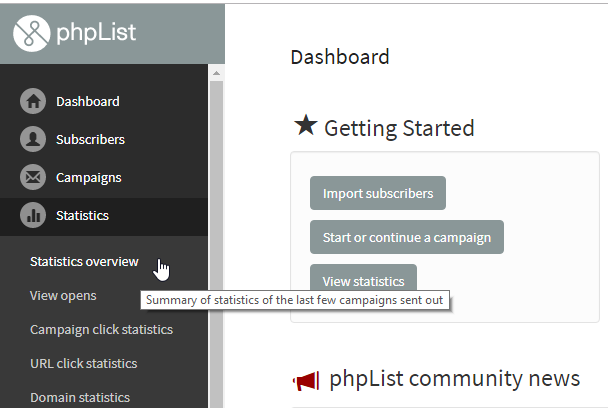](https://www.phplist.org/manual/uploads/images/gallery/2019-06/iNfLqzKBR3hnZBLL-how_to_view_statistics_in_phplist.png)
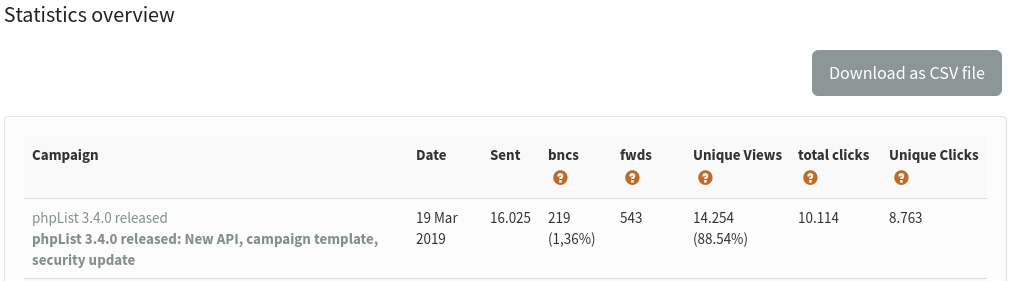
This will show you a summary of all the campaigns you sent in the past year (in this case, we have just sent one).
[](https://www.phplist.org/manual/uploads/images/gallery/2019-06/VAxA12BuVnqyBkDX-phpList_statistics_overview.png)
## Sent
In this example, we sent our campaign to **16.025** subscribers and this is reflected in the **Sent** column. It is useful to see how many subscribers you have for each campaign, so you can see your list grow over the year.
## Bounces
The second column **BNCS** shows the number of emails that "bounced." A bounced email is one that cannot reach its intended recipient. This could be caused by any number of things, for example:
- The email is incorrect, does not exist or has an error such an expired domain
- The Mailbox is full (this may be temporarily or not)
- A badly configured auto-responder (automated "I'm on Holiday till" of "I got your message and will reply soon" type mails)
The exact definition of a bounce depends on your phpList configuration, and it can take several days for a bounce to be registered on the system. An email which continues to bounce will eventually be either unconfirmed or added to a do-not-send list.
A high bounce rate may be a sign of poor list quality.
In this campaign, there were **219** bounces.
## Forwards
The third column **fwds** show the number of people who have forwarded the mail through the phpList **ForwardToFriend** system. This is dealt with in Advanced Statistics.
## Unique Views
This is the most exciting of your statistics, but also the most misleading.
In this case, our email was "viewed" by **14,254** of the 16,025 recipients, which gives us an open **RATE** of **88.54%.** However, it is important to understand the limitations of this statistic, so you don't become frustrated or disillusioned by what may seem like low readership levels.
The **Unique views** statistic:
- Tells us how many people were *recorded* opening their email (and presumably read the contents)
- Tells us the *minimum* number of people who opened the email
- And gives us a rate that *reflects* the number of people opening an email compared to other emails we send.
- Does not tell us exactly how many people opened the mail, or what they did when they opened it.
## Total clicks
If you have included links on your campaign, phpList can tell you how many times your subscribers have clicked on them. This number indicates the total amount of times a link has been clicked, whether it is from the same subscriber or not. Also, this is the total amount of times all your links were clicked, not each one separately. This will help you evaluate further your campaign’s performance.
## Unique clicks
The “Unique clicks” value is always less than the “Total clicks” value because it represents the number of times each link on your campaign was clicked for the very first time. For example, if you have included two links on your campaign and a subscriber has clicked 3 times on each link, this will show up as “2” and not “6”.
### Accuracy of email open tracking
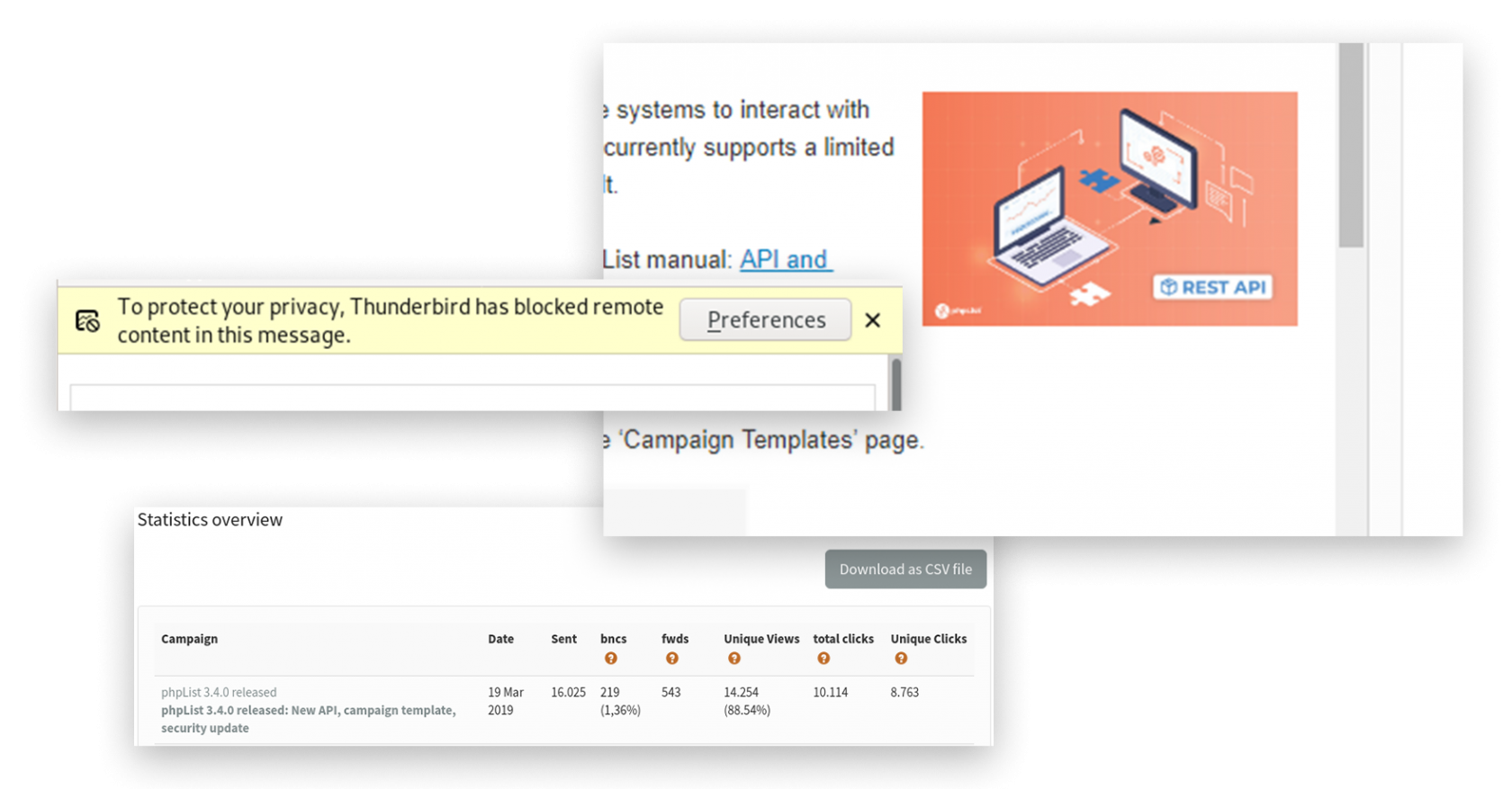
The major cause of inaccuracy when recording views is *image blocking*. If images/remote content are blocked by a subscriber's email software, then the action of your subscriber opening the email *cannot* be reported back to phpList (or to any system). Image blocking is therefore quite commonly used as a privacy feature by email and webmail clients.
[](https://www.phplist.org/manual/uploads/images/gallery/2019-06/BqOTWo3wKaJX6AZA-show_remote_content.png)
Only when your subscriber clicks, for example **Show Remote Content**, is the view recorded in your campaign statistics.
[](https://www.phplist.org/manual/uploads/images/gallery/2019-06/uYcvatyxXnIK06fr-open_statistics_1.png)
### Still a useful statistic
This inaccuracy is the same for everyone, no matter which software they are using to send their campaign; any "open rate" averages you see discussed on-line or in books are subject to the same rules.
It is difficult to estimate how much higher your real readership is, additionally the inaccuracy rate will vary from campaign to campaign. If we bear this in mind, we can still make some comparisons, for example, "have I received more views over several campaigns" and "how do I compare to the industry average"
### What's the difference?
The difference between the real open rate and the statistic may be very significant: in this case, a quick study found that only 1 in 3 of the customers who bought the cat food in the hours after the email was sent showed up in the open results, and the cat food offer was only advertised by email. In this case, the *real* open rate could be more like 80%.
### Rate
To compare performance across several campaigns you can use the **RATE** statistic, which is the number of opens expressed as a percentage of the total sent. In this first campaign, we had an open rate of 25%.
Over time, as our list keeps growing, we can still compare back to see if we are keeping our subscribers interested. The rate statistic can also be used to:
- a/b test email titles and sending times
- to compare readership between lists
- and even to benchmark performance against industry averages.
## Summary
This **Statistics Overview** page is useful for comparing and contrasting the successful campaigns. This can help you to improve your future campaigns. However, the statistics should not be taken too literally.
## Feedback
You can discuss this chapter [here](https://discuss.phplist.org/t/basic-campaign-statistics-manual-chapter-feedback-and-discussion/203).
# Growing and using complex lists
# New Page
# Understanding Subscribers and Lists
It is important to understand the nature of Subscribers and Lists in phpList.
## What is a subscriber?
A subscriber is *usually* someone who is a member of one or more of your lists. They may have subscribed themselves though a subscribe page, or you may have imported their details from another source.
It is important to understand, however, that ***a subscriber may not be on any list**.* This happens when you:
- Import subscribers but do not assign them list membership
- Delete all the lists a subscriber was a member of (without deleting the subscriber)
## What is a subscriber profile
All the data about a subscriber is stored in their subscriber profile.
This profile can be found by searching for their email in **Subscribers** > **Search Subscribers**. To see all subscribers search for **@**.
Here are some examples of the kind of data held in a subscriber profile:
On the **Details** page you can see information like ID, email address, confirmed or not, blacklisted or not, number of bounces and html or text emails. Some of this information is editable.
[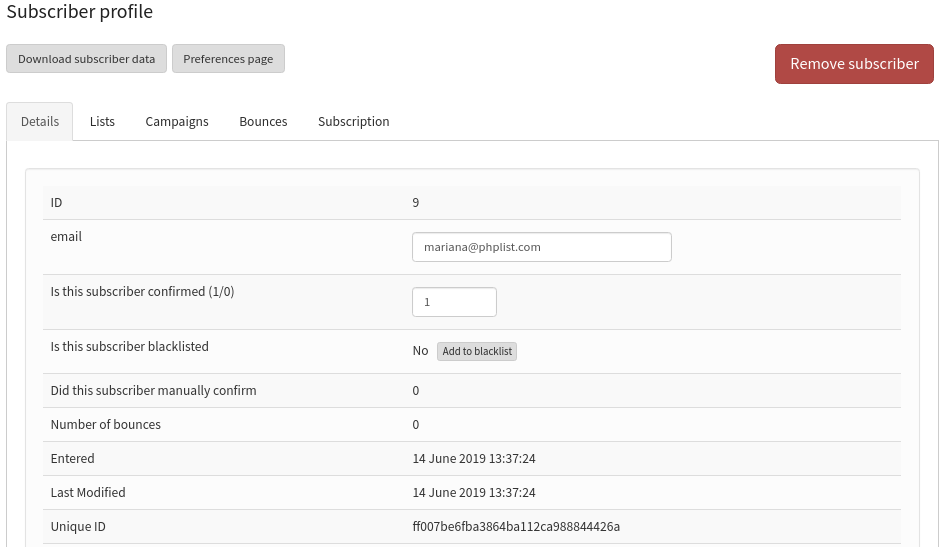](https://www.phplist.org/manual/uploads/images/gallery/2019-06/Ui19DVpyk45yjtAv-Screenshot-from-2019-06-14-13-38-48.png)
By clicking on the **Lists** tab you can see the lists which the subscriber is a member of, and you can edit this too.
[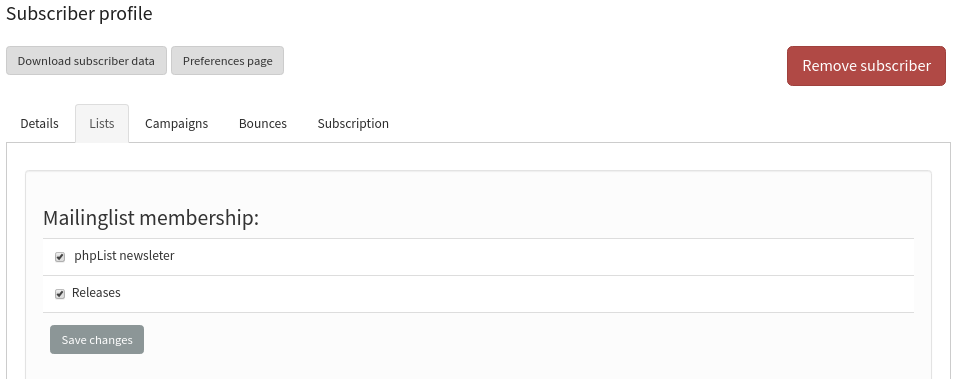](https://www.phplist.org/manual/uploads/images/gallery/2019-06/G02lVni0SSCDwnAA-Screenshot-from-2019-06-14-13-43-18.png)
By clicking on the **History** button you can see all the campaigns that have been sent to the subscriber.
[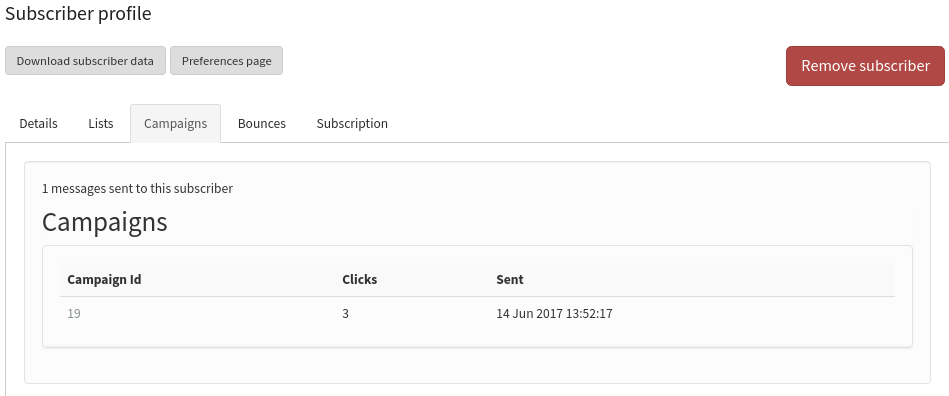](https://www.phplist.org/manual/uploads/images/gallery/2019-06/lGCSz2HPHHmVIyE5-Screenshot-from-2019-06-14-13-53-52.png)
As you can see, the subscriber profile is the central place where all information about a subscriber is stored. This is very different to list membership.
## What is a list?
A list is a way of grouping together subscribers, so you can send them campaigns. However, the list itself does not contain the subscriber details. As you have seen, all that information is in the subscriber profile.
You can view your lists by going to **Subscribers** > **Subscriber lists** from the main menu. Next to each list is the number of **MEMBERS** that list has.
[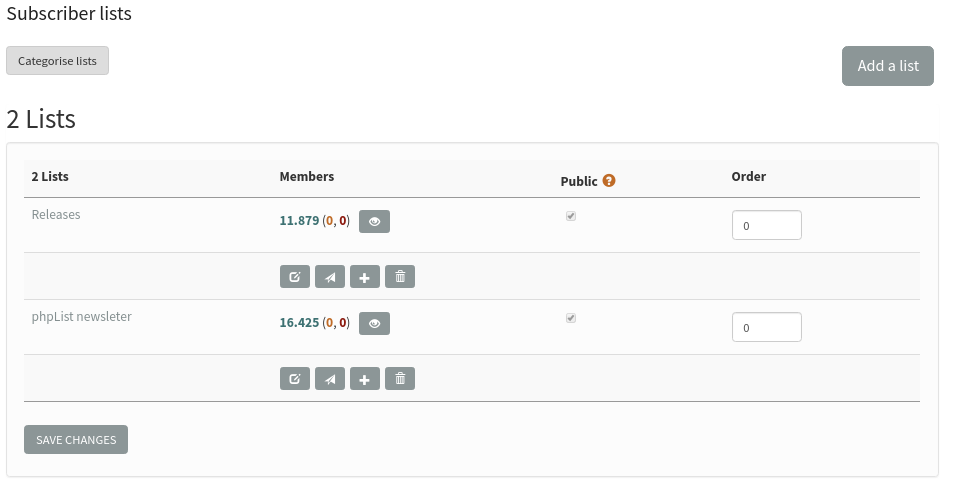](https://www.phplist.org/manual/uploads/images/gallery/2019-06/d2VaNO8cF2ekJYTo-Screenshot-from-2019-06-14-14-03-24.png)
However, if I delete the list, I have not deleted the subscribers.
Some examples of how this works in practice.
A useful tool to help understand lists and subscribers is the **All subscribers** feature, which was added in version 3.0.8. When this feature is enabled (in the config.php file) you can see the total number of subscribers shown alongside your lists.
Let's do some experiments with adding and deleting lists to see what happens to the **All Subscribers** total.
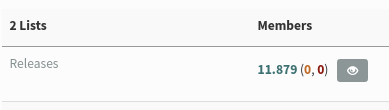
At the start of our test, the number stands at **11.879**. That means we have 11.879 subscriber profiles in our system all together.
[](https://www.phplist.org/manual/uploads/images/gallery/2019-06/2Wn3agqZhKu2BeXg-Screenshot-from-2019-06-18-10-25-31.png)
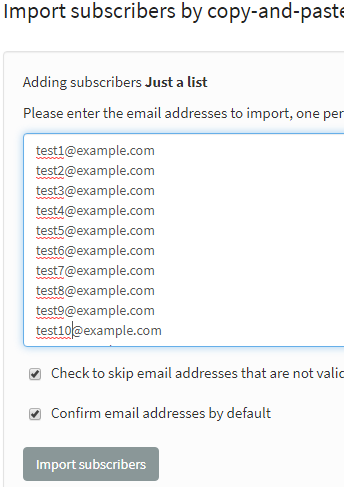
If we create a new list, and paste in the emails of some of our subscribers, we can add these subscribers to the list and send Campaigns to just a sub-section of our total number of subscribers.
[](https://www.phplist.org/manual/uploads/images/gallery/2019-06/RWkrKg2Xy5yCx8bH-list_3.PNG)
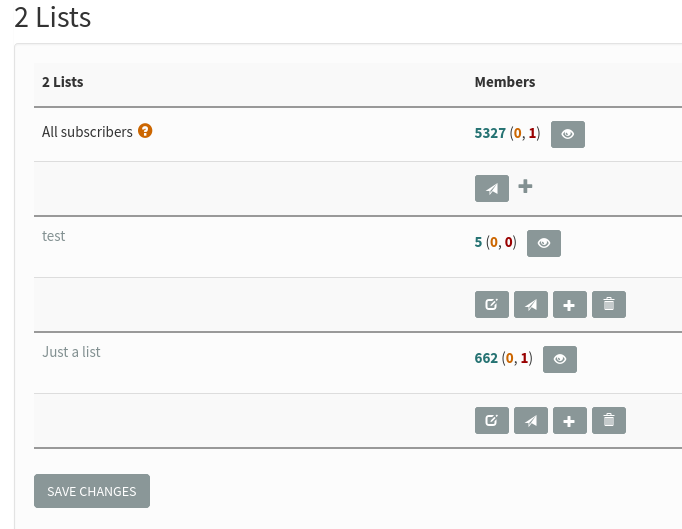
The outcome is a new list (in this example with **662** members). However, you can see that the **All subscribers** total stays at **11.879**. This is because we have not added any new subscribers, we have just created a list out of current subscribers.
[](https://www.phplist.org/manual/uploads/images/gallery/2020-05/PImOI00jqm6CA1tF-Screenshot-from-2020-05-14-14-43-21.png)
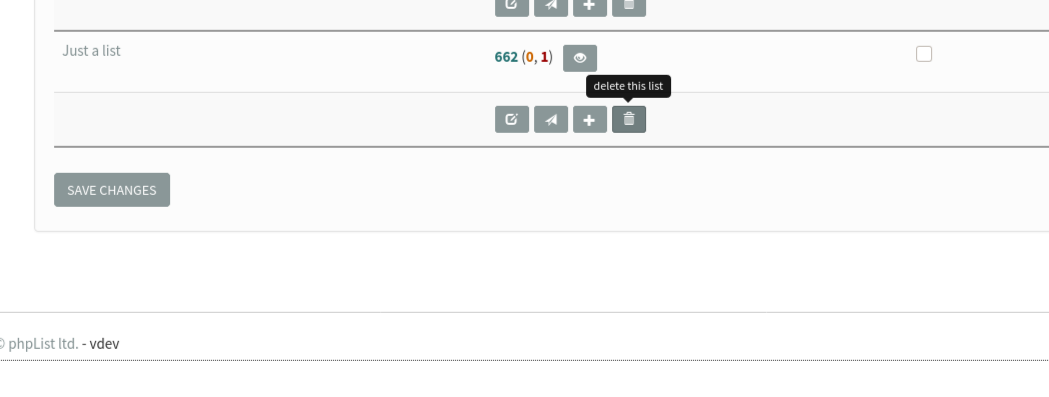
Now, if we delete the new list with its **662** members,
[](https://www.phplist.org/manual/uploads/images/gallery/2020-05/XNOLJIZft496c3YQ-IMG_20200514_151024.png)
the **All subscribers** count does not go down either, it is still **5327.**
[](https://www.phplist.org/manual/uploads/images/gallery/2020-05/boXUCuwy9qoIUuAu-Screenshot-from-2020-05-14-14-49-07.png)
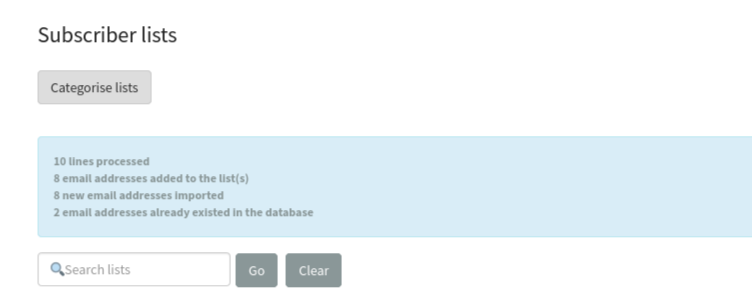
We can repeat this test, but this time add a mixture of current subscribers (**2**) and new subscribers whose data we have never introduced to phpList before (**8**). You can see phpList processes all the lines, imports **8** new emails to the system and marks **2** as duplicates.
[](https://www.phplist.org/manual/uploads/images/gallery/2020-05/t6NBYeAUDLZjbPr1-IMG_20200514_151118.png)
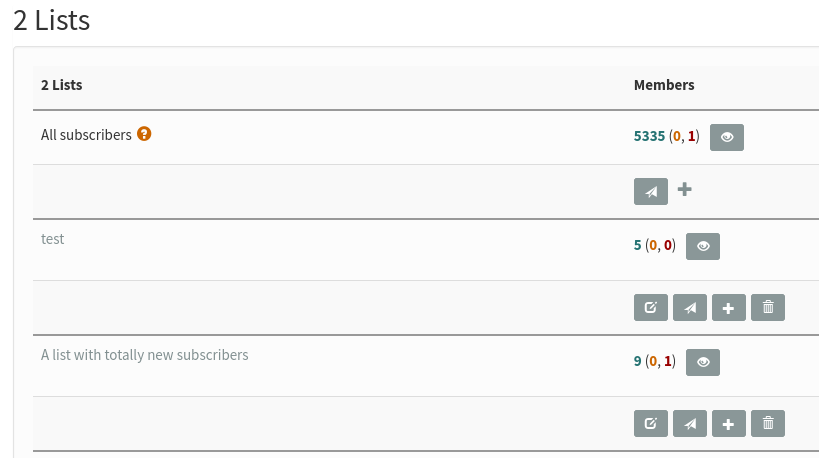
*All of these emails are added to our new list,* and additionally, our **All subscribers** count goes up by 8 subscribers to **5335.**
[](https://www.phplist.org/manual/uploads/images/gallery/2020-05/bW7zIhV7uHwkgcVV-Screenshot-from-2020-05-14-15-02-01.png)
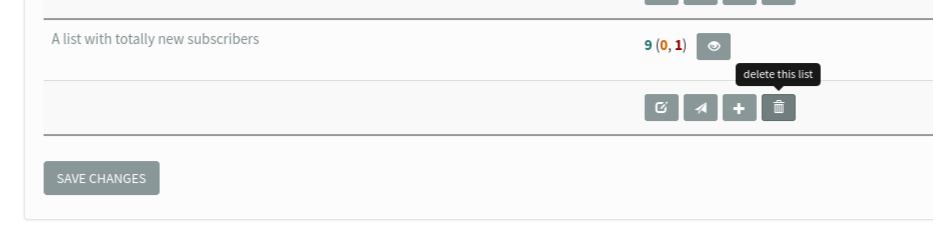
We have added 8 new subscribers to the system, and phpList has created 8 new subscriber profiles for us. If we delete our new list again...
[](https://www.phplist.org/manual/uploads/images/gallery/2020-05/JP5MKCl7UZEXOPwp-IMG_20200514_151212.png)
The List is deleted, however the subscriber count stays at **5335.** We have only deleted a list, we have not deleted any subscribers.
[](https://www.phplist.org/manual/uploads/images/gallery/2020-05/boXUCuwy9qoIUuAu-Screenshot-from-2020-05-14-14-49-07.png)
## How to delete subscribers
*You should not delete subscribers in most circumstances.* If a subscriber wants to stop receiving emails from you they can unsubscribe. Unsubscription means that:
- Their email will be kept on the system and added to a do-not-send list (blacklist)
- Your phpList system will *never* send a campaign to them again, unless they re-subscribe
- If you import their email again (by accident) you will not be able to send them campaigns inadvertently
- You have a record of when/why they unsubscribed which you can use to improve your campaigns in the future
If you are in a situation where you want to delete some subscribers rather than simply blacklist them, for example, to bring the size of your lists down, first try the options on the **Reconcile** page, for example to remove those with x number of bounces, those with an invalid email and those who are not-confirmed.
The final resort is to get some emails by exporting them (from **Export subscribers**) and then pasting whichever emails you wish to delete into the bulk delete function. This can be found though the **Manage Subscriber** page.
## Feedback
You can discuss this chapter [here](https://discuss.phplist.org/t/understanding-subscribers-and-lists-manual-chapter-feedback-and-discussion/204).
# Creating your lists
In phpList you can organize your subscribers into **lists**. You must have at least one list. You may find that having multiple lists, that is, **Segmenting** your list, improves subscriber satisfaction and opens/clicks.
There are several factors to be aware of:
- You must select at least one list when sending
- You can select several lists or use the **all lists** function when sending
- Subscribers will never get the same campaign twice, even if they are on several of the lists you select
- Lists can be categorized to help you keep organized
- Lists are not the same as **Attributes**
Now that you know the basics, it's time to get started.
## Go to your lists page
Go to **Subscribers** > **Subscriber lists** from the main menu.
[](https://www.phplist.org/manual/uploads/images/gallery/2019-06/OMC2boGatZdechNu-creating_lists_in_phpList_1.png)
This will take you to your **SUBSCRIBER LISTS** page, where all of your lists will be displayed.
There are two lists by default, **test** and **newsletter**.
You can view lists by category, or view lists which have no category by selecting **Uncategorized** from the dropdown menu.
### [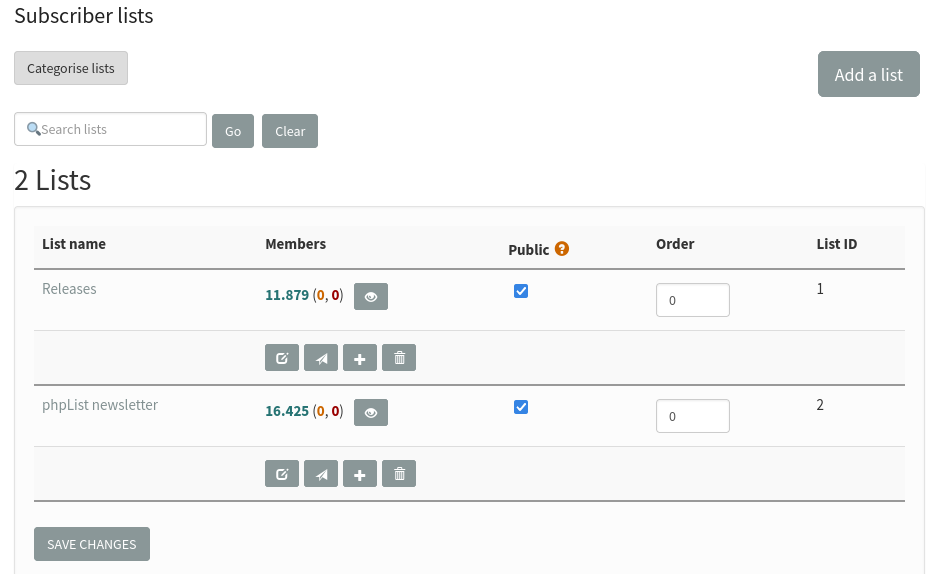](https://www.phplist.org/manual/uploads/images/gallery/2021-11/3hLAMXJrbT4wHBsO-screenshot-from-2021-11-16-11-34-04.png)Add a list
Click the **Add a list** button at the top of the page.
[](https://www.phplist.org/manual/uploads/images/gallery/2019-06/LzPUD95h232Y3jfx-creating_lists_in_phpList_3.PNG)
Fill out the details using the guide below to help you.
[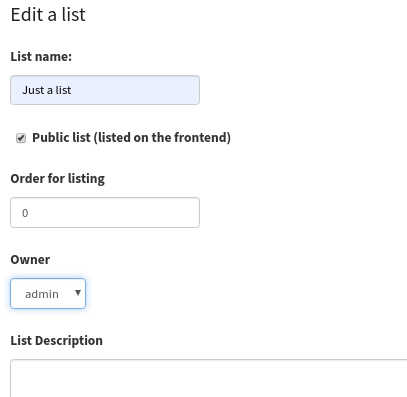](https://www.phplist.org/manual/uploads/images/gallery/2019-06/YQqynhRniBcnxdRw-Screenshot-from-2019-06-18-11-11-51.png)
### List Name
This will help you to keep your lists organized and remember what the list is for. If your list is public this name will be displayed on your subscribe pages. If your list is private, the name will be known only to you (and possibly to other people who manage your phpList installation).
### Public List
The **Public List** box should be checked when
- You want subscribers to be able to add themselves to the list using a subscribe page
- You want subscribers to be able to leave this individual list (but stay on others)
- You have chosen a list name and description which you are happy to display publicly
If you do not make the list public, it is considered private, and it will not be seen by your subscribers.
### List Description
This information will display on your subscribe pages if the list is public.
Save and repeat
When you have filled out the page, click **Save**. You can come back and edit the info again later if you need to. You can create as many lists as you need.
You will be prompted to add some subscribers to the list. See the next chapters for more guidance.
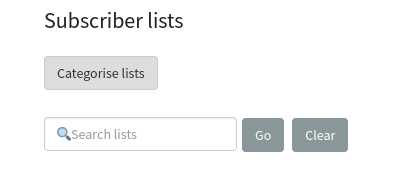
### Search for lists by name
The lists page now includes a field to search for your lists. This saves time on installations with many lists. If you have categorized your lists, the search will be performed on the lists within the currently selected list category.
[](https://www.phplist.org/manual/uploads/images/gallery/2020-11/lLMmxzEAoxUHCtJr-search-lists.png)
## Feedback
You can discuss this chapter [here](https://discuss.phplist.org/t/creating-your-lists-manual-chapter-feedback-and-discussion/205).
# Adding Subscribers (to Lists)
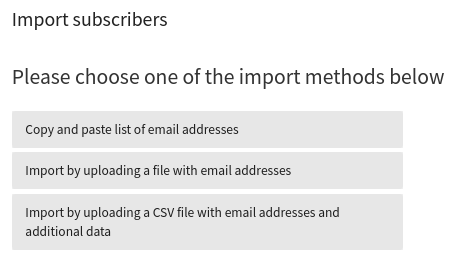
There are three main ways to add subscribers to your phpList installation:
- copy and paste a list of emails
- upload a file with emails
- upload a CSV file with emails and additional data.
[](https://www.phplist.org/manual/uploads/images/gallery/2019-06/pV8EqYGDHtjLI92p-Screenshot-from-2019-06-18-11-28-49.png)
This chapter deals with each of these methods in three stages:
- When and why you might use the import method
- Preparing your data
- Importing your data
#### Why is (to lists) in brackets?
It is important to remember that:
- Subscribers can exist on the system without being a member of any list
- In this chapter is assumed that you will be adding subscribers in the form of a list, but you can add them without making/choosing a list if you want to
- When you add a subscriber to the system for the *first* time, a subscriber profile is created
- Adding the subscriber to more lists does not create more profiles, all the subscriber details are saved in one profile no matter how many lists the subscriber is on
- Deleting the list does not delete the subscribers.
You can read the chapter about the difference between subscribers and lists for more information.
## Copy and pasting
#### Why and when to use this method
If your data is very simple, just a long list of emails in a paper or digital document, then this could be the method for you - especially if you are not very confident with file formats.
If the emails are on paper then you could type them directly into the import dialogue, however, it is probably better to type them into a document first.
This is also the method you will use when you create a new list from subscribers that are already on your system.
#### Preparing your data for this method
Preparation for copy and pasting the emails in is minimal. You may need to do nothing at all.
If your emails are in a text file or a word-processing file, you need to open the file with the emails in, and make sure the data is just a list of emails, one on each line and with no punctuation.
If your emails are in a spreadsheet or csv file you do not need to prepare them. However, if this is the first time you will be adding the subscribers to the system you may wish to use a csv import to allow you to add more of your data to their subscriber profiles.
#### Importing your data
If your data set consists of a list of emails in a file, like this:
[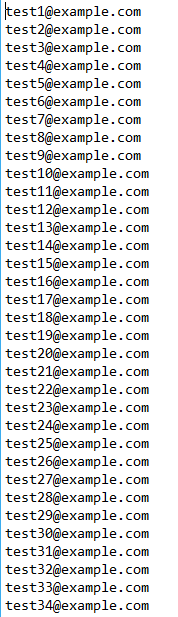](https://www.phplist.org/manual/uploads/images/gallery/2019-06/Bc1k1KPQPcuvWh6X-phpList_import_emails_1_1.PNG)
Or a complex data set in a spreadsheet like this, from which you only wish to upload the emails
[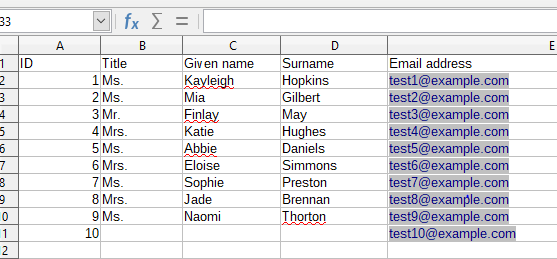](https://www.phplist.org/manual/uploads/images/gallery/2019-06/IteUfDTpMMJt64rc-phpList_import_emails_5.PNG)
Then first you need to select them in your document and copy them. This is often done by pressing:
- **Control+C** or
- **Right click > Copy** or
- **Edit > Copy**.
Then go to **Subscribers** > **Import emails** from the main menu
[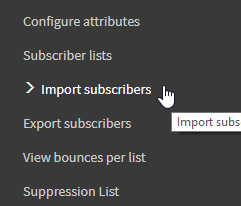](https://www.phplist.org/manual/uploads/images/gallery/2019-06/wbHtrgLuhZafbt1d-phpList_import_emails_7.png)
Click the **copy and paste list of emails** button in phpList
[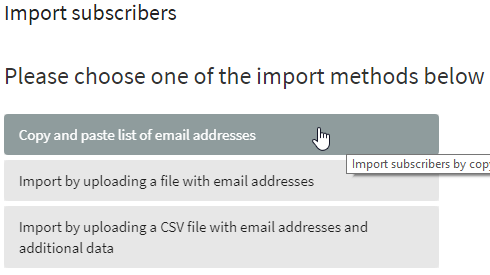](https://www.phplist.org/manual/uploads/images/gallery/2019-06/GHCDLKskXHRj9oft-phpList_import_emails_9.png)
You will then see the following page:
[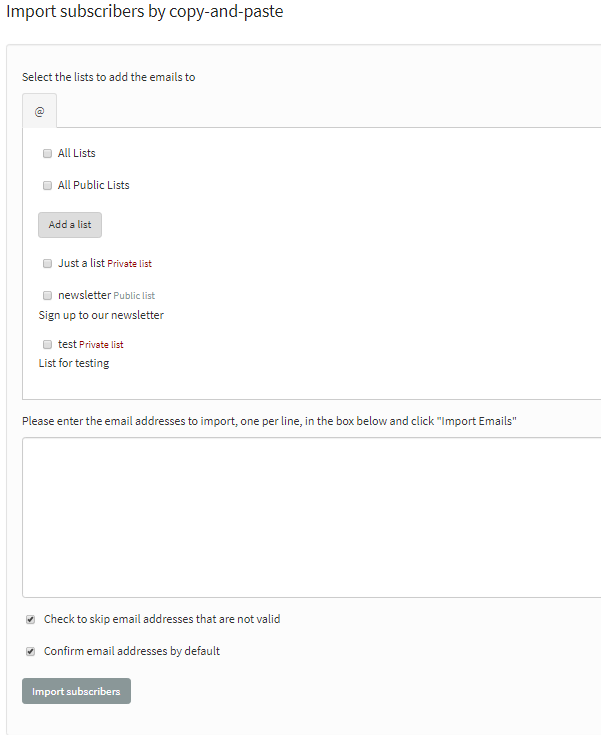](https://www.phplist.org/manual/uploads/images/gallery/2019-06/JhL7iYomOv0FqU7H-phpList_import_emails_10.PNG)
First choose a list by ticking the box next to the list name.
You may also **Add a list**, or tick **All Lists**. Also, it is best to leave the **Check to skip emails that are not valid box** ticked. Next, paste your emails into the box, using
- **control+v**
- Or **right click** and **Paste**.
[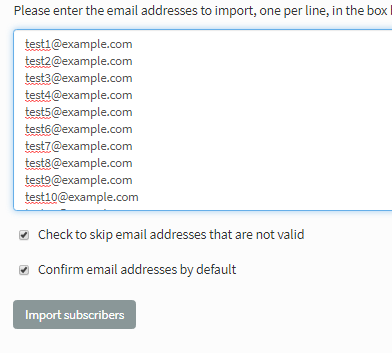](https://www.phplist.org/manual/uploads/images/gallery/2019-06/ujktdYiom7Zm8bDf-phpList_import_emails_11.PNG)
Click the **Import emails** button.
You will then see the results of your import.
[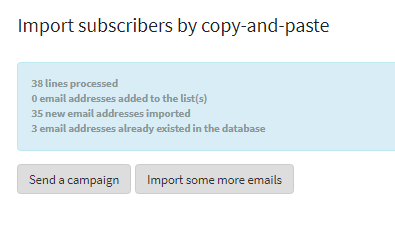](https://www.phplist.org/manual/uploads/images/gallery/2019-06/Xdmx5stPQspgkZsk-phpList_import_emails_12.png)
### Upload a file with emails
#### Why and when to use this method
If you have a digital list of emails with no other data, and you know how to save them as a text file, then this is the right method for you.
If you have more than just emails in the file and you want to upload all of the information, you will need to use the CSV import.
#### Preparing your data
#### Your file needs to be formatted:
- One email per line
- No spaces, tabs, commas etc.
- You need to save it as plain text (filename.txt)
- You should only edit it in a text editor such as NotePad, TextEdit or Geany.
[](https://www.phplist.org/manual/uploads/images/gallery/2019-06/Bc1k1KPQPcuvWh6X-phpList_import_emails_1_1.PNG)
It is still possible to import this data when there is additional information after the email, for example:
*test7@example.com age 23 from Southport likes chips with curry sauce*
But, everything after the end of the email will be discarded. Additionally, if you have any punctuation attached to the end of the email, for example,
*test7@example.com, age 23 from Southport likes chips with curry sauce*
then the data will be corrupted because the comma at the end of the email address will be imported as part of the email.
### Importing your data
Go to **Subscribers** > **Import subscribers** from the main menu
[](https://www.phplist.org/manual/uploads/images/gallery/2019-06/wbHtrgLuhZafbt1d-phpList_import_emails_7.png)
Click **Import by uploading a file with emails**.
[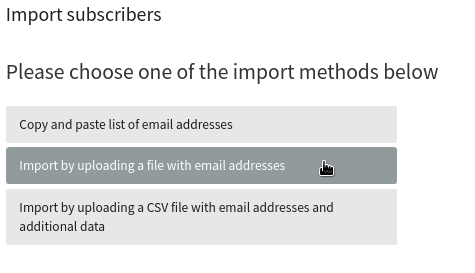](https://www.phplist.org/manual/uploads/images/gallery/2019-06/xuBCIi8das2tcxdT-Screenshot-from-2019-06-18-15-34-43.png)
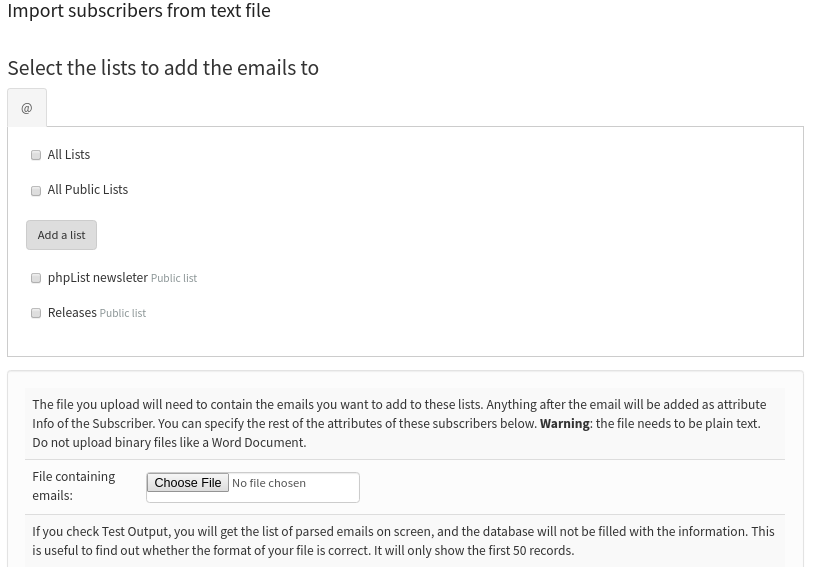
You will then see the **Import Subscribers From Text File** page.
[](https://www.phplist.org/manual/uploads/images/gallery/2019-06/aqSLaKXJA4iY1Sqt-Screenshot-from-2019-06-18-15-39-33.png)
First choose a list by ticking the box next to the list name. You may also **Add a list**, or tick **All Lists.** Then select a file to upload by clicking the **Browse...** button. Navigate to the file on your computer and click **Open**. Then click the **Import** button.
You will see the emails importing.
Upload a CSV file: emails and some additional information
### Why and when to use this method
This is the method used when you have a spreadsheet full of data, where there might be names, emails, addresses... Often this data will have been exported from another source, such as a CMS, CRM, webshop, database or email address book.
If you have such data, it is a good idea to upload a CSV file the first time you add subscribers to the system and you are asked to make a list (even though you will only be prompted to copy and paste). From then on, unless you need to re-synchronise or add some new data, you can just use copy and paste to add subscribers to lists.
### Preparing your data
When you have emails and some additional information, such as Name and Gender, you need to
- Open the data in a spreadsheet
- Rename some columns to avoid or utilise phpList system values
- Save as a csv - make a note of the delimiter.
#### Example Dataset for CSV Import
In this example we have ID, title, first name, email address, height in cm and gender, and they are stored in a spreadsheet format (xls, ods or similar).
[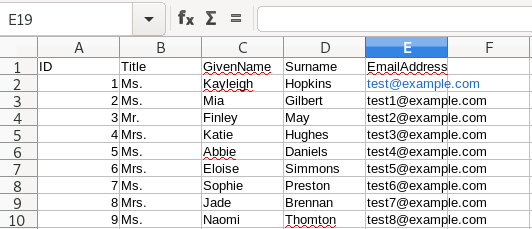](https://www.phplist.org/manual/uploads/images/gallery/2019-06/RKK3wxYWZn9k4AHK-Screenshot-from-2019-06-25-11-33-02.png)
#### Data that includes an ID
When you use another application, a blog, webstore, CRM software etc, you may want to keep the data in phpList synchronized with the data in your other app.
phpList allows you to do this accurately by using a **foreign key:** this means that the ID tag or number used to identify an individual in your other application can also be used to identify a the subscriber in phpList. This means that:
- If a subscriber's email address changes in your other app, this can be updated in phpList
- Any changes to subscriber attributes can be updated automatically, for example surname, location, date of last purchase form your store.
If you wish to use the ID as a foreign key you should rename the column ID (or similar) to **foreign key.**
#### Renaming columns to avoid phpList system values
Some words are already used by phpList to describe data: these are called phpList **system values**. phpList will not allow you to import data from columns in your CSV when certain system values are used as a column title. These columns will simply be **skipped** when you try to import.
It is common for other software and web applications to use the same system values. Columns must be renamed before the data exported from one app can be imported into phpList. Here are some examples (a full list can be found later in the chapter):
- ID
- confirmed
- passwordchanged
#### Renaming columns to match phpList system values
Some columns can be renamed to *match* phpList system values, because those system values are designed to take imported data.
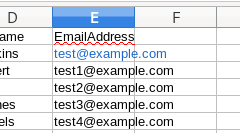
In the example below we rename the column **Email address** to **Email.** It is possible to achieve the same thing during import by mapping one term to another.
[](https://www.phplist.org/manual/uploads/images/gallery/2019-06/ukcRrUm8DgQnOPnZ-Screenshot-from-2019-06-25-11-33-59.png)
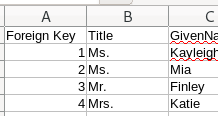
As another example, the **ID** column can be renamed to **Foreign Key**. This allows the data to be put to use in phpList when otherwise it would just be skipped. In this case, phpList would not allow you to map ID to Foreign key during import so this task must be done before upload.
[](https://www.phplist.org/manual/uploads/images/gallery/2019-06/7i5ENNfmVr3y0M0B-Screenshot-from-2019-06-25-11-35-39.png)
#### A list of system values
Here is a table containing a list of all the system values and how phpList will deal with columns with that name if you try and import them.
List of system values and how phpList will respond if they are column names.| id | Will be skipped |
| email | Will import |
| confirmed | Will be skipped |
| blacklisted | Will be skipped |
| optedin | Will import |
| bouncecount | Will be skipped |
| entered | Will be skipped |
| modified | Will be skipped |
| uniqid | Will be skipped |
| htmlemail | Will import |
| subscribepage | Will be skipped |
| rssfrequency | Will be skipped |
| password | Will import |
| passwordchanged | Will be skipped |
| disabled | Will import |
| extradata | Will import (as attribute) |
| foreignkey | Will import |
| unique\_1 (2, 3 etc) or index\_1 (2, 3 etc) | Will be skipped |
**Saving the file**
Next we need to save the file as a **CSV** file, a comma separated value file. You should *ideally* change the delimiter to tab. If it is not tab, you will at least need to be aware of what the delimiter is so you can tell phpList when you import.
## Importing the subscribers
First go to **Subscribers** > **Import subscribers** from the main menu.
[](https://www.phplist.org/manual/uploads/images/gallery/2019-06/wbHtrgLuhZafbt1d-phpList_import_emails_7.png)
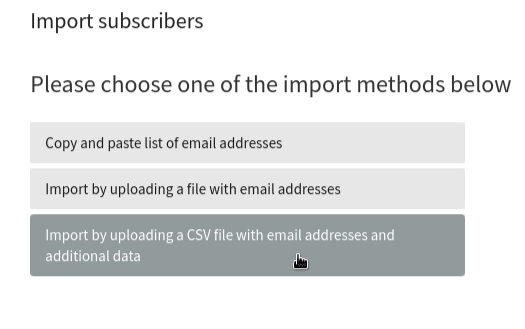
Click the final option for **import by uploading a CSV file with emails and additional data**.
[](https://www.phplist.org/manual/uploads/images/gallery/2019-06/DqV4mZwZLLzW4bMe-IMG_20190625_120524.png)
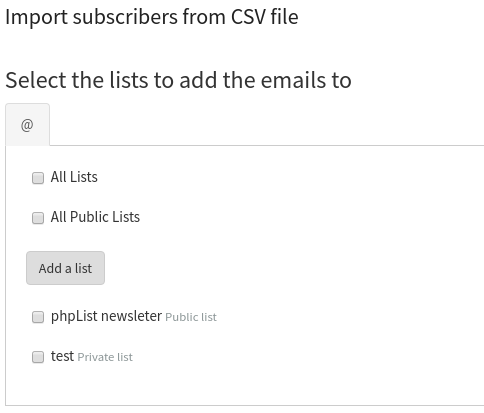
You will then see the **Import Subscribers From CSV Page**.
[](https://www.phplist.org/manual/uploads/images/gallery/2019-06/JVhOMqLidlJ1q7SM-Screenshot-from-2019-06-25-12-09-45.png)
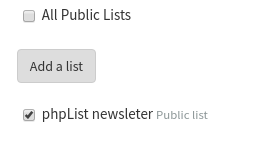
First choose a list by ticking the box next to it. You may also choose **All Lists** or **Add a list**.
[](https://www.phplist.org/manual/uploads/images/gallery/2019-06/0eE1nXEdiCVtowkR-Screenshot-from-2019-06-25-12-10-51.png)
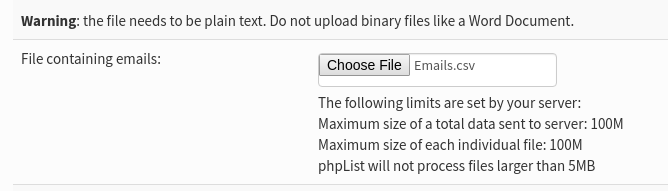
Next upload your CSV file by clicking **Browse...**, choosing the file on your PC and clicking **Save**.
[](https://www.phplist.org/manual/uploads/images/gallery/2019-06/91x5qdPNujOSTiiK-Screenshot-from-2019-06-25-12-12-48.png)
You must also indicate the delimiter, this is what separates each item in your CSV (in place of the column lines). If you are unsure what the delimiter of your file is, you can open the file into a plain text editor such as Notepad. You will see what is separating the items. In this case it is a comma, so we put a **,** in the **Field Delimiter** box.
[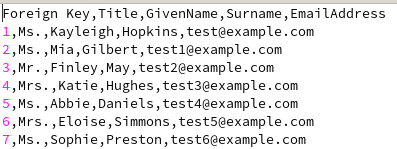](https://www.phplist.org/manual/uploads/images/gallery/2019-06/Qqerh7okjP4mvYrv-Screenshot-from-2019-06-25-12-14-32.png)
There are various other options on this page, which all have a description. Generally, it is good to keep the **Test Output** option checked.
Use the **Overwrite existing** and/or **Retain old email** options to preserve the data set which should be held safe; it is the source of most up-to-date data.
When you have finished filling out this form, click **Import**.
[](https://www.phplist.org/manual/uploads/images/gallery/2019-06/HqEZ0IWzSzFt2zcX-IMG_20190625_121748.png)
You will now see a page where you can match the data in your file to attributes on the system. Attributes such as **Foreign Key** and **Email** will not appear on this page because the system deals with them automatically: all the attribute on this page are new to the system.
[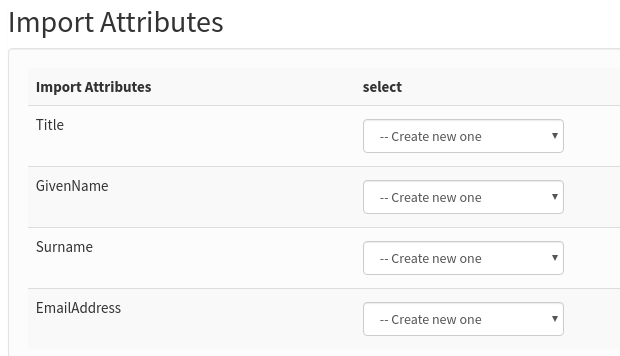](https://www.phplist.org/manual/uploads/images/gallery/2019-06/xODIdCE3QsYG51XG-Screenshot-from-2019-06-25-12-20-35.png)
Click on each dropdown - is the correct attribute already in the list? If not, select **Create new one**. This will create a new attribute in your phpList so that next time you import similar data the system can deal with it automatically.
[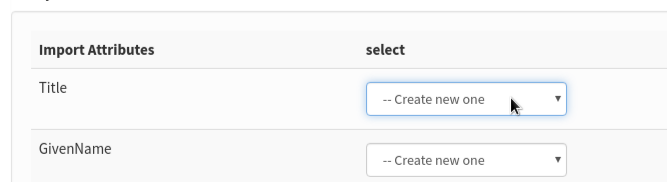](https://www.phplist.org/manual/uploads/images/gallery/2019-06/GrGC3vC0LyL8lMW2-IMG_20190625_122342.png)
**Problem?** If you see something like the image below, where all your attributes are on one line, then you have used the wrong delimiter.
[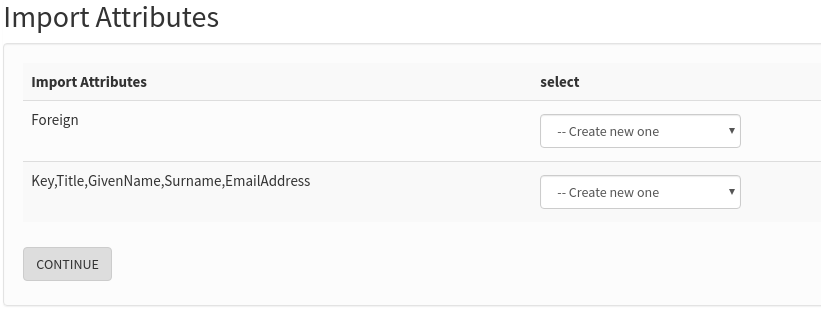](https://www.phplist.org/manual/uploads/images/gallery/2019-06/gTQqoGVDly2JiyLP-Screenshot-from-2019-06-25-13-29-45.png)
You will also see some test data, that will give you a strong indication of whether your import is going well. Each column title from your csv should line up with some data about one of your new subscribers.
[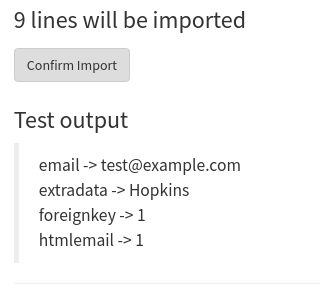](https://www.phplist.org/manual/uploads/images/gallery/2019-06/DqKjvv2TVaPXa8YO-Screenshot-from-2019-06-25-13-42-40.png)
#### **Problems?**
If you see anything wrong in the test, *do not proceed*! Click the Reset import session button to start again, check your delimiter settings and/or get help. A messy import is *no* fun to fix!
When all attributes have been dealt with and you are happy with your test data, click **Continue**.
[](https://www.phplist.org/manual/uploads/images/gallery/2019-06/UzYR5CAEtsjymPcu-Screenshot-from-2019-06-25-13-29-56.png)
You will be shown a summary of what will happen when you import. Now you can see that **Foreign Key** and **Email** are matched automatically, and all your other attributes will be created for you.
[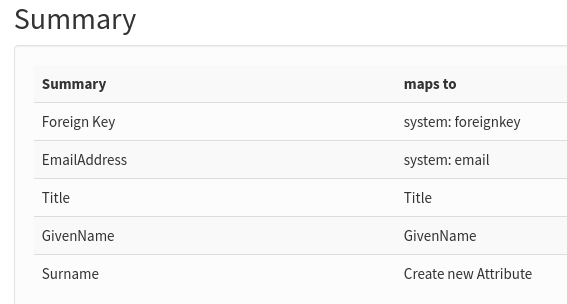](https://www.phplist.org/manual/uploads/images/gallery/2019-06/hOJ4wT0vgeabtd7F-Screenshot-from-2019-06-25-14-01-40.png)
If you are satisfied, click **Confirm Import**.
[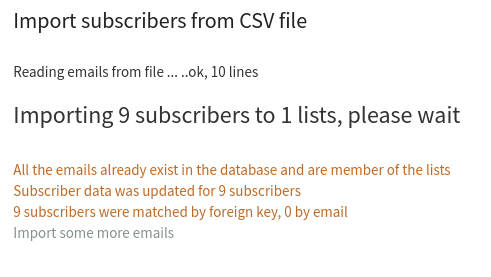](https://www.phplist.org/manual/uploads/images/gallery/2019-06/tVrKA0a7cPEhN0kS-Screenshot-from-2019-06-25-14-03-16.png)
You will see that your subscribers and their data has been imported.
## Feedback
You can discuss this chapter [here](https://discuss.phplist.org/t/adding-subscribers-to-lists-manual-chapter-feedback-and-discussion/206).
# Creating a subscribe page
A subscribe page usually consists of a short form that a visitor to your website can fill out to subscribe themselves to one or more of your lists. Here is an example:
[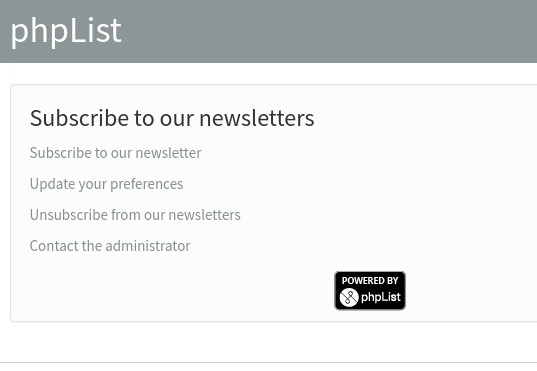](https://www.phplist.org/manual/uploads/images/gallery/2019-06/qT3QNIycGDNk2GHZ-Screenshot-from-2019-06-25-14-12-54.png)
In the example above, the subscriber is asked to input their email address and to confirm it. They can then choose to receive a text version format and they can add their first and last names if they wish.
In phpList you can have an unlimited number of pages, combining any set of Attributes, Lists and Languages.
Additionally you can use pages in conjunction with scripts to create subscribe forms which integrate more closely with your website. As this is a custom-made process for individual sites we do not have generic documentation about it.
### Create a page
To get started with your subscribe page visit **Config** > **Subscribe Pages**.
[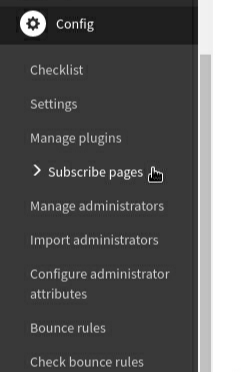](https://www.phplist.org/manual/uploads/images/gallery/2019-06/qGsfhahLQIWzuBTH-IMG_20190625_142406.png)
Initially you'll find this page empty, with no subscribe pages to display, although there is a default subscribe page at [www.yourdomain.com/lists](http://www.yourdomain.com/lists).
The first page you make will replace this default page and later you can set any page as default.
To create a new page click **Add a new subscribe page.**
**[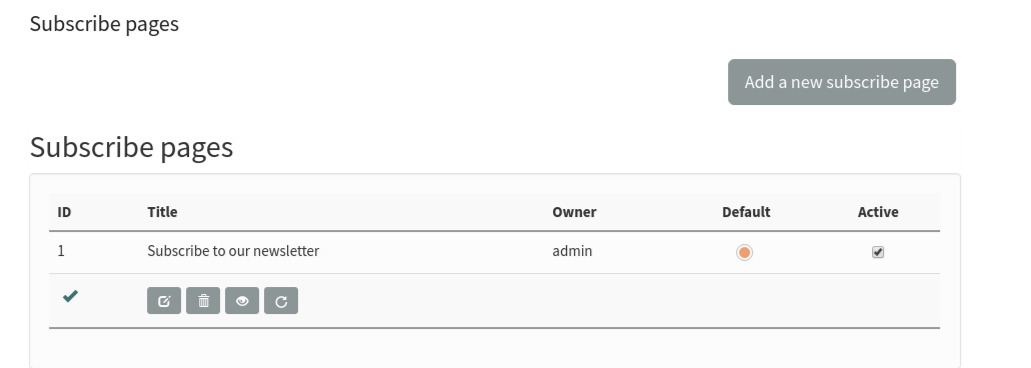](https://www.phplist.org/manual/uploads/images/gallery/2019-06/eARpaMcyAZyk0A39-IMG_20190625_142159.png)**
This will open a page called **EDIT A SUBSCRIBE PAGE**. Customize a Subscribe Page
The subscribe page editor is broken into four collapsible areas:
**[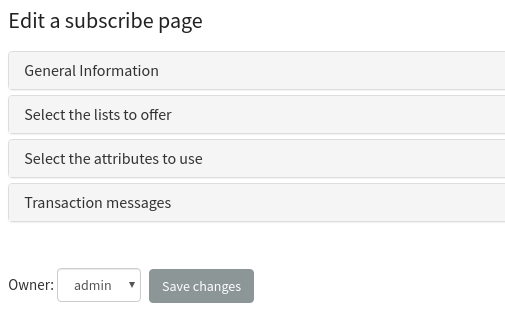](https://www.phplist.org/manual/uploads/images/gallery/2019-06/7OX7AQCpvSFIuNPS-Screenshot-from-2019-06-25-14-30-45.png)**
These sections will guide you though creating a subscribe page which meets your specific needs.
### General information
The first box edits the titles and text on the page. Enter your title in the **Title** box first of all.
You can leave **Language file to use** as **--default**, unless you are creating a page for a language other than the one you use for your installation, for example, if you are creating a multi-lingual system.
[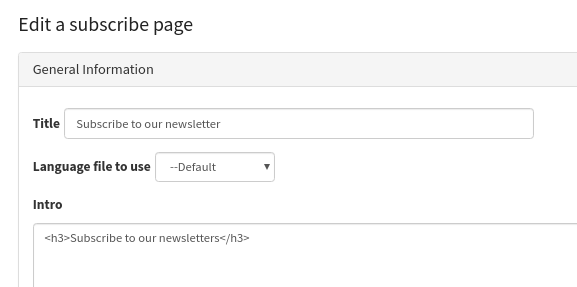](https://www.phplist.org/manual/uploads/images/gallery/2019-06/vERpgQ4Nl5hCSAJl-Screenshot-from-2019-06-25-14-32-52.png)
You can change the text in the intro too.
[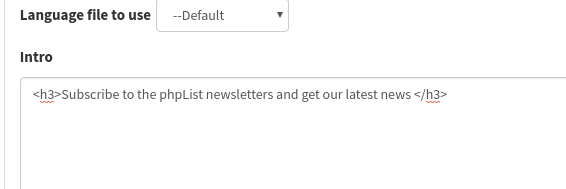](https://www.phplist.org/manual/uploads/images/gallery/2019-06/V0yU6MB00HPM3VnL-Screenshot-from-2019-06-25-14-34-53.png)
The **Header** and **Footer** dialogues are used for html editing, and the default code in them is taken from **Config** > **Settings** > **subscription-ui settings**. We will discuss this further in the Subscribe page design and configuration chapter.
You can edit the text in the **Thank you page** and **Text for button** too, however, the standard texts are suitable for most situations so you may wish to just leave the defaults as they are.
#### General Information: HTML or Text
The last section of the general information sections is on **HTML Email choice**. It is very important and it directly affects the quality of your lists and the subscribe satisfaction.
You can create a HTML email in phpList, with images and other design elements, and also a plain text version, with just text, no images, colours etc. Some subscribers prefer only text, they may want plain text for technical reasons, for example for compatibility with assistive software for a visual impairment, or it may simply be a personal preference. If you are planning on sending HTML messages you will want to avoid large numbers of your subscribers accidentally signing up for text only emails. You will have wasted time on a design they will never see and they may be less interested in your mails.
It is therefore worth spending time on this section, deciding how you would like to present the text vs. HTML options.
The default is **Don't offer choice, default to HTML**, where the box defaults to unchecked on the subscribe page. Although, you can check any other field.
[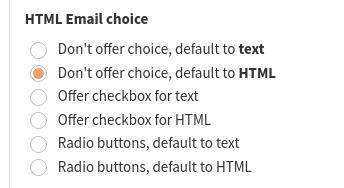](https://www.phplist.org/manual/uploads/images/gallery/2019-06/FrG9aDTqA1H2lEtx-Screenshot-from-2019-06-25-14-38-32.png)
*If you intend to send emails in HTML format it is best to make the "path of least resistance" be the signup for HTML. Many subscribers will ignore the box, or may not know what HTML vs. text means.*
#### Transaction messages
These are the messages sent to the Subscriber based on various actions, such as subscribe and unsubscribe. The defaults are taken from **Config** > **Settings** > **transactional settings**. It is possible to edit these, although the defaults are suitable for most situations.
#### Select the attributes to use
This section allows you to choose which attributes, which personal/demographic data, you will ask for from your subscribers on the page.
You might ask for generic information like name and city, or something more specific, like shoe size or hobbies. The use of attributes is described in the Attributes and Placeholders chapters.
In this example we collected **First Name** and **Last Name** only and we did not make either of them **required** because many people do not wish to give out personal information. We had several other attributes to choose from.
[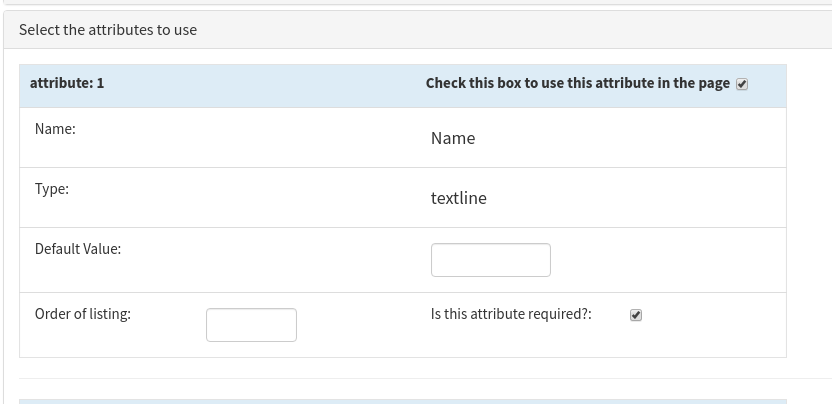](https://www.phplist.org/manual/uploads/images/gallery/2019-06/TGaL6ydZCQOwmqMi-Screenshot-from-2019-06-25-14-40-50.png)
The **Type:** is defined in the attributes editor. The **Default value** can be different on each subscribe page if needed.
*Please note that if a customer does not change the **Default value** when they subscribe, whatever you set it as here will be added to your database.*
#### Select the lists to offer
This final section allows you to select which lists to offer. If you select only one list, then the subscriber will not be given a choice. If you select multiple lists, then the subscriber will be able to select which lists they want to join. In this example we chose only one list.
[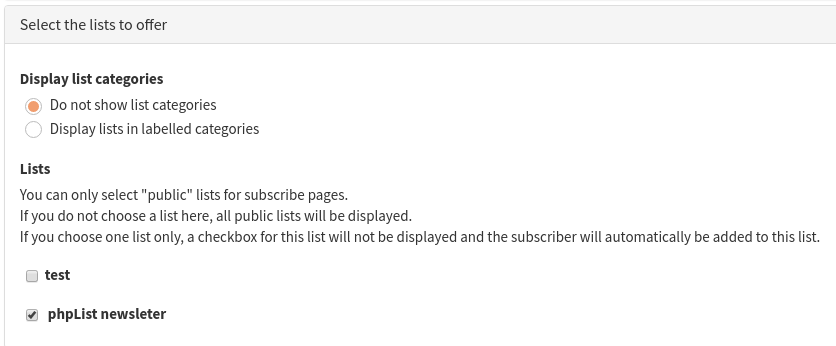](https://www.phplist.org/manual/uploads/images/gallery/2019-06/cKKOkmG34NlK845h-Screenshot-from-2019-06-25-14-42-40.png)
#### Save your new page
Click the Save button at the end of the page when you are ready. You will be able to edit the page again later if you want to make a change.
You will then be directed back to your Subscribe Pages list. We can now see one page.
[](https://www.phplist.org/manual/uploads/images/gallery/2019-06/BYzu9pqebkfXabFC-Screenshot-from-2019-06-25-14-44-49.png)
#### View your page
To view your new subscribe page page click the magnifying glass icon next to it on your **subscribe pages** list (**Config** > **Subscribe pages** from the main menu).
[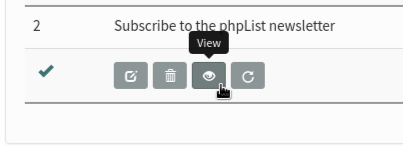](https://www.phplist.org/manual/uploads/images/gallery/2019-06/FGFePYTiznkA8ZBf-IMG_20190625_142406.png)
Your page will look something like this:
[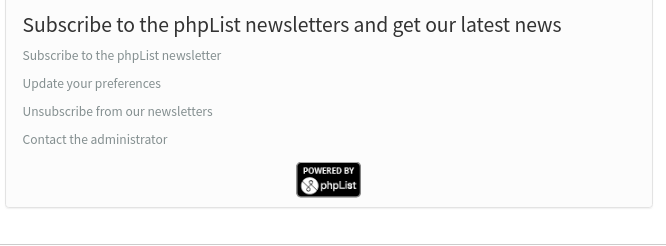](https://www.phplist.org/manual/uploads/images/gallery/2019-06/Vmv9sofN0jsJYQbK-Screenshot-from-2019-06-25-14-51-51.png)
#### Use your page to add a subscriber as an admin
One additional functionality of the subscribe page view is to add a subscriber to your database quickly, without needing to go into the administrative interface. If you view the subscribe page while logged in as an adminiatartor, you will see an additional box:
[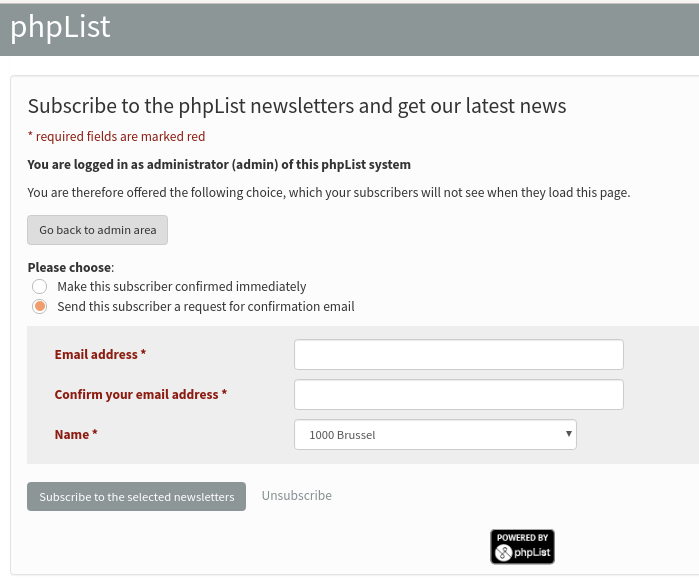](https://www.phplist.org/manual/uploads/images/gallery/2019-06/AQYC55y0n6NENw3Q-Screenshot-from-2019-06-25-14-50-21.png)
This box allows you to add a subscriber by filling out the form on their behalf, and you can specify if you need to send them a confirmation request or not. This can be useful if you are talking to the new subscriber on the phone, for example.
### Add an AJAX subscribe box on your website
To make it very easy for your subscribers to sign up, **and stay on your website**, you can add an [AJAX form](http://en.wikipedia.org/wiki/Ajax_%28programming%29) to your website.
##### Step by step
1\. Create a [subscribe page](https://marianatest.hosted.phplist.com/lists/admin//?page=spage&tk=4fdebc6440a76d3bfa9ceb10b39e015f "View and edit the pages that subscribers can use to sign up to the system") that only requires the email address to be filled out.
This means for **HTML Email choice**, select **Don't offer choice, default to HTML** and for **Display Email confirmation**, select **Don't display email confirmation**. Make sure the subscribe page has at least one list to subscribe to and do not select any attributes as a requirement.
2\. Set the text to show when subscription was successful in your Settings page.
3\. Use the following code on your website.
```
```
Members of the community forum have provided some useful insights regarding the website AJAX integration. You can find the [discussion thread here](https://discuss.phplist.org/t/solved-ajax-subscribe-api/974/3?u=mariana).
**NOTE 1:** Your subscribers will be automatically added to all the lists that you selected for the subscribe page.
- The ID of your *Subscribe page* is the one passed as a parameter in the URL, *id=1* in the example's javascript
- For consistency, the ID in brackets in the *list\[11\]* input should be that of your *Subscribers list*, the one that the *Subscriber page* is configured for (see *Config/Subscribe Pages*)
- If your *Subscribe page* has attributes, especially required ones, they should be added to your <form> as *<input name="attribute6" value="your-need" />*
**NOTE 2:** If you already use jQuery on your page, you may not need to load it again.
**NOTE 3:** This functionality has been tested with Internet Explorer 8 and 9 and Firefox 3. In other browsers, or in case of an error, it will redirect to your phpList hosted installation to allow your subscribers to sign up.
**NOTE 4:** The URL used for these AJAX callbacks includes p=asubscribe, not p=subscribe like regular subscribe pages
**NOTE 5:** If test=0 in your phpList config.php file, then all subscribers remain unconfirmed as no confirm mail is sent.
**NOTE 6:** If SMTP settings are incorrect then subscription won't be allowed due to failed confirmation sending, and the AJAX submission will fail regardless of the email address.
On the [community forum](https://discuss.phplist.org/) you can also find several topics related to this. All you have to do is search for "embedded subscribe page" or "website integration".
#### Feedback
Discuss this chapter [here](https://discuss.phplist.org/t/creating-a-subscribe-page-manual-chapter-feedback-and-discussion/207).
# Setting up your List Categories
When you have more than a handful of lists you will need to organize them into categories. You will be promoted to do this once you create more than 16 lists.
You can create categories to help you organize your lists at any time, and so the exact method you should use depends on your situation. In this chapter there are two suggested workflows.
1. Categories are set up before any lists are made (**categories before lists**).
2. Categories are set up to help organize pre-exisitng lists (**lists before categories**).
You should follow the section most appropriate to your situation.
## Categories before lists
To create your categories go to **Config** > **Settings**
[](https://www.phplist.org/manual/uploads/images/gallery/2019-06/9CuDRaTyDGKeE44V-IMG_20190625_151328.png)
Scroll down until you find **list-organisation settings**
[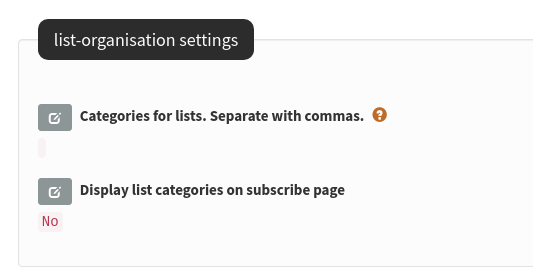](https://www.phplist.org/manual/uploads/images/gallery/2019-06/vT1ytvPdf8xnwk2c-Screenshot-from-2019-06-25-15-11-42.png)
Enter the names of your categories, separated by a comma.
[](https://www.phplist.org/manual/uploads/images/gallery/2019-06/tW577NpwOUQSHljY-Screenshot-from-2019-06-25-15-15-09.png)
In the image above you can see I have made a list category called Releases**,** for example. This is because I know I will have several lists about the new phpList releases in the future.
*NEXT, See the section about **Using categories** at the bottom of the page.*
## Lists before categories
If you use phpList a lot and you are using list segmentation you will soon end up with more lists than you can easily manage without categorising. To start categorising your lists go to **Subscribers** > **Subscriber lists.**
[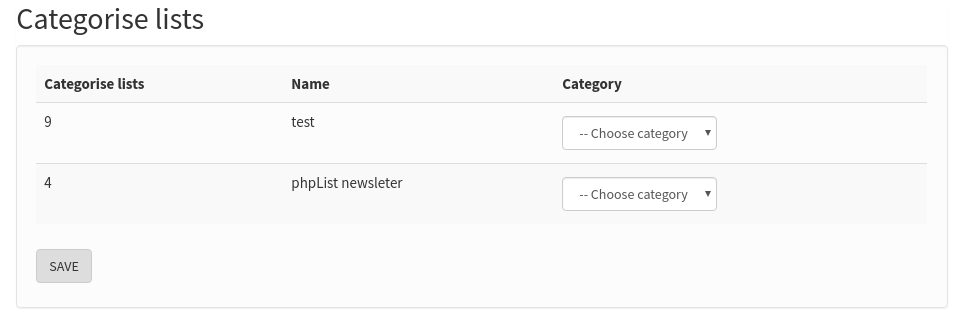](https://www.phplist.org/manual/uploads/images/gallery/2019-06/8g2ptTzkQs53n2xr-Screenshot-from-2019-06-25-15-23-00.png)
Then click **Categorise lists**.
[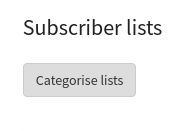](https://www.phplist.org/manual/uploads/images/gallery/2019-06/qWujzx0UBUfGdXp8-Screenshot-from-2019-06-25-15-21-47.png)
If you have no categories at all yet, you will see the following screen:
[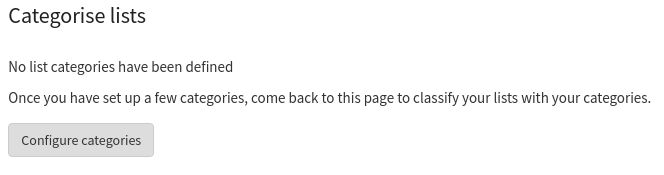](https://www.phplist.org/manual/uploads/images/gallery/2019-06/7yovayb6kZpHIJ8g-Screenshot-from-2019-06-25-15-24-44.png)
Click **Configure categories**.
*If you already have a few categories you will see a similar screen with the **Configure categories** button (which you still must click).*
### Create your categories
Add your categories, one by one, with commas between them.
[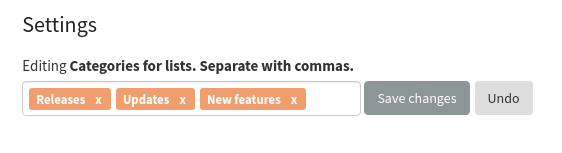](https://www.phplist.org/manual/uploads/images/gallery/2019-06/53xzwLCzDxRsqt0s-Screenshot-from-2019-06-25-15-25-38.png)
Click **Save Changes**.
### Add lists to categories
Go back to **Subscribers** > **Subscriber lists**. Click the **Categorise lists** button.
[](https://www.phplist.org/manual/uploads/images/gallery/2019-06/qWujzx0UBUfGdXp8-Screenshot-from-2019-06-25-15-21-47.png)
Select the correct category from the drop-down beside each list.
*If a list is already categorized, it will not be displayed.*
[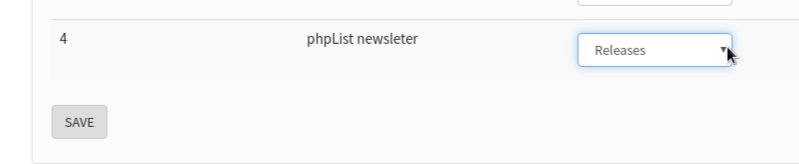](https://www.phplist.org/manual/uploads/images/gallery/2019-06/4DRqv8XBtWN4qCp8-IMG_20190625_153147.png)
Carry on till all the lists are matched with a category if possible.
[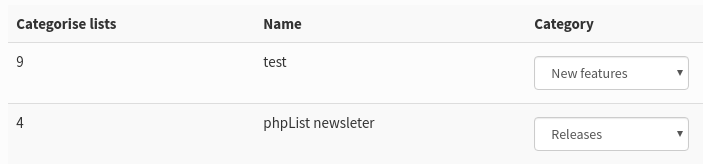](https://www.phplist.org/manual/uploads/images/gallery/2019-06/5b7ApGZZM8zllE0x-Screenshot-from-2019-06-25-15-27-12.png)
If you find a list that does not fit into a category you can keep it in **Uncategorized** by leaving **--Choose category** in the dropdown and make a new category later.
When you have finished click **Save.** Then, if you want to create more categories click the **Configure categories** button at the top of the page again and repeat the cycle.
*If a list has already been categorised and you want to change the category, you can do this by editing the list from the main lists page.*
## Using your categories
Once you have finished setting up categories, they should become part of your everyday workflow with phpList.
For example, when you create a new list, you can assign it to a category during the creation stage. In this image we have created a list called Just a list and we can categorize it under "Releases".
[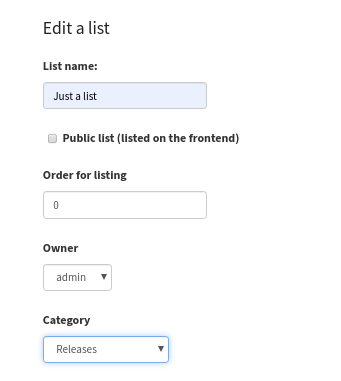](https://www.phplist.org/manual/uploads/images/gallery/2019-06/ce8ivvCWBCcXGfEx-Screenshot-from-2019-06-25-15-36-07.png)
Also, as a second example of categories in use; when you send a campaign you can look for your lists by using categories too.
[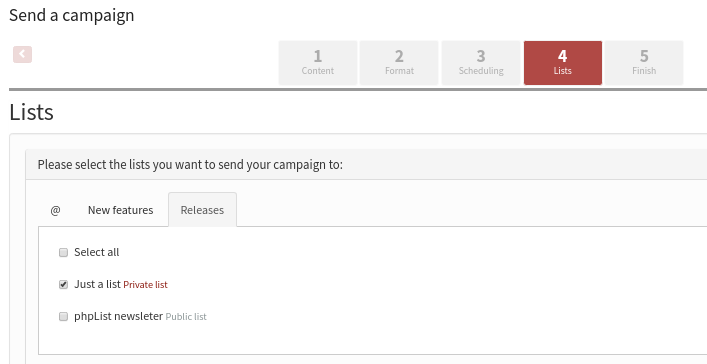](https://www.phplist.org/manual/uploads/images/gallery/2019-06/VEqRIOh7r3cMk7qC-Screenshot-from-2019-06-25-15-37-42.png)
## Feedback
Discuss this chapter [here](https://discuss.phplist.org/t/setting-up-your-list-categories-manual-chapter-feedback-and-discussion/208).
# Using Attributes
phpList is pre-configured to deal with some data about your subscribers, for example email address, number of bounces (bouncecount) and their phpList ID number: these are called **system values**. **Attributes** are used for any other data you want to add to the system about your subscribers, usually demographic information.
Some common attributes are Name, Age, Gender and City. Some bespoke examples could be height, annual income, names of pets or kids and favourite genre of book. The attributes you use are entirely up to you to decide.
Once you have collected/uploaded attribute data, it can be used to connect to your subscribers more directly and with better precision, by using **placeholders** and the **segment plugin**.
There are two ways to create attributes:
- Create them in bulk when you import a csv file
- Create them manually from the configure attributes page
- Edit them from the configure attributes page
This chapter will explain how to create attributes. How to use them is covered by the placeholders chapter and the segment plugin documentation.
## Creating Attributes when importing data
When you import complex data using the "csv with additional data" method, attributes can be easily created (in bulk) from column titles which are not already listed as an attribute.
Do not create new attributes for email and other system attributes, you must map those to the pre-existing system attributes listed in the dropdown.
In the image below, five new attributes are being created, and **EmailAddress** is mapped to **Email**.
**Surname** and **Gender** are standard attributes, however, the subscribers' height in **Centimeters** is more unusual. phpList treats all these attributes in the same way: there are no restrictions on the subject matter of an attribute.
[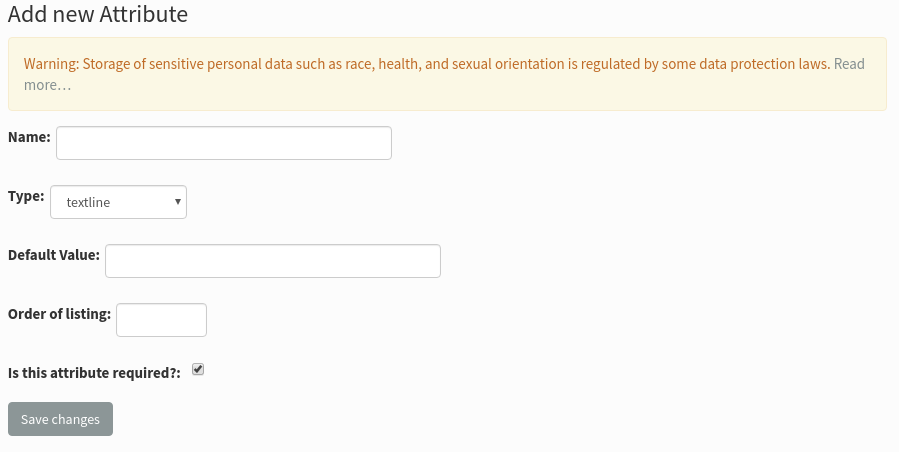](https://www.phplist.org/manual/uploads/images/gallery/2019-06/vlLkeIVUY0hDUcjO-Screenshot-from-2019-06-26-14-02-20.png)
Once an attribute has been created, any column headed with the attribute name in future csv files you import will be mapped to the attribute automatically. You will not need to create the attribute again.
If there is new data for a pre-existing subscriber, it will be integrated into the subscriber details by using email address or Foreign Key as a reference.
In the image below, for example, we have subscribers on the system already, and now have added ShoeSize as a new attribute. Where our new dataset provides a shoe size for a pre-existing subscriber, this new attribute data is simply added to the details.
[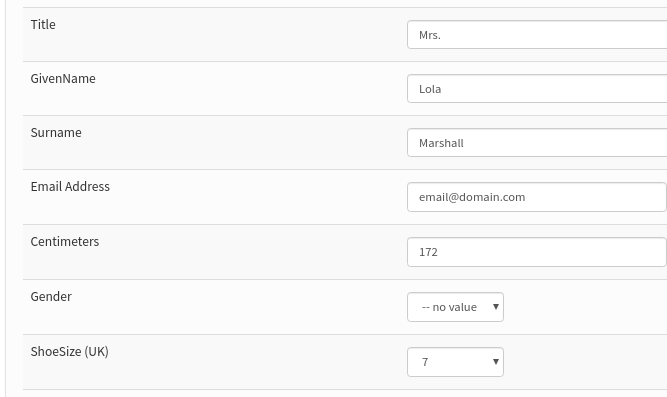](https://www.phplist.org/manual/uploads/images/gallery/2019-06/YVJlTPblTmFRPyw1-Screenshot-from-2019-06-26-14-34-27.png)
## Creating and editing attributes on the Configure attributes page
To create or edit an attribute manually, go to **Config** > **Configure attributes** from the main menu.
[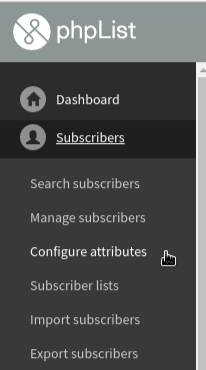](https://www.phplist.org/manual/uploads/images/gallery/2019-06/mWA7k0PX1SlmJHgN-IMG_20190628_133609.png)
From there you can create a new attribute:
[](https://www.phplist.org/manual/uploads/images/gallery/2019-06/vlLkeIVUY0hDUcjO-Screenshot-from-2019-06-26-14-02-20.png)
You can also edit existing attributes:
[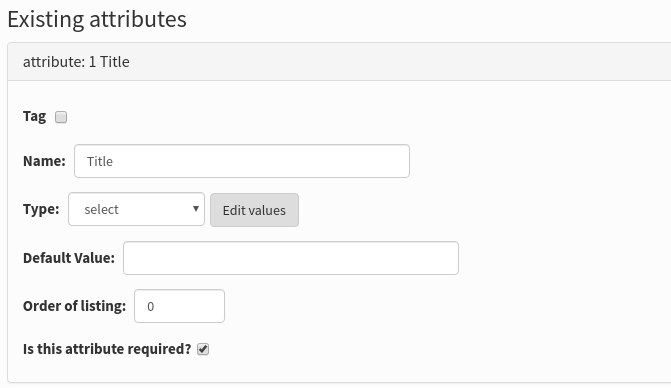](https://www.phplist.org/manual/uploads/images/gallery/2019-06/shDzt7CxHjmz2wQZ-Screenshot-from-2019-06-26-14-06-37.png)
You can,
- Specify/change the name
- Choose/change the **Type**, which dictates the input method on your subscribe pages (see the example edit below)
- Choose/change the **Default Value**, which dictates the standard value on the subscribe page (you may need to change this on the Subscribe page editor too)
- Make the attribute required, so subscribers must give the information in order to sign up (warning: mandatory fields may deter subscribers)
Additionally, you may
- tag them to delete one or more attributes
- tag to merge several attributes together
#### Example edit 1: changing the type from text line to select
In this example we will change the **Type** of the attribute for **ShoeSize**, which was automatically created during a CSV file import, from **textline** to **select**. First we change the type to select using the dropdown menu, then we click the **Save changes** button at the bottom of the page.
[](https://www.phplist.org/manual/uploads/images/gallery/2019-06/IwyBXCLBP46oWCxU-Screenshot-from-2019-06-26-14-07-26.png)
Then we click the **edit values** button which appears below the **Type:** dropdown.
[](https://www.phplist.org/manual/uploads/images/gallery/2019-06/GpEieDXjpgGDVd1Z-Screenshot-from-2019-06-28-13-41-27.png)
We can then add all the shoe sizes we want.
If you are editing an attribute that already has data in the system, some values may already be listed: if you try to add these again phpList will skip them rather than create a duplicate, so you can simply list all the values you want rather than search through.
[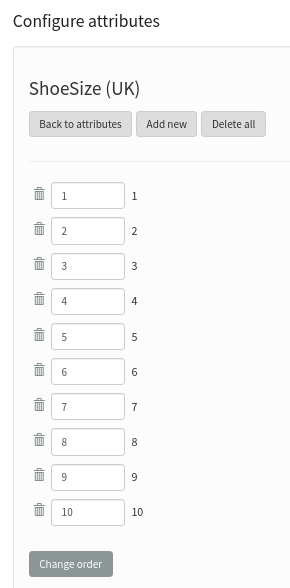](https://www.phplist.org/manual/uploads/images/gallery/2019-06/hPyli2BRBELf8rsd-Screenshot-from-2019-06-26-14-10-36.png)
You can change the order of the values for the attribute. This will affect the order in which they are listed in the dropdown on the subscribe page. In this example the shoe sizes had become jumbled because some were already in the system and some were not, so we re-ordered them.
[](https://www.phplist.org/manual/uploads/images/gallery/2019-06/Ex5Xv5dDNOKh8Ugm-Screenshot-from-2019-06-26-14-10-57.png)
By changing the order, the choice given to subscribers when they sign up is clearer.
## Using Attributes
The primary use of attributes is as placeholders. Please see the placeholders chapter for information on how to use them. [The segment plugin](https://resources.phplist.com/plugin/segment) and the [attribute select plugin](https://resources.phplist.com/plugin/attributeselect) allow you to send emails to subscribers with certain attribute values.
## Feedback
Discuss this chapter [here](https://discuss.phplist.org/t/using-attributes-manual-chapter-feedback-and-discussion/209).
# Using placeholders
A place holder is a word in square brackets, for example,
\[FIRSTNAME\]
or
\[UNSUBSCRIBE\]
which will be replaced with real data, such as the subscriber's name or a unique URL during sending.
## Placeholders in phpList
There are three types of placeholder in phpList:
- System e.g. \[UNSUBSCRIBE\]
- Config e.g. \[WEBSITE\]
- Attribute e.g. \[FIRSTNAME\]
In this chapter we will deal with the Attribute placeholders only. We will deal with system and config placeholders in the templating and configuration chapters respectively.
## Where to find a list of Attribute placeholders
When composing a campaign, you can find a list of placeholders by clicking on the information symbol (the question mark) "?" next to the text **Compose Message**.
[](https://www.phplist.org/manual/uploads/images/gallery/2019-06/Qvcq4W6OiadpgEqC-Screenshot-from-2019-06-28-13-47-35.png)
Any **Attribute** placeholders will be listed here along with instructions on how to use them.
[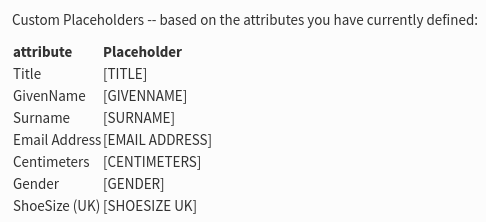](https://www.phplist.org/manual/uploads/images/gallery/2019-06/blVpmoPDKQeyC5uN-Screenshot-from-2019-06-28-13-48-22.png)
These are generated directly from your chosen Attributes so if you wish to edit them, please see the Attributes chapter.
## How to use a placeholder in a mail
To use a placeholder, you need to type it exactly as suggested in the information, **i**, box. This will include:
- an open square bracket
- the placeholder name (in Capitals, with spaces)
- and a close square bracket
It is also wise to use some **fallback words**, that is words that will be inserted in place of the data when the data is missing. You can indicate the *fallback words* with the double percent sign **%%**. Anything before the %% is the attribute placeholder. Everything after the %% is the fallback text. The fallback text is optional.
In this example, the placeholder would either print the subscribers' **first name**, and where the name is not known, it will print the word **Friends**.
[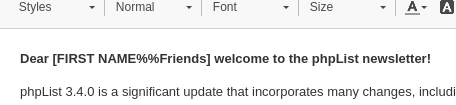](https://www.phplist.org/manual/uploads/images/gallery/2019-06/CD8nPWbe5TTeVrDe-Screenshot-from-2019-06-28-13-51-10.png)
It is important that you test your placeholder before you send your mail, as mistakes are ugly and disconcerting for your subscribers.
### Set up two test accounts
To test your placeholder effectively you will need:
- one subscriber profile suitable for testing the attribute placeholder. You can use an alternative email to which you have access, where the attribute data is completed
- another subscriber using an email you have access to, where the attribute data is not completed.
You may need to add these emails or edit your existing data to achieve this. You can do all these things from the **Search** > **Search Subscribers** page.
In the example below I have subscribed myself to the system using my personal email (rather than my work email) and I have filled out my name.
[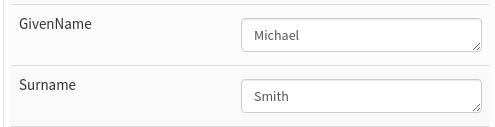](https://www.phplist.org/manual/uploads/images/gallery/2019-06/RIyZzzLuIODb9sT9-Screenshot-from-2019-06-28-14-04-28.png)
And I have another one using my old email address where the attribute data has not been provided.
[](https://www.phplist.org/manual/uploads/images/gallery/2019-06/Q5RxI4dOGAyuNzOp-Screenshot-from-2019-06-28-14-04-05.png)
Send a test message
Next, enter the two test emails into the **Send Test** box at the bottom of your campaign **Content** page and press **Send Test.** You may need to confirm the emails if it is the first time you have used them.
### Check the results
For the subscriber where the attribute related to the placeholder has data, you should see that data in the email. In this example you can see the name Anna is visible in the place of \[FIRST NAME\]
[](https://www.phplist.org/manual/uploads/images/gallery/2019-06/jSkSCiRhX4f5yran-Screenshot-from-2019-06-28-13-58-46.png)
Where the subscriber has no data for the attribute, you should see the **Fallback Text**. In this example that is the word **Friends**.
[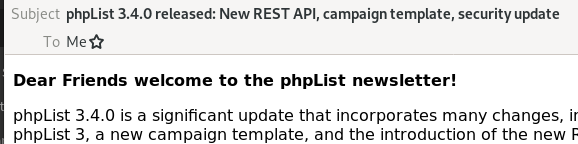](https://www.phplist.org/manual/uploads/images/gallery/2019-06/qwZjEjIDJi95Gtlh-Screenshot-from-2019-06-28-13-56-12.png)
You can now send your campaign as usual.
### Documentation wiki
For additional documentation, you can visit the [wiki](https://resources.phplist.com/placeholders) page.
# Targeting your campaigns
In this example, Ethical Pets are sending out a campaign about a special offer on dog treats. They are targeting the campaign by only sending it to customers who have previously bought products for a dog.
There are several reasons for doing this:
- It enables more campaigns to be sent overall, which increases the impact of email marketing
- Most people will receive fewer campaigns, so they are not inundated
- Campaigns will be more relevant to readers
- Campaigns are quicker and easier to write, because they only need to be interesting to the target audience and not to everyone
- It is easier to measure the impact of the campaign
In this campaign only 35% of the total number of subscribers were emailed. Without segmentation either a large number of people would have received a campaign with little relevance to them or Ethical Pets would have needed to spend time tying to make the campaign have a broader appeal.
The overall consequences of segmentation should be:
- Happier customers
- Fewer unsubscribes
- More motivated marketeers
- Improved sales/responses to calls to action
- Improved customer loyalty/retention over time
## Segmenting your list
The method of segmentation depends on,
- The quality of your data
- Where and how your data is stored
- What tools you have to segment it
## Adding a segmented list to phpList
A suggested methodology for adding a segmented list to phpList is:
- Synchronize your data - upload any new subscribers to phpList
- Create a new list
- Copy and paste the segmented emails into the new list
- phpList will pull in the rest of the data/attributes for you from the subscriber profiles
Having synchronized the data by uploading the latest data using a CSV import, Ethical Pets went on to create a new list.
In this case a new list **Dog category purchasers** was created (note: a private list, not public)

Then the emails from the prestashop segmentation export were pasted in:

The segmented list of subscribers are now all members of the list.

## Sending to a segmented list
The process for sending to segmented lists is the same as sending to large, unsegmented lists. You simply select the list on the **Lists** tab of the campaign workflow. In this example we have put the segmented list in a category too.

## Excluding a list
If you are sending a lot of mails and there is a chance that subscribers are in multiple segments and receiving lots of campaigns, you could consider using the "exclude" list functionality.
For example, if Ethical Pets wants to send a campaign to a list of cat product purchasers just a few days after they sent the email to dog product purchasers, they could exclude anyone on the dog list from receiving the cat related campaign.
While this involves prioritizing which campaign is most important, the dog or the cat one, it means that the people who buy both dog and cat products are not receiving too many campaigns in total.
### Activate the list exclude feature
You need to use
define("USE\_LIST\_EXCLUDE",1);
in your config.php

The line of code and comments can be found in the extended config and copied over. If you do not know how to do this, you can find more information in the manual installation chapter.
### Using the list exclude feature
In this example, Ethical Pets have emailed the cat product purchasers segment but excluded the dog purchasers segment. During sending phpList checks if the subscriber on the cat list is also on the dog list, and if they are, the email is not sent to them.

Additional ways to segment a list
Here are a few ideas for ways you could segment your lists:
- Subscriber location
- Subscriber interests
- Subscriber demographic (gender, age, shoe size etc)
- Subscriber actions (purchase, abandoned cart, signed petition, recent comment etc)
- Subscriber status (new to list, long-time member)
- Subscriber preference: ask your subscribers how often or when they would like to receive emails from you using an attribute on your subscribe page.
- You can a/b test aspects of your email, for example the tone/style/grammar of the subject line
- You can automate transactional messages, for example, messages offering help to customers who abandoned a cart. You can use a recurring campaign for this.
- You can tailor very specific emails, for example about events, to those who live in the location of those events.
- Is an active feature of the software, not simply a description of a design element
- Can be edited for each campaign from the content tab of the campaign workflow
- Is replaced by a secondary footer when the Forward to a Friend system is used
- Should contain the \[UNSUBSCRIBE\] placeholder
- Is placed in the template with the \[FOOTER\] placeholder
### What is the footer?
In your template design you may have many elements which you think of as being "the footer." In the image below, for example, the blue and black colored areas and all the content within them would commonly be described as the "footer."
However, you may not wish to add all of this into your phpList footer. For example, in the image below only the "update your preferences" and "unsubscribe" elements are within the phpList footer system. The rest is in the template itself.
[](https://www.phplist.org/manual/uploads/images/gallery/2019-07/ERaRjvzdYLFpsGIA-Screenshot-from-2019-07-01-11-36-49.png)
You may wish to choose which items go into the phpList footer carefully because:
###
Adding your footer
Everything that goes in the phpList footer is added separately from the rest of the template. To situate the a footer to your template use the \[FOOTER\] placeholder.
[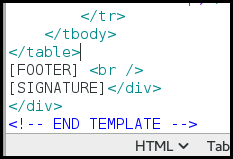](https://www.phplist.org/manual/uploads/images/gallery/2019-07/FKShaMhoZG8YHoDD-footer_1.png)
You should design your footer as a separate .html file
[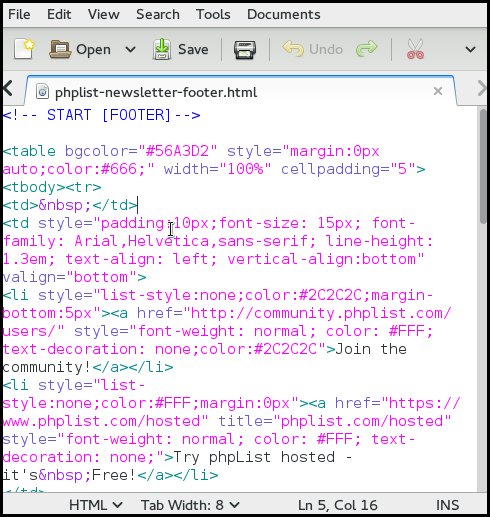](https://www.phplist.org/manual/uploads/images/gallery/2019-07/mCrkzmtVl9YCjtyZ-footer_2.png)
To add your footer to phpList go to **Config** > **Settings** and **campaign settings** Find **Default footer for sending a campaign** then click the edit icon.
[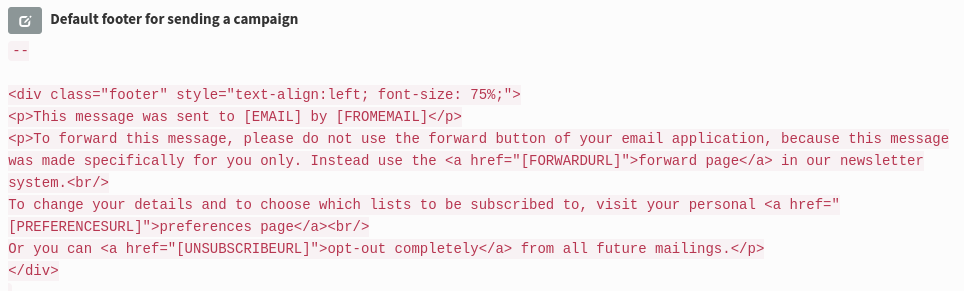](https://www.phplist.org/manual/uploads/images/gallery/2019-07/5i0ycY1aEFLyJORe-Screenshot-from-2019-07-01-11-38-36.png)
Paste in your footer code and click **Save changes**.
[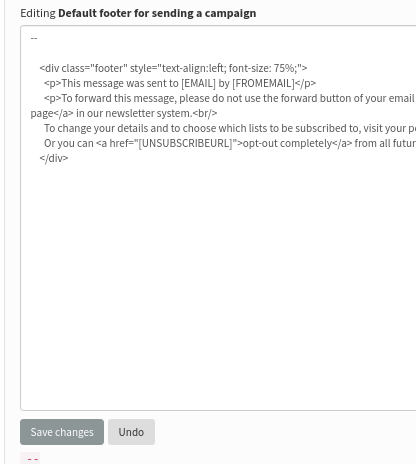](https://www.phplist.org/manual/uploads/images/gallery/2019-07/PfUXxbQd8pLKScZH-Screenshot-from-2019-07-01-11-39-16.png)
Your footer will now appear in the footer section of the content tab in your campaign workflow, where you can tweak it.
[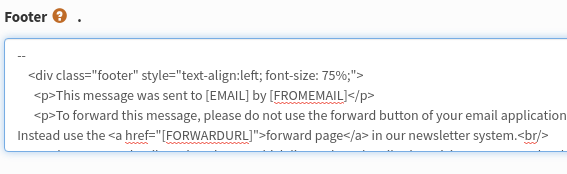](https://www.phplist.org/manual/uploads/images/gallery/2019-07/piZrZfjImZQgih5v-Screenshot-from-2019-07-01-11-42-07.png)
As well as in your campaigns when you send them.
[](https://www.phplist.org/manual/uploads/images/gallery/2019-07/ERaRjvzdYLFpsGIA-Screenshot-from-2019-07-01-11-36-49.png)
The Forward to Friend footerOn the **Config** > **Settings** page, there is a second footer called **Footer used when a message has been forwarded**.
If you use the **\[FORWARD\]** placeholder, and a subscriber forwards the email, this footer will replace the usual one. It contains the following text:
**This message has been forwarded to you by \[FORWARDEDBY\].**
**You have not been automatically subscribed to this newsletter.**
**If you think this newsletter may interest you, you can \[SUBSCRIBEURL\] and you will receive our next newsletter directly to your inbox.**
If you wish to use the forward to friend system you should edit this footer so that it has the correct appearance while maintaining the appropriate text.
### Feedback
Discuss this chapter [here](https://discuss.phplist.org/t/the-footer-manual-chapter-feedback-and-discussion/219).
# Creating a template
#### Creating your template
There are lots of ways to create your template. You could
- Design and write your own
- Pay someone to do this for you
- Modify a generic/Open Source template that you have bought or "recycled"
- Use the super-simple DIY template in the next chapter.
Here are some tips to help you set up your template for use with phpList.
*If you don't understand the information in this chapter and you don't have anyone to help you with your template, then skip to the next chapter for a super simple template.*
### The Basics
You should use inline styles, and unless you have configured phpList especially with a plugin, you must use a single column template.
If you choose a responsive template, your campaign editor should not use images with a width larger than a smartphone screen (max 320 by 480 pixels).
The *footer* in phpList is quite specialized and is described in a separate chapter. If you plan to have a footer in your design, please read the footer chapter before you start work.
###
Logo: upload or remote link?
When you are designing or modifying your template, you need to decide if you will include your logo in the campaigns as an attachment or use a remote image. If you include your logo as an attachment it will always display to the recipient.
[](https://www.phplist.org/manual/uploads/images/gallery/2019-07/bEzNWlxkBS9Y5osc-IMG_20190701_122404.png)
If you use a remote link, however, the image will only display when the subscriber gives permission *(*in most email and webmail clients).
[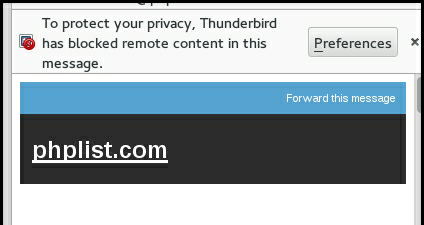](https://www.phplist.org/manual/uploads/images/gallery/2019-07/eWsAbFO2KqLGLezd-IMG_20190701_122351.png)
If you decide you upload your image then leave the local link (or just a use a "broken link") and you will be prompted to upload the image when you are adding your template to phpList.
##### A mandatory placeholder in the body
You must include some strings that phpList will replace during the sending stage.
**\[CONTENT\]**
The obligatory string is \[CONTENT\]. This will be replaced with the content of your message when you send your campaign.
##### [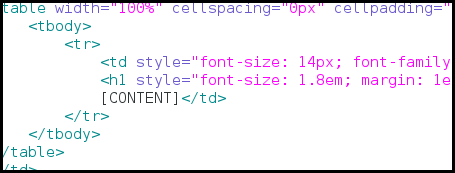](https://www.phplist.org/manual/uploads/images/gallery/2019-07/VORbTTuRLjVvF3uL-content_placeholder.png)
Adding your template to phpList
To add a template to phpList, go to **Campaigns** > **Manage campaign templates** from the main menu.
[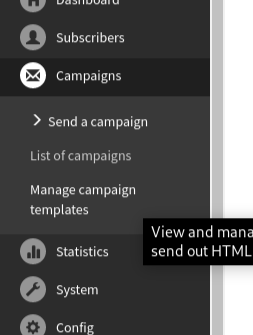](https://www.phplist.org/manual/uploads/images/gallery/2019-07/AQHNBrbvosl49lNn-IMG_20190701_122341.png)
You will then see a list of templates already in the system. By default there is one template, the **System template** (which styles things like the confirm subscription emails).
[](https://www.phplist.org/manual/uploads/images/gallery/2019-07/KqrtxEF03SqZrRY5-Screenshot-from-2019-07-01-12-00-01.png)
Click **Add new template**.
[](https://www.phplist.org/manual/uploads/images/gallery/2019-07/6CJ83isVcUzm37W7-Screenshot-from-2019-07-01-12-01-03.png)**Name your template**
First, give your template a Title. This will display in the list of templates to choose from during the campaign composition stage, so it is important that the name makes sense to the person writing the campaigns.
In this case we called the template **Simple responsive template**, because it is the template we use when we announce a new version of phpList. We have different templates for community news and phpList hosted special offers, for example.
[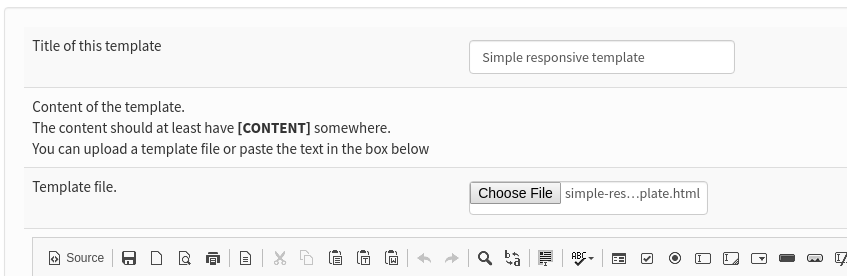](https://www.phplist.org/manual/uploads/images/gallery/2019-07/0LUjQM3Wm6r6ux54-Screenshot-from-2019-07-01-12-02-53.png)
##### Upload your file
To add your template you can paste the html into the editor, or upload it as a file. In this example we are uploading it.
Click the **Browse** button, locate the template file on your computer and click **Open**. The file name will then appear next to the **Browse** button (as shown in the image above).
#### Save your template
Scroll to the bottom of the page and click **Save changes**, using the checking tools if you wish.
[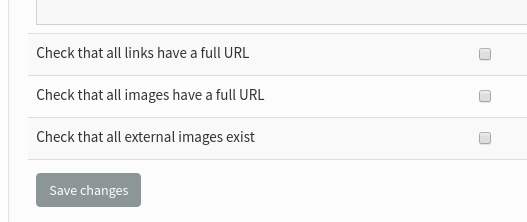](https://www.phplist.org/manual/uploads/images/gallery/2019-07/0eer3JUGGPa5o2tK-Screenshot-from-2019-07-01-12-03-13.png)
#####
Upload your logo?
The next screen gives you an opportunity to upload your template images, if you have any. This will usually be a logo. In this case the logo is hosted remotely and so no image is listed to upload.
[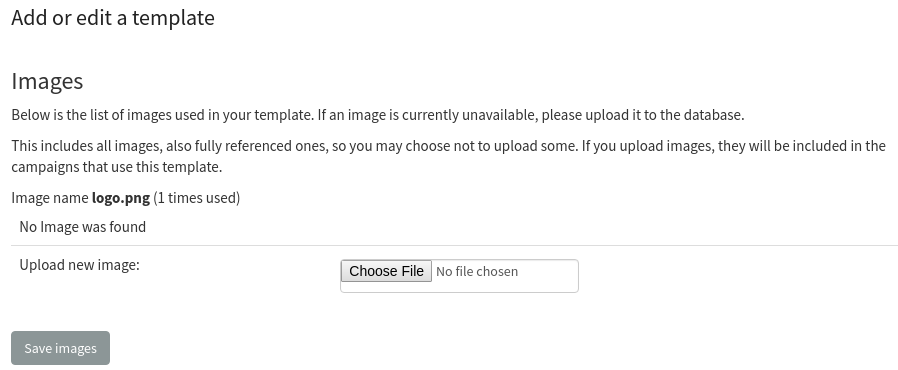](https://www.phplist.org/manual/uploads/images/gallery/2019-07/o8FYUyndtS0JslcV-Screenshot-from-2019-07-02-14-45-53.png)
Click **Save images**.
Your template will now be added to your list of **Existing templates**.
If you wish to set this template as the default for all campaigns, you can check the button under **CAMPAIGN DEFAULT**.
[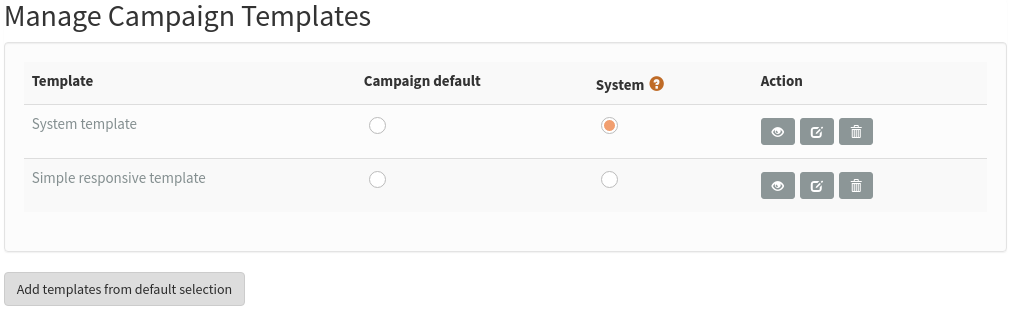](https://www.phplist.org/manual/uploads/images/gallery/2019-07/Aut8A01uaP0R9YWK-Screenshot-from-2019-07-01-12-10-46.png)
**Defaults and settings**
There are some default settings for templates and footers at **Config** > **Settings** under **campaign settings**. For example you can choose which template will be used by default by referring to its ID.
**[](https://www.phplist.org/manual/uploads/images/gallery/2019-07/Ig1uzVfEso9ssQIz-Screenshot-from-2019-07-01-12-12-21.png)**
The ID of the template can be found by hovering your mouse on the template name.
### Using your template
During campaign composition, use headings and other formatting as normal. You do not need to apply any additional styling such as text colour, if those elements are dealt with in your template.
[](https://www.phplist.org/manual/uploads/images/gallery/2019-07/ByvDwxHQZJEJeIBi-Screenshot-from-2019-07-01-12-18-43.png)
In the **Format** of the send campaign workflow, select your template from the **Use template** dropdown.
[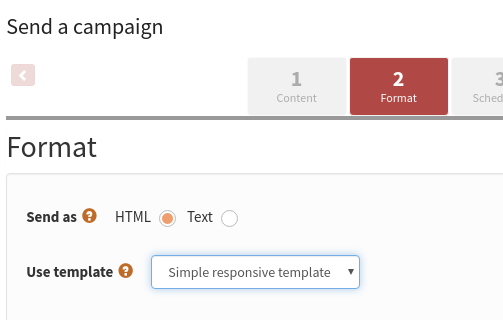](https://www.phplist.org/manual/uploads/images/gallery/2019-07/8Gv2gwXcoyRhQACA-Screenshot-from-2019-07-01-12-19-13.png)
The template and theme are then applied during sending.
[](https://www.phplist.org/manual/uploads/images/gallery/2019-07/f4201GZw50UlT1OY-IMG_20190701_122404.png)
### Feedback
Discuss this chapter [here](https://discuss.phplist.org/t/creating-a-template-manual-chapter-feedback-and-discussion/220).
# Advanced templating
#### More template placeholders
This chapter contains additional details that may be useful for a designer who is creating a template for use in phpList.
\[SUBJECT\]
\[SUBJECT\] adds the subject of the email within the newsletter text.
#### \[CONTENT\] - a mandatory placeholder
This is where the message's content (body) will be inserted. Every template must have a \[CONTENT\] placeholder.
**\[FOOTER\]**
The message footer
**\[SIGNATURE\]**
\[SIGNATURE\] prints the phpList image signature.
**\[FORWARDURL\]**
\[FORWARDURL\] is replaced with the personalised URL only. To use this, you will need to wrap it in HTML, like this:
```HTML
Forward to a Friend
```
**\[PREFERENCESURL\]**
\[PREFERENCESURL\] allows the recipient to edit their subscribe preferences, for example update their email or the number of lists they belong to. This essentially allows them to maintain your list up to date for you and is an invaluable feature.
**\[UNSUBSCRIBEURL\] - a mandatory placeholder**
\[UNSUBSCRIBEURL\] allows the recipient to totally unsubscribe from all your lists. In phpList you must include this placeholder somewhere in your body or footer. It is best to use this along side \[PREFERENCESURL\] if you manage multiple lists, so subscribers can leave just one list rather than all lists if they want.
**\[DOMAIN\]**
Prints your domain, e.g. yourdomain.com as listed in your configuration settings.
**\[EMAIL\]**
Prints the subscribers email address;
**Some older placeholders**
These are some older placeholders which still work, but are not recommended for use:
**\[FORWARD\]**
\[FORWARD\] is a link where the recipient can go to “forward this message”. The default text for this placeholder is **this link.**
For example, if you use "If you want to forward this message to a friend click \[FORWARD\]", it will come out as:
[](https://www.phplist.org/manual/uploads/images/gallery/2019-07/wCzImwxSNU8EmbfB-forward.png)
**\[UNSUBSCRIBE\]**
Like Forward the link that subscribers can use to unsubscribe. It will also be replaced with "This Link", which means you can use it like this:
To unsubscribe from our newsletter click \[UNSUBSCRIBE\]
**\[PREFERENCES\]**
Like Forward and Unsubscribe the link that subscribers can use to update their personal details and preferences. It will also be replaced with "This Link", which means you can use it like this:
To change your preferences click \[PREFERENCES\]
#### Feedback
Discuss this chapter [here](https://discuss.phplist.org/t/advanced-templating-manual-chapter-feedback-and-discussion/221).
# DIY: Super Simple Template
We have made a very basic template for you to use. You will also need
- A version of your logo or similar image measuring 300px wide.
### Download and save the template
Download the template by clicking **[here](https://s3.amazonaws.com/ph-manual/assets/basic-template.html)** and then saving the file to your PC.
### Upload the template to phpList
Go to **Campaigns** > **Manage campaign templates.**
[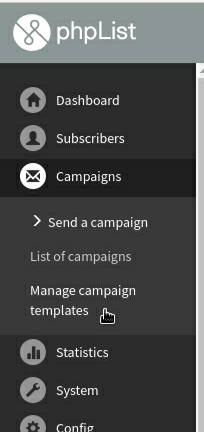](https://www.phplist.org/manual/uploads/images/gallery/2019-07/PpABI3f3YGL7LvbQ-IMG_20190702_150242.png)
Click **add new template**.
[](https://www.phplist.org/manual/uploads/images/gallery/2019-07/8aYPnkLV4bEuMYjv-Screenshot-from-2019-07-02-15-06-03.png)
Give your template a name, for example **My Newsletter Template**. Then click **Choose File**.
[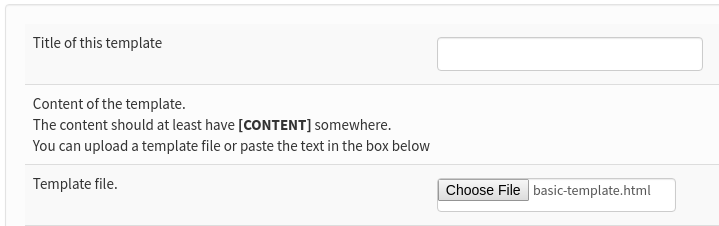](https://www.phplist.org/manual/uploads/images/gallery/2019-07/eUY5ftKh6MuVWrVw-Screenshot-from-2019-07-02-14-44-39.png)
Select the file you downloaded earlier, called **basic-template.html**, from your computer and click **Open**.
[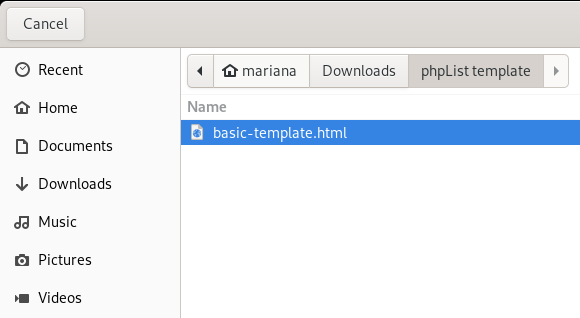](https://www.phplist.org/manual/uploads/images/gallery/2019-07/aPl6AviUzwNhohIo-Screenshot-from-2019-07-02-14-44-19.png)
Then click **Save Changes**.
[](https://www.phplist.org/manual/uploads/images/gallery/2019-07/0eer3JUGGPa5o2tK-Screenshot-from-2019-07-01-12-03-13.png)
### Upload your logo to phpList
You will then be directed to add your logo. Remember, it must be no more than 300 pixels wide. Click **Choose file**.
[](https://www.phplist.org/manual/uploads/images/gallery/2019-07/o8FYUyndtS0JslcV-Screenshot-from-2019-07-02-14-45-53.png)
Select your logo file from your computer and click **Open**.
[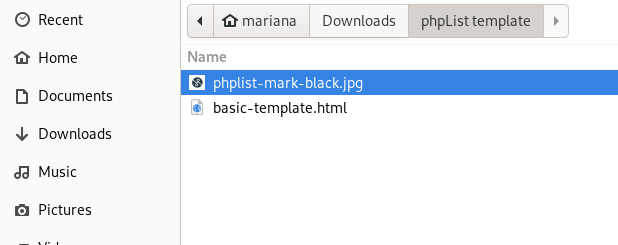](https://www.phplist.org/manual/uploads/images/gallery/2019-07/RtWfhNFjeGUbm9NB-Screenshot-from-2019-07-02-14-48-24.png)
Click **Save Images**.
### Make the template your default?
You will see your new template added to your list of existing templates. If you will use this template for most of your campaigns, click the radio button under **Campaign Default**.
[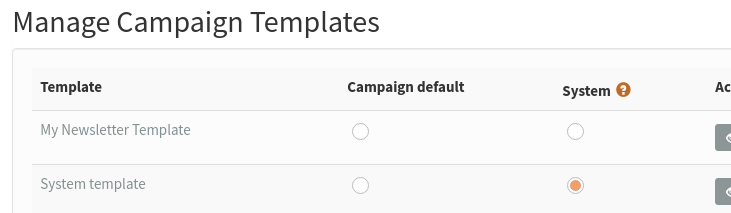](https://www.phplist.org/manual/uploads/images/gallery/2019-07/qBXnnDyzK0MJLkVm-Screenshot-from-2019-07-02-14-49-06.png)
### Copy this footer text
`Update your preferences | Unsubscribe`
Add the footer to phpList
First go to **Config** > **Settings**.
[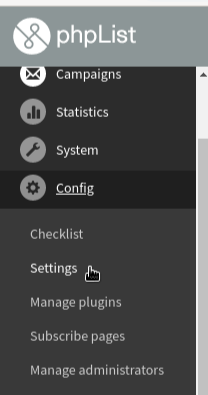](https://www.phplist.org/manual/uploads/images/gallery/2019-07/oeCXygOzCh99AL2G-IMG_20190702_150158.png)
Then scroll down till you find the **Campaign Settings** area.
[](https://www.phplist.org/manual/uploads/images/gallery/2019-07/roBbFqGIwqNeJ0Hy-Screenshot-from-2019-07-02-14-50-48.png)
Click the edit icon
[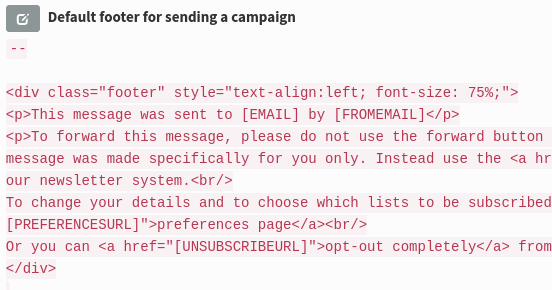](https://www.phplist.org/manual/uploads/images/gallery/2019-07/YQA3GPZV1OKSbD65-Screenshot-from-2019-07-02-14-51-06.png)
Delete the contents up to the -- and right-click to **Paste** in the html you copied from this chapter.
[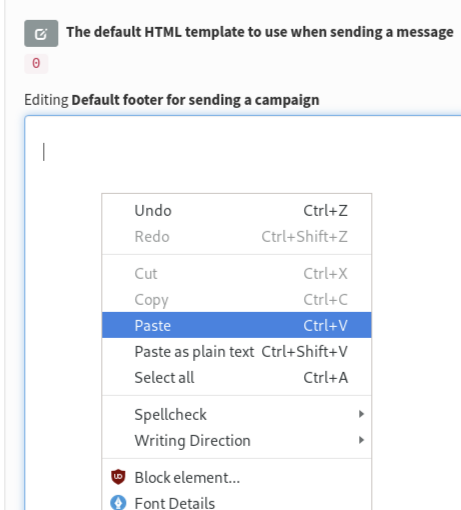](https://www.phplist.org/manual/uploads/images/gallery/2019-07/wzpBW0TOcJzcc0DR-IMG_20190702_145757.png)
Click **Save Changes**.
[](https://www.phplist.org/manual/uploads/images/gallery/2019-07/MvaNc4OvjaNCxHkj-Screenshot-from-2019-07-02-14-51-55.png)
Any new campaigns will now use this footer by default.
### Using your new template
Compose a new campaign. In this example I have pasted the html from my latest blog.
[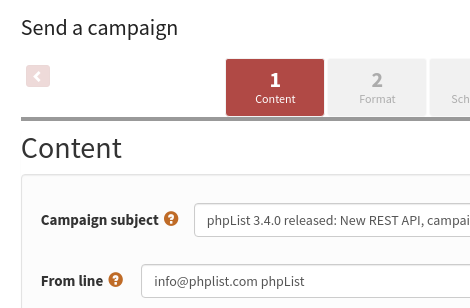](https://www.phplist.org/manual/uploads/images/gallery/2019-07/IjPSiPtsGLR7TMu7-Screenshot-from-2019-07-02-14-52-38.png)
Check that you are using your template by clicking **Next** and examining the **Format** tab.
[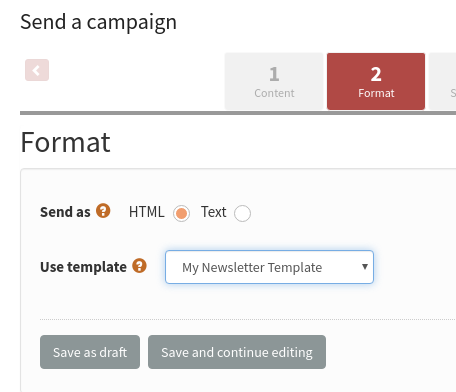](https://www.phplist.org/manual/uploads/images/gallery/2019-07/QtTFM0FUbFHzD6DO-Screenshot-from-2019-07-02-14-53-18.png)
Send a test message using the **Send test** box at the bottom of the page.
[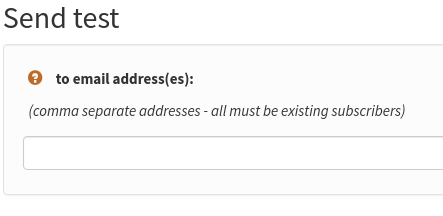](https://www.phplist.org/manual/uploads/images/gallery/2019-07/6OggpTD0X1kjlzmv-Screenshot-from-2019-07-02-14-53-40.png)
Take a look at the email when it arrives. You will notice your logo displays even when other, remote images are blocked, because phpList has sent it as an attachment.
[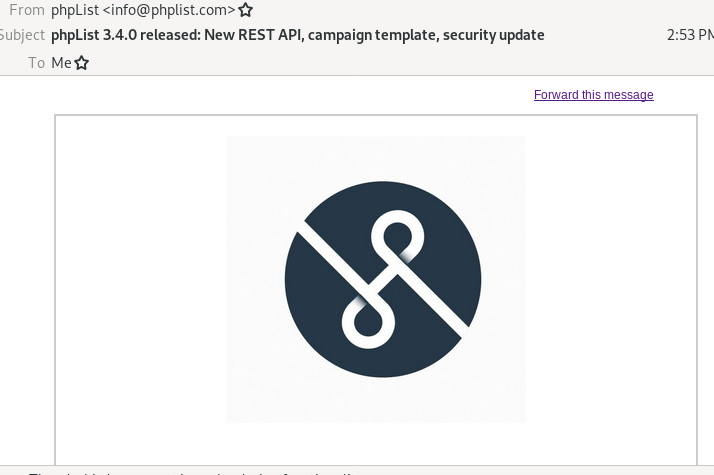](https://www.phplist.org/manual/uploads/images/gallery/2019-07/q9uVjP9xQrr7nu1V-Screenshot-from-2019-07-02-14-54-38.png)
And you can see your template has been applied,
[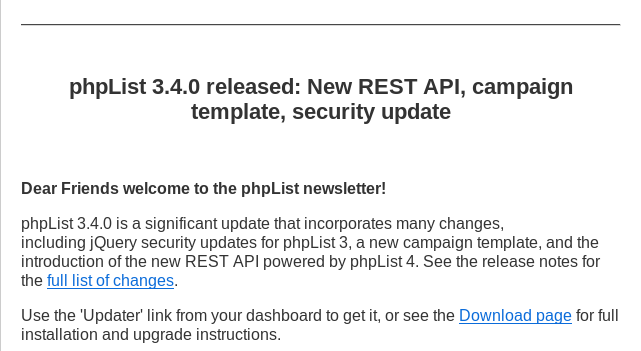](https://www.phplist.org/manual/uploads/images/gallery/2019-07/qfuZvNqp5ou3CzvY-Screenshot-from-2019-07-02-14-55-14.png)
## Feedback
Discuss this chapter [here](https://discuss.phplist.org/t/diy-super-simple-template-manual-chapter-feedback-and-discussion/222).
# Subscribe page design and configuration
*Subscribe page* is the name of the page where your subscribers can join your lists. You can have as many subscribe pages as you want, and you can make them look like your website.
You can customize your subscribe pages in various ways. You can edit the default design, which will affect all the pages, on your **Config** > **Settings** page, and/or you can tweak the design of individual pages using the **Header** and **Footer** boxes on the subscribe page editor.
#### Modifications from within the Config > Settings page
Go to **Config** > **Settings** from the main menu, and scroll down to the **subscription-ui settings** area. Here you can edit the html of the pages, and also a few basic settings.
#### Modifications from within the subscribe page editor
The **Header** and **Footer** boxes in the **General Information** section of **Config** > **Subscribe Pages** > add/edit a page can be used to edit the HTML of an individual subscribe page.
The html in these boxes is generated from the defaults in **Config** > **Settings** > **subscription-ui settings,** which can also be edited (see above).
You don't need to use <HTML> <head> etc, as phpList already includes this for you. However, you can add your own Meta Tags and CSS file links or your own <scripts> just so long as all these extras are above the </head>.
If you create your own CSS styles for your page, save the file outside of the phpList folder structure, for example in the stylesheets directory. Then add a rel link to the new file above the </head> tag. Keeping it outside of the phpList folder structure will make it easier to upgrade later on.
*<link rel="stylesheet" href="/styles/customized.css" type="text/css" />*
#### Advanced Customisation
You may wish to heavily customise of your Subscribe page, to make it look like it is part of your website (rather than third party software).
You should use a HTML editor for this task. You create a blank page in your HTML editor, then copy and paste the contents of the Header box and replace the code </head> <body> in the HTML editor with the copied code.
You will need to be careful with exactly how much you paste into the **Header** box and whatever you do paste must fit within the <TABLE> below the <!-- Top table starts -->
## Feedback
Discuss this chapter [here](https://discuss.phplist.org/t/subscribe-page-design-and-configuration-manual-chapter-feedback-and-discussion/223).
# Advanced Campaign Statistics
This chapter covers
- The statistics menu
- Drilldown by campaign into clicks and/or opens
- Domain statistics
- Using a Google tracking code
- Forward to a friend.
Basic statistics, as found in the Statistics Overview, are covered in the chapter called Basic Campaign Statistics.
## The Statistics Menu
The statistics menu pulls together a lot of features. It is worth exploring what can be found though this menu. The main items on the menu are Overview, Opens, Campaign clicks, URL clicks and Domain statistics. You may also see other options, for example Advanced statistics, if you statistics plugins is activated.
To get a basic understanding of what data is available you can work methodically from the top down, first viewing each page, then seeing what links are provided in each page, and onwards. You will often come full circle.
[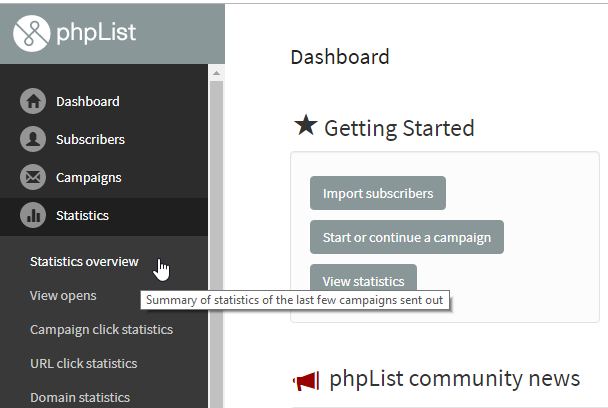](https://www.phplist.org/manual/uploads/images/gallery/2019-07/gnjmxIeLZ61QHeeS-how_to_view_statistics_in_phplist.png)
In this chapter we will approach our drilldown from analysing one campaign, covering both opens and clicks. You can also compare multiple campaigns, or focus on a specific URL you are trying to drive traffic to. The approach you take depends on the questions you are trying to answer.
## Drilling down into an individual campaign
The starting point for an analysis of a single campaign is the campaign statistics overview. This can be found in **Campaigns** > **List of campaigns** > **Sent Campaigns** by clicking on the graph button
[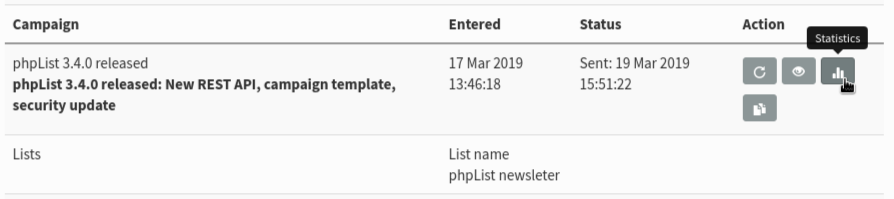](https://www.phplist.org/manual/uploads/images/gallery/2019-07/hpRpY7LkoKRMT3xO-IMG_20190703_121550.png)
and also by visiting **Statistics** > **Statistics overview** and clicking on the name of the campaign.
[](https://www.phplist.org/manual/uploads/images/gallery/2019-07/ZYclccHQOsHD1mfx-phpList_statistics_overview.png)
Either of these routes will bring you to the Statistics Overview for a campaign. The page gives you an overview of information and two ways to drilldown are available.
[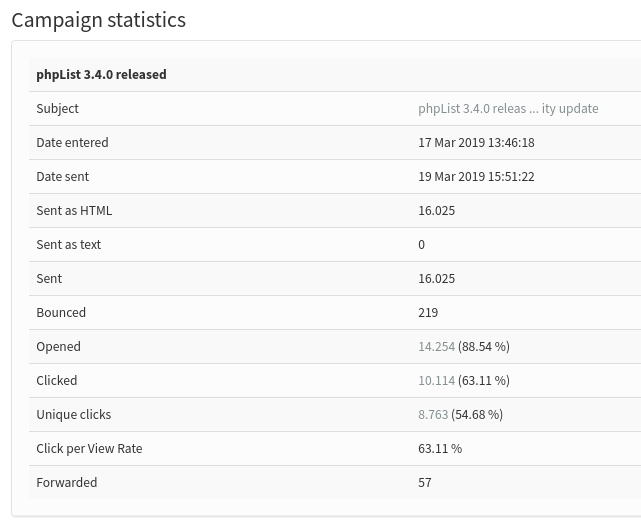](https://www.phplist.org/manual/uploads/images/gallery/2019-07/rzDKK1rAeUpRP4OP-Screenshot-from-2019-07-03-11-32-40.png)
### Opened Drilldown
By clicking the number of opens, you can get a a page called Open Statistics.
[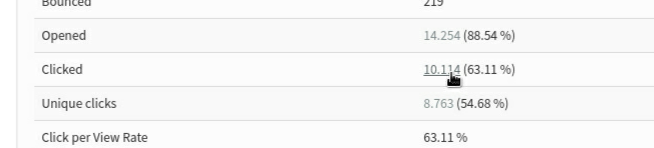](https://www.phplist.org/manual/uploads/images/gallery/2019-07/7sLnd4uwkmTU6zHl-IMG_20190703_121721.png)
This page allows you to **Download as a CSV file** a list of those subscribers who were registered as having opened the campaign (remember this is by no means everyone, only those *recorded*).
The csv file can in turn be used to create lists of active subscribers, or by using the list-exclude feature you can isolate *inactive* subscribers too.
[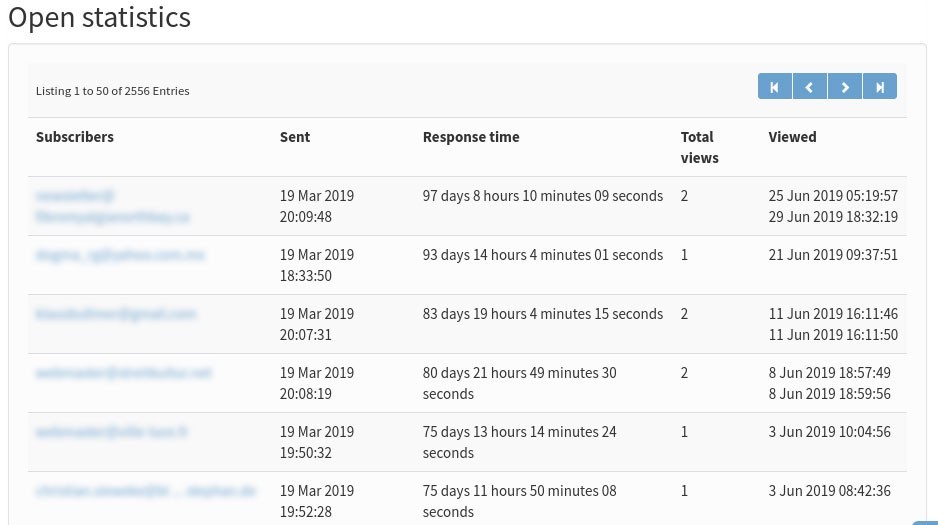](https://www.phplist.org/manual/uploads/images/gallery/2019-07/2TCLGPol6YRgrfDT-Screenshot-from-2019-07-03-11-40-10.jpg)
You can also click on an individual subscriber to drilldown to the subscriber level.
[](https://www.phplist.org/manual/uploads/images/gallery/2019-07/N95aZYhlq3I2Dmf8-IMG_20190703_121653.jpg)
This will take you to the **Campaigns** tab in the **History** section of the **Subscriber profile**, where you can click further links to view the campaigns they have opened (left) or the links they clicked on in that campaign (right).
You can also see the date on which they viewed a campaign and the response time (in seconds).
[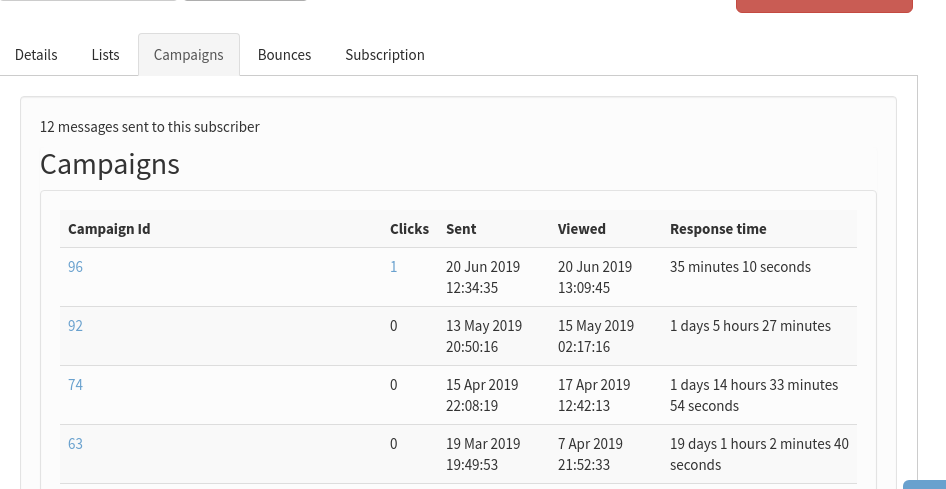](https://www.phplist.org/manual/uploads/images/gallery/2019-07/vWZQ1SvbLQOvcHum-Screenshot-from-2019-07-03-11-47-46.png)
### Clicked Drilldown
In your campaign statistics overview page, you can also choose to drilldown into clicks data.
[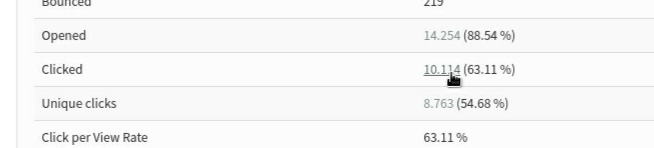](https://www.phplist.org/manual/uploads/images/gallery/2019-07/RZRe4dsS2fA88Fdf-IMG_20190703_121721.png)
This will take you to a list of the links in that campaign, and how many people clicked on each one.
[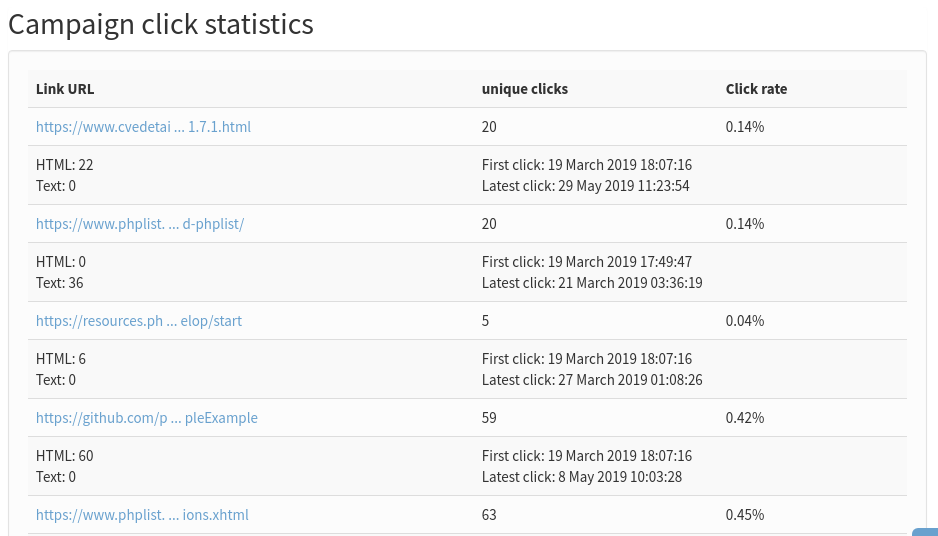](https://www.phplist.org/manual/uploads/images/gallery/2019-07/YIih9Z8UpLF7E6BI-Screenshot-from-2019-07-03-11-53-03.png)
If you click on the url you can see how many people clicked on that url across all campaigns which contained it.
[](https://www.phplist.org/manual/uploads/images/gallery/2019-07/4MzYYBEPXic2vA90-IMG_20190703_121618.png)
That data can also be downloaded as a csv.
[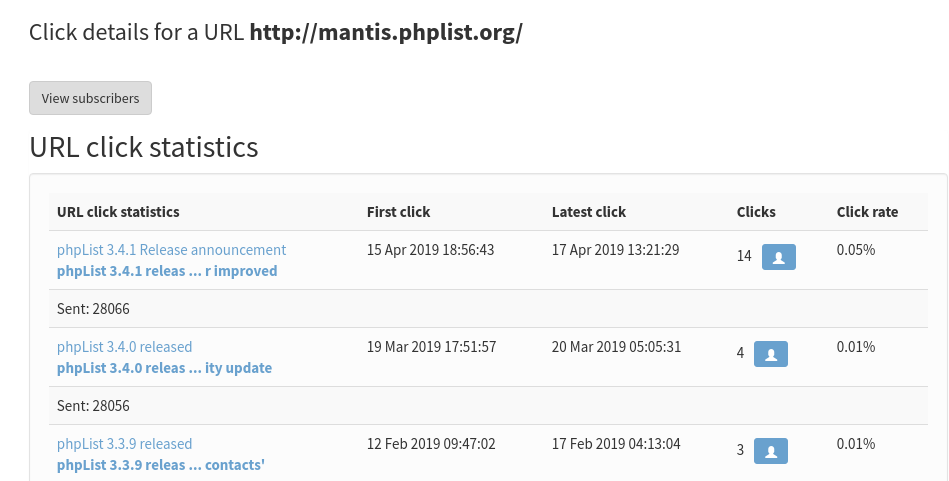](https://www.phplist.org/manual/uploads/images/gallery/2019-07/O1V3mz84VcwN2OVU-Screenshot-from-2019-07-03-11-54-24.png)
## Domain Statistics
The **Domain statistics** page is accessible from the main statistics menu and it is a fascinating page which can give you a real insight into the nature of your subscribers. The Domain Statistics tab is divided into four tables that each one oven display different typo of information:
- Top 50 domains with more than 5 subscribers
- Domains with most unconfirmed subscribers
- Top 25 local-parts of email addresses
- Top 25 domains with the highest number of bounces
On the last table each domain links to a new page which shows aggregated performance statistics for each of those records, specifically: bounce rate and view rate. These high-level statistics are useful in diagnosing deliverability issues to particular important mail hosts.
## Using an analytics tracking code
Using an Analytics tracking code ensures that any visits to your website from the campaign are recorded.
Matomo Integration is available as an alternative to Google Analytics *starting from phpList [version 3.5.3](https://www.phplist.org/newslist/phplist-3-5-3-release-notes/)*. You can choose between Matomo or Google Analytics in the Settings page of your account. Similarly to the current GA parameters, when selected, each URL will have four additional query parameters that will be displayed and can be edited on the Finish tab when composing a campaign. The data is not collected, stored or viewed in phpList.
Google tracking is quite different from the in-built phpList opens/views tracking. Firstly the data is not collected, stored or viewed in phpList. Also, if you link to another website in your campaign and if that website *also* has Google Analytics tracking on their site (which is likely) then they also receive data. In that sense, the tracking code is not exclusive to you.
[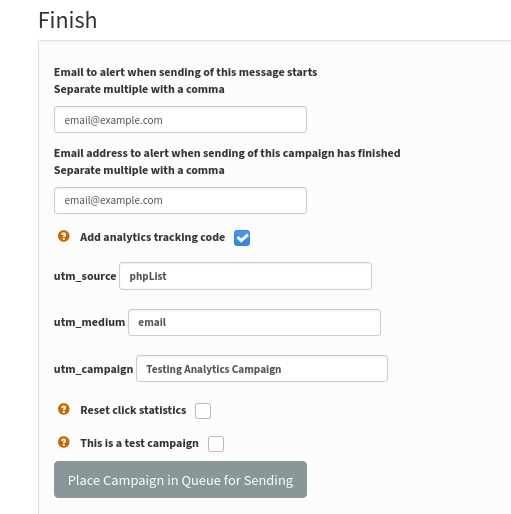](https://www.phplist.org/manual/uploads/images/gallery/2020-11/LCtCljIk4HYsBgRF-analytics.png)
To turn on and off the use of tracking codes for every campaign, use the **Always add analytics tracking code to campaigns** in your **campaign settings** area, which can be accessed from **Config** > **Settings**. Once you select whether you want to have Analytics tracking for your campaigns you can choose between Matomo and Google Analytics. You can update these settings an anytime.
[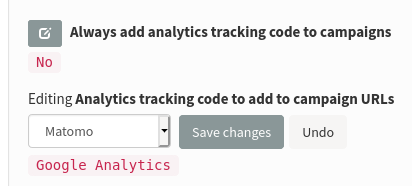](https://www.phplist.org/manual/uploads/images/gallery/2020-11/dngzYduyG8i6jRQp-analytics-selection.png)
To view the data in your Google Analytics go to **Acquisition** > **Campaigns** and you will see the name of each campaign.
[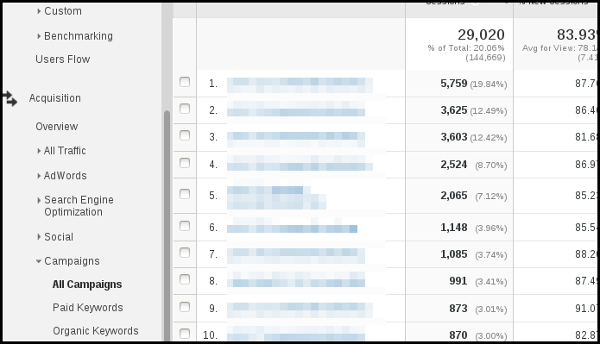](https://www.phplist.org/manual/uploads/images/gallery/2019-07/hwO7ajM1jXhBg0Je-google_result_1.png)
### Enable/Disable click track
As mentioned above, phpList can tell whether a link included on your campaign has been clicked and how many times has been clicked. For various reasons (for privacy reasons for your subscribers, for example) you might want to have this functionality disabled. Upon installation click track is disabled, but if you wish to enable it you have to edit the config\_extended.php file.
Go to:
```PHP
define('CLICKTRACK', 0);
```
and set this as
```PHP
define('CLICKTRACK', 1);
```
[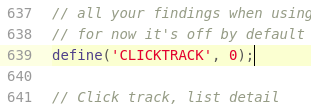](https://www.phplist.org/manual/uploads/images/gallery/2019-08/QIEhOoelUIklkr6t-Screenshot-from-2019-08-02-16-23-10.png)
## Forward to friend
On your **Statistics** > **Statistics overview** page, the third column, **FWDS**, shows the number of people who have forwarded the mail through the phpList **ForwardToFriend** system.
This system uses a placeholder to create a link or form in the email body or footer of your campaign for your subscribers to use to forward the mail to someone else.
If your subscribers use this method to forward your campaign, any actions (clicks, forwards etc) taken by the new recipient will be included in your campaign statistics separately.
It is possible for you subscribers to forward the message by other means, but you cannot reliably tell: any clicks or opens in an email which has been forwarded without the Forward to a Friend system will be recorded as actions of the original subscriber.
It is therefore worth including an option to forward the campaign, using the **\[FORWARDURL\]** placeholder, in the header or footer. For example,
[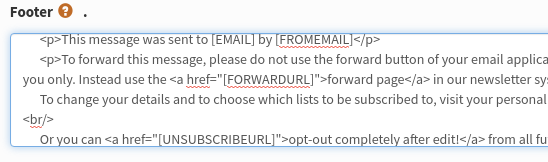](https://www.phplist.org/manual/uploads/images/gallery/2019-07/KhT0ZhfQEGBav4yJ-Screenshot-from-2019-07-03-12-07-34.png)
The subscriber will then see a forwarding link in the email footer:
[](https://www.phplist.org/manual/uploads/images/gallery/2019-07/6EdKHZRpTCy5CHa0-Screenshot-from-2019-07-03-12-08-01.png)
When a subscriber clicks this link they are prompted to enter an email:
#### [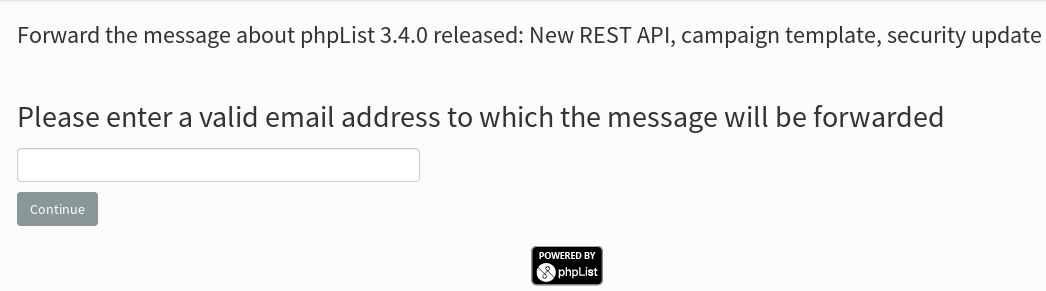](https://www.phplist.org/manual/uploads/images/gallery/2019-07/FxhV4HoAeuK6oQnX-Screenshot-from-2019-07-03-12-10-38.png)Disable click tracking
As stated above phpList can provide you all this useful information regarding the links that have been clicked from your campaign.
## Feedback
Discuss this chapter [here](https://discuss.phplist.org/t/advanced-campaign-statistics-manual-chapter-feedback-and-discussion/224).
# Installing and upgrading
This chapter concerns phpList self-hosted users only. If you have a registered account at the phpList Hosted service, please contact hosted@phpList.com.
# Installing phpList manually
This page concerns phpList self-hosted users only. If you have a registered account at the phpList Hosted service, please contact hosted@phpList.com.
This chapter explains how to install phpList manually. You may wish to install it using an automated tool if one is available to you. See the auto-installation chapter for more information on this.
## Overview of phpList installation
You can download phpList from:
\- [Download page](https://www.phplist.org/download-phplist/)
\- [SourceForge](https://sourceforge.net/projects/phplist/files/phplist/3.6.13/phplist-3.6.13.zip/download)
\- [Docker Hub](https://hub.docker.com/u/phplist)
phpList lives in its own folder called "lists." Manual installation follows these steps:
- Download phpList
- Unzip phpList
- Upload to your server using FTP
- Local Windows installation
- Create a database
- Add the database details to the config.php file
- Configure using web interface.
## Download phpList
First check that your server meets the [System Requirements. Then download the latest version of phpList from ](https://resources.phplist.com/system/start "phpList technical System Requirements")[http://www.phplist.com/download](http://www.phplist.com/download)[ by clicking either **Download ZIP** or **Download TGZ**. ](https://resources.phplist.com/system/start "phpList technical System Requirements")
[](https://www.phplist.org/manual/uploads/images/gallery/2019-06/zFJAOBXtKKWmRfxJ-Screenshot-from-2019-06-29-22-12-22.png)
The link will take you to SourceForge, where your download will begin after a few seconds. Depending on which browser you use, you may be asked to click **Save** before the download starts.
## Unzip phpList
Once you have downloaded phpList to your computer, unpack it to a temporary folder. You can usually do this by right clicking and choosing **Extract Here** (Linux, as in screenshot), double clicking the folder (mac) or right click "extract all" (Windows).
[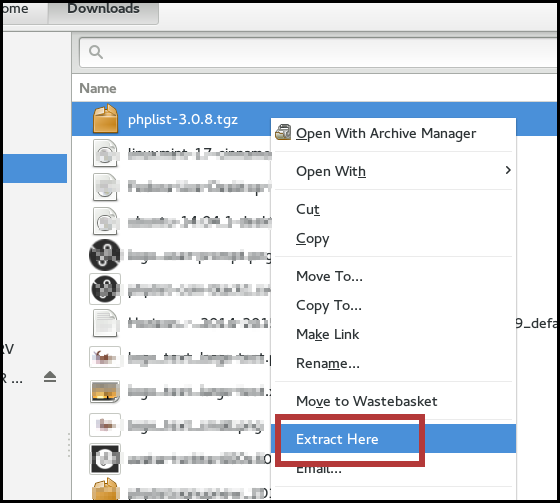](https://www.phplist.org/manual/uploads/images/gallery/2019-06/xX1ik4k2VghjGjAm-phpList_extract_here.png)
## Upload to your server using FTP
Start your favourite FTP program, in this case we are using FileZilla.
Browse through to your temporary folder in the FTP program, then open the public\_html folder to find the lists folder.
[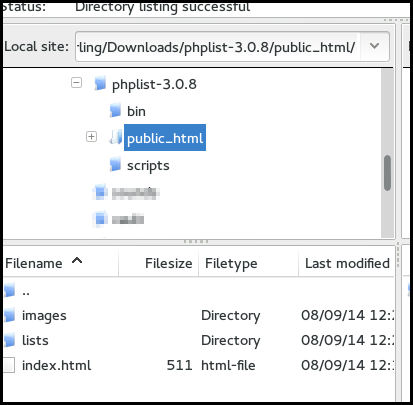](https://www.phplist.org/manual/uploads/images/gallery/2019-06/lhmFNmuybcpMjROm-navigate_to_extracted_phplist.png)
Upload this **/lists** folder into your public\_html file on your server. This folder may have lots of files in it already. In the image below you can see the public\_html folder on the server contains folders for a WordPress site.
[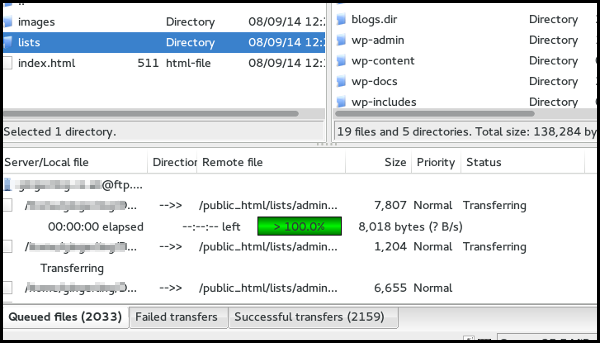](https://www.phplist.org/manual/uploads/images/gallery/2019-06/OVeNQT9R5G3EyTlP-phpList_upload_lists_1.png)
## Grab a Coffee!
This upload may take some time, you may even have to split it over a number of partial uploads depending on your connection speed, time outs and upload limits.
[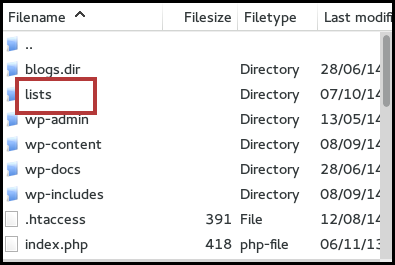](https://www.phplist.org/manual/uploads/images/gallery/2019-06/EcFKCJLdZvd2MI53-phpList_uploaded_lists.png)
## Local Windows installation
If you do not own a server or you want to develop locally, you can also install phpList on your Windows machine. First, you need to download the [XAMPP](https://www.apachefriends.org/index.html) package and install it in your PC. After installing, copy the /lists folder as stated in the previous section and paste it in the htdocs folder of XAMPP.
[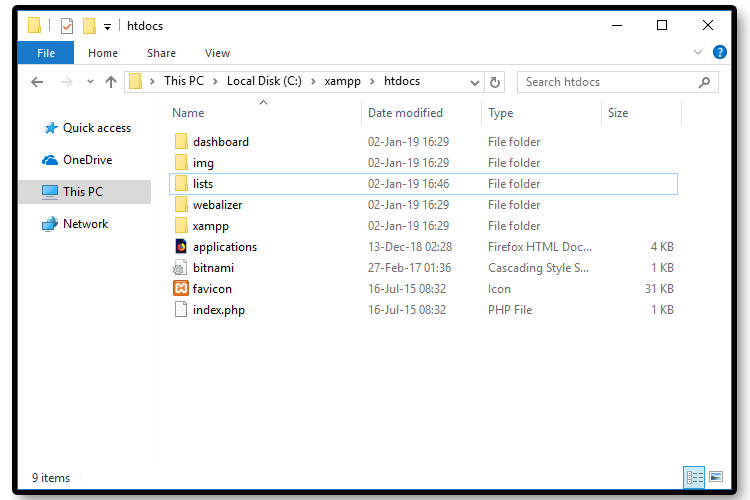](https://www.phplist.org/manual/uploads/images/gallery/2019-06/6YM3ypCxI8v44Wws-xampp_file_move.png)
Next up, you must run the XAMPP Control Panel and start the Apache and MySQL server. Now we are ready to create a database for phpList on which to save the data.
[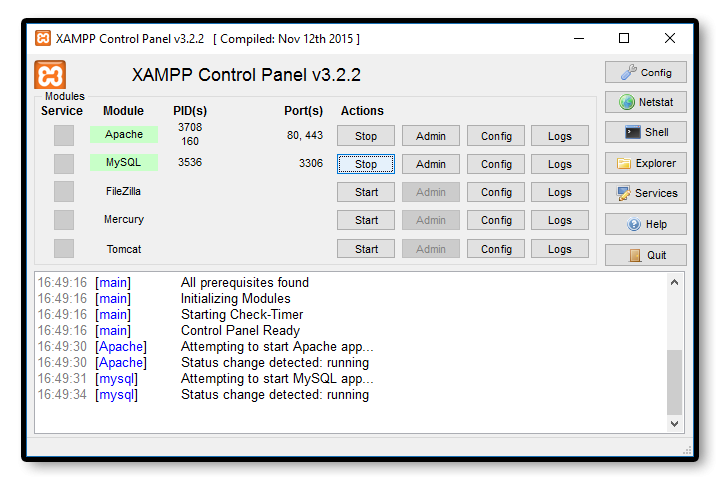](https://www.phplist.org/manual/uploads/images/gallery/2019-06/N3v6eIoL6k0pmdzI-xampp_control_panel.png)
## Create a database using your control panel
Once you have uploaded the **/lists** directory, go to your hosting control panel or to the localhost from your browser and create a database. If you need help, your web hosting company can help you with this.
Whatever the process, you will always end up with three things:
- A database name, for example cl52-phplist
- A database username, for example phplist
- A password for your database, for example T!LcDaM/4
### An example of creating a database
*These screenshots provide an example. This may or may not be similar to the way you can create a new database on your server. That depends entirely on which software your hosting company uses.*
First click **MySQL Databases**.
[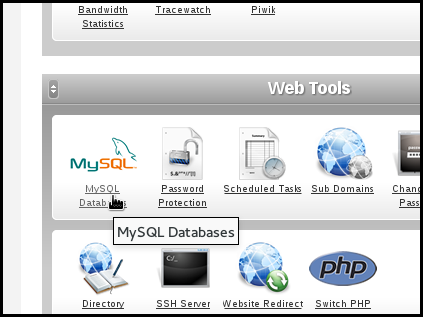](https://www.phplist.org/manual/uploads/images/gallery/2019-06/STDKw2V4zIeCHu1q-database_backup_phpList_1.png)
Then type in the new database name (we used the name phpList) and enter or generate a strong password. *Make sure you keep a copy of these details*!
[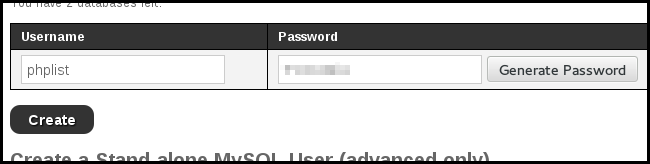](https://www.phplist.org/manual/uploads/images/gallery/2019-06/IY0HmHscjVMU87md-database_1_1.png)
This system creates a user automatically, where the username is the same as the database name (a common preference). In other software you may need to add a new user separately and you may also need to allocate this user to your database.
Your database is now ready. Copy down the details because you will need them in a moment.
[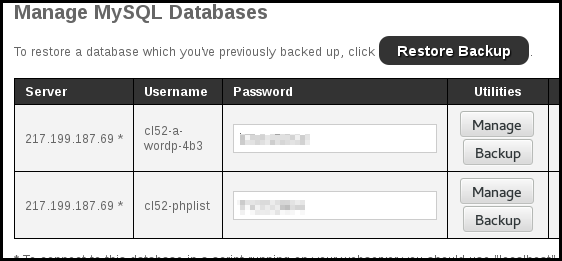](https://www.phplist.org/manual/uploads/images/gallery/2019-06/2NQ2XZpvzzH3Nu25-new_database_1.png)
## Edit the phpList config.php file
Next, you need to put the details of your new database into your configuration file.
Browse your temp folder on your computer and go to **lists** > **config** > **config.php**. Load and edit this file in a *text editor*, such as Notepad (windows) TextEdit (mac) or Geany/Kate/Geddit/etc (Linux).
[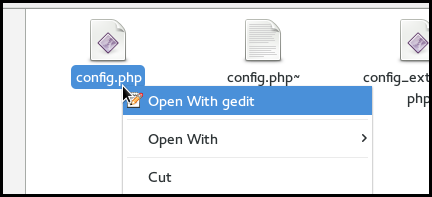](https://www.phplist.org/manual/uploads/images/gallery/2019-06/7GgfJ7Rf2tQWURBg-edit_config.png)
*Never* use a word processor program (like Microsoft Word), it will only generate formatting and disruption.
Your freshly downloaded config.php should look something like this:
[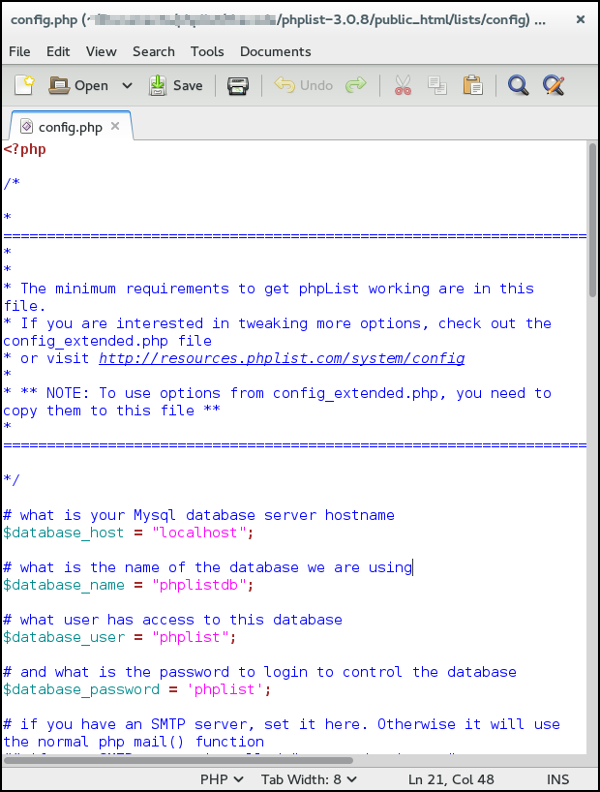](https://www.phplist.org/manual/uploads/images/gallery/2019-06/474kcppDOrIVY4ki-config_phpList_1.png)
### Difference between config.php and config\_extended.php
**phpList only uses config.php** so if you change any settings, please do so in this file. config\_extended.php is there as that has pretty much every setting you can change stored within it.
If you wish to use the full configuration file you can rename config.php to config.old.php and then rename config\_extended.php to config.php and use this file to make your changes.
To summarize, config.php is there as basically “a quick start” file, this contains the minimum settings you need to set phpList up and if a setting is not set, phpList uses a predefined value that “*fits most*”.
If your setup needs more tweaking, or you have specialized needs, then either
- use the extended file, renaming as described above
- copy and paste the relevant settings into the smaller config.php file
---
There are four places where you need to replace the word in "quotes" at the end of a line of code with something specific to your server:
### What is your Mysql database server hostname
`$database_host = "localhost";`
If you do not know what to enter here, you will either need to use trial and error, or ask your hosting provider what to put here. *If you want to keep things simple, ask your hosting provider.*
#### **Trial and error:**
You may be lucky in that your server allows "**localhost**" for your $database\_host entry, in which case you don't need to make a change (this was true in our example below). The second option to try is "127.0.0.1".
If these fail you will receive an error towards the end of installation. If both of these fail then this entry must be something specific to your server. GoDaddy and 1&1 servers are pretty specific, for example.
#### What is the name of the database we are using
```
xxxxxxxxxx
```
```
$database_name = "phplistdb";
```
Replace the `phplistdb` with the name of your database that you set up earlier. In our example below this is `cl52-phplist`.
```
xxxxxxxxxx
```
```
# what user has access to this database $database_user = "phplist";
```
Replace the`phplist`with the name of your databse user you set up earlier (this may be the same name as your database). In our example below this is also `cl52-phplist`.
```
# and what is the password to login to control the database $database_password = 'phplist';
```
```
xxxxxxxxxx
```
```
Replace the phplist with the password you created. The password in the example below is obscured.
```
[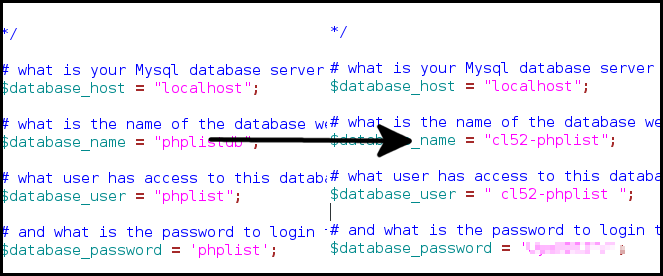](https://www.phplist.org/manual/uploads/images/gallery/2019-06/uWGscGFCM5o2EXbW-phpList_initial_config.png)
### Test mode in phpList: ("TEST",0)
One other thing you will need to do, either now or at some point in the future, is to change the value of **TEST** in this file. Until you do this, your install is essentially in "sandbox" mode, and will not fully function.
By default test is defined ("TEST",1). Change this to define ("TEST",0) to be able to send messages out.
This is done automatically in the auto installers.
Note that subscribers cannot confirm themselves while Test is enabled, as they will not receive confirmation emails, and therefore neither campaigns.
### External SMTP servers
Often you will want or need to use an external mail server for handling phpList email, instead of your local machine (by default phpList uses PHP's built-in `mail();` function).
To use an external SMTP server with standard STARTTLS settings, customise, then add these lines to your `config.php` file:
```
define('PHPMAILERHOST', 'mail.server.hostname');
```
```
$phpmailer_smtpuser = 'user@login.com';
```
```
$phpmailer_smtppassword = 'user_password';
```
```
define("PHPMAILERPORT",'587');
```
```
define("PHPMAILER_SECURE",'tls');
```
If the mail server is using a self-signed certificate, then you need to add the following as well:
```
xxxxxxxxxx
```
```
$phpmailer_smtpoptions = array(
```
```
'ssl' => array(
```
```
'verify_peer' => false,
```
```
'verify_peer_name' => false,
```
```
'allow_self_signed' => true
```
```
)
```
```
);
```
### Config\_extended.php
You may need to add some extra lines to your config.php. These extra lines are ready made for you in config\_extended.php, which is in the same directory as config.php. Simply copy the lines you need and paste them below the others in config.php
## Save and upload
Once you have edited the config.php file you need to save it and upload this new version to your server. This can be done in the same way as your initial upload: open your ftp client, find the **lists/config/config.php** file on your pc and then upload it to **lists/config/config.php** on your server.
## Go to your installation
Open your web browser and go to your installation. This is located at **http://mywebsite.co.uk/lists/admin.**
If you get an error saying that the database has not connected, then check your config.php file again: a tiny error such as a space before/after your database name/password will stop this from working.
When you see the grey and black interface with the phpList logo at the top, you are in the right place.
[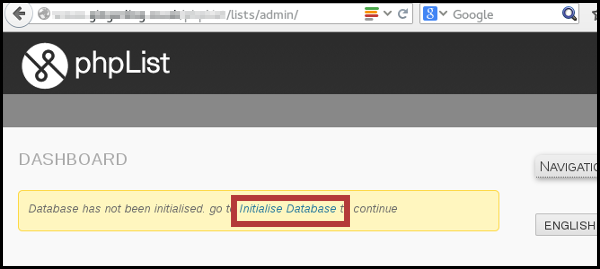](https://www.phplist.org/manual/uploads/images/gallery/2019-06/yFKTZzuRxhsaant9-go_to_install.png)
Or on your right, choose **Initialize database** under the **Config** option.
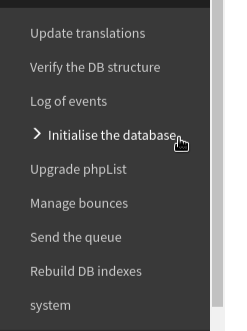
After version 3.6.6, as an administrator you are also able to [initialize your database from the command line](https://github.com/phpList/phplist3/pull/812).
## The final steps
Click **Initialise Database** and fill out the form.
[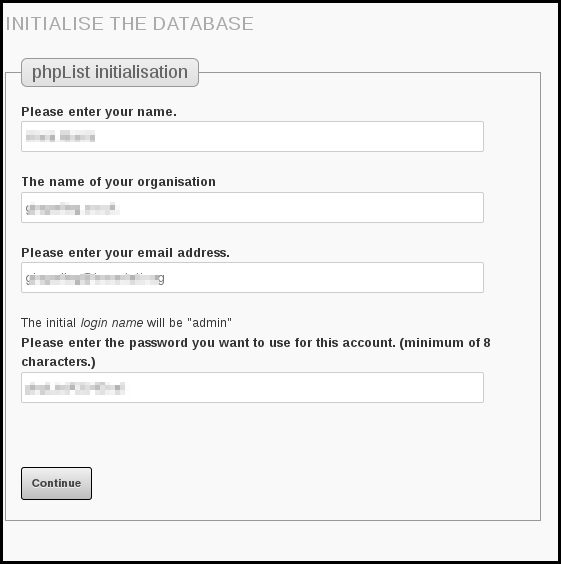](https://www.phplist.org/manual/uploads/images/gallery/2019-06/IgModCfgpzEVVdbs-Initialise_database_phpList.png)
Click **Continue**
[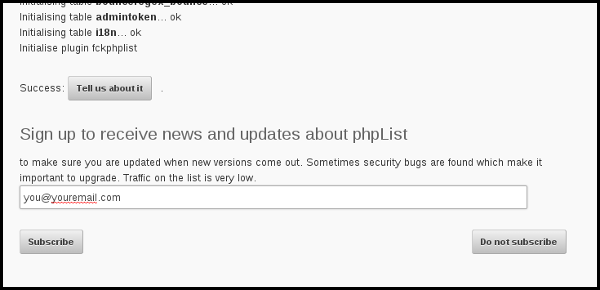](https://www.phplist.org/manual/uploads/images/gallery/2019-06/ddXOzFsjgH0h0Ltl-sign_up_to_list.png)
- If you would like to email phpList to let us know you are using the software, click **Tell us about it**.
- We recommend that you sign up to receive email announcements about new versions of phpList. You can enter your email and click **Subscribe.** If you do not want to sign up, for example because you are already on the list, then click **Do not subscribe**.
Finally click to continue with **phpList seutp**.
[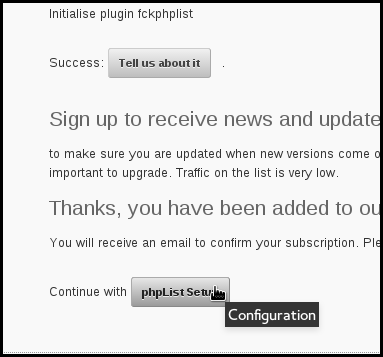](https://www.phplist.org/manual/uploads/images/gallery/2019-06/7mzRP9dacxe8Wyvp-install_complete.png)
## You're done!
You have now finished installation, and the next step is configuration.
[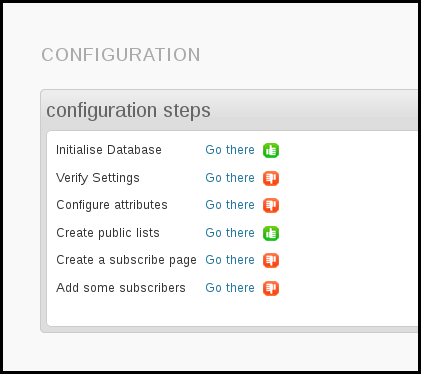](https://www.phplist.org/manual/uploads/images/gallery/2019-06/n4MTxq3Vgs6Y5IRW-configuration.png)
### Downloading phpList from the command line
##### The wget command
To download the phpList files you can use the wget from a Unix-like command line. You can use the wget command as follows:
```
xxxxxxxxxx
```
```
wget [option]... [URL]...
```
In order to check further how to add more options to your command, you can check the [GNU Wget 1.20 Manual](https://www.gnu.org/software/wget/manual/wget.html) or type "man wget" on your command line for a description of the command.
##### The scp command
scp copies files between hosts on a network. It uses ssh(1) for data transfer, and uses the same authentication and provides the same security as ssh(1). scp will ask for passwords or passphrases if they are needed for authentication. You can use the scp command as follows:
```
scp [OPTION] [user@]SRC_HOST:]file1 [user@]DEST_HOST:]file2
```
[Here](https://linuxize.com/post/how-to-use-scp-command-to-securely-transfer-files/) is a detailed guide on how to use the scp command.
## Feedback
Discuss this chapter [here](https://discuss.phplist.org/t/installing-phplist-manually-manual-chapter-feedback-and-discussion/212).
# Automatic updater for phpList
This page concerns phpList self-hosted users only. If you have a registered account at the phpList Hosted service, please contact hosted@phpList.com.
The Updater plugin is available in phoList 3.6.13+.
The new updater comes in the form of a plugin. The **Updater plugin** will identify whether there is a new phpList version available to install.
Visit the documentation wiki page on how to install and run the Updater plugin: [https://resources.phplist.com/plugin/updater](https://resources.phplist.com/plugin/updater)
From this line onward, the documentation **does not apply any longer. This updater has been deprecated**. The documentation below remains published for archive purposes only.
Provides an easy, automated, web-based update mechanism for phpList installations.
#### Usage
The phpList updater gives you an easy way to upgrade your installation via web interface. In just four steps you can update your installation to the latest release.
The Updater is available in phpList 3.3.7+.
#### Requirements
The automatic updater requires the following PHP extensions: curl, zip and pdo.
#### Steps
You have to be a superadmin in order to update phpList via Automatic Updater. The updater is currently performing the following steps. If one of those steps fail, you will have the possibility to correct the error and retry from the current step.
#### Initialise
On the first step, several checks are performed such as if there is an update available, integration check and permissions check.
[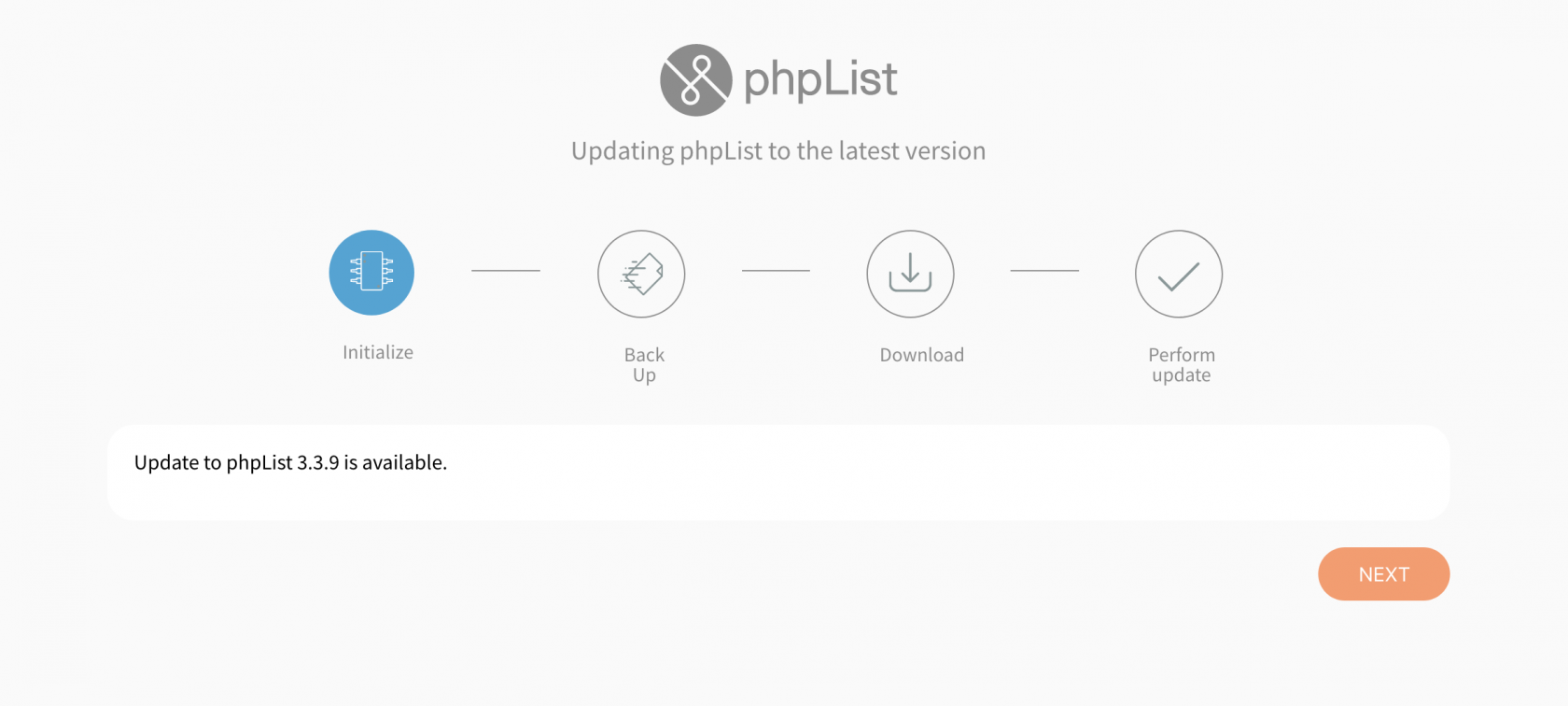](https://www.phplist.org/manual/uploads/images/gallery/2019-06/cbfZFv0Ti72v3EGU-phpList_automatic_updater_update_available.png)
1. Check if there is an update available. If there is an Update Available you can continue to the next step.
2. Check for write permissions. All phpList should be writable by the apache HTTP user in order for the automatic updater to work. The updater stops if it finds not writable files and lists them. To continue, change file permissions for listed ones and click next to try again.
3. Integration check. Check whether all required phpList files are in place and also if unexpected files are present. The updater stops if it finds unexpected files (not from phpList default installation) and lists them. .
#### Back up
The user is asked whether they want a backup of the software. Please note that this is not a database back up. Back up is recommended for users that might have changed phpList files.
If you don't need to back up the software, please choose "No" and you will continue to the next step.
[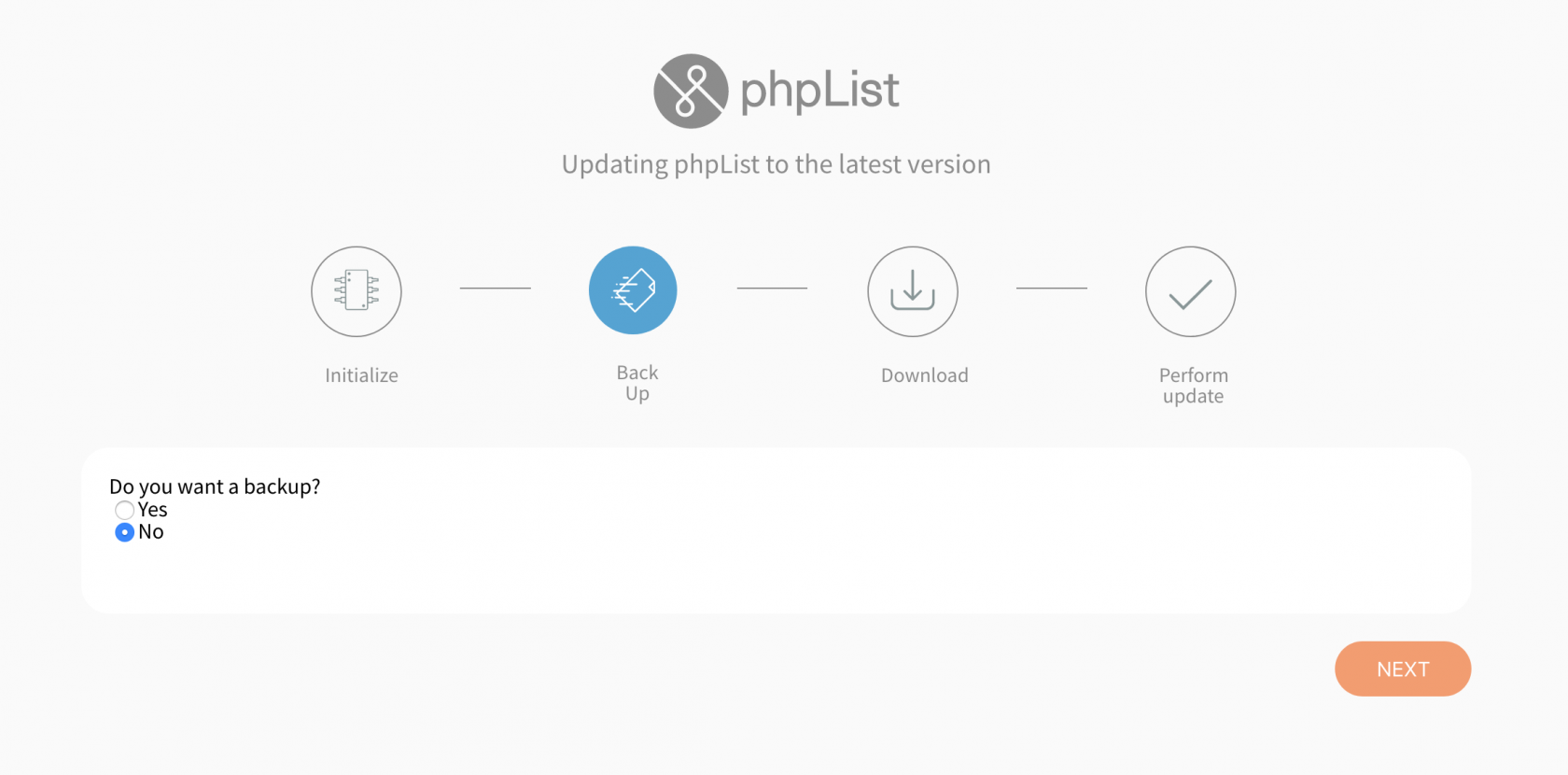](https://www.phplist.org/manual/uploads/images/gallery/2019-06/bAoh583DBcQ33ZrS-phpList_automatic_updater_no_back_up.png)
If you choose yes: the user is asked for the location where to store the zip file of the phpList software. The back up will be saved in the specified location. Please note that the specified location should be writable. If you see any error, please make the requested changes and click "Next" without refreshing the page. If the back up step fails, a manual backup of the files is recommended.
[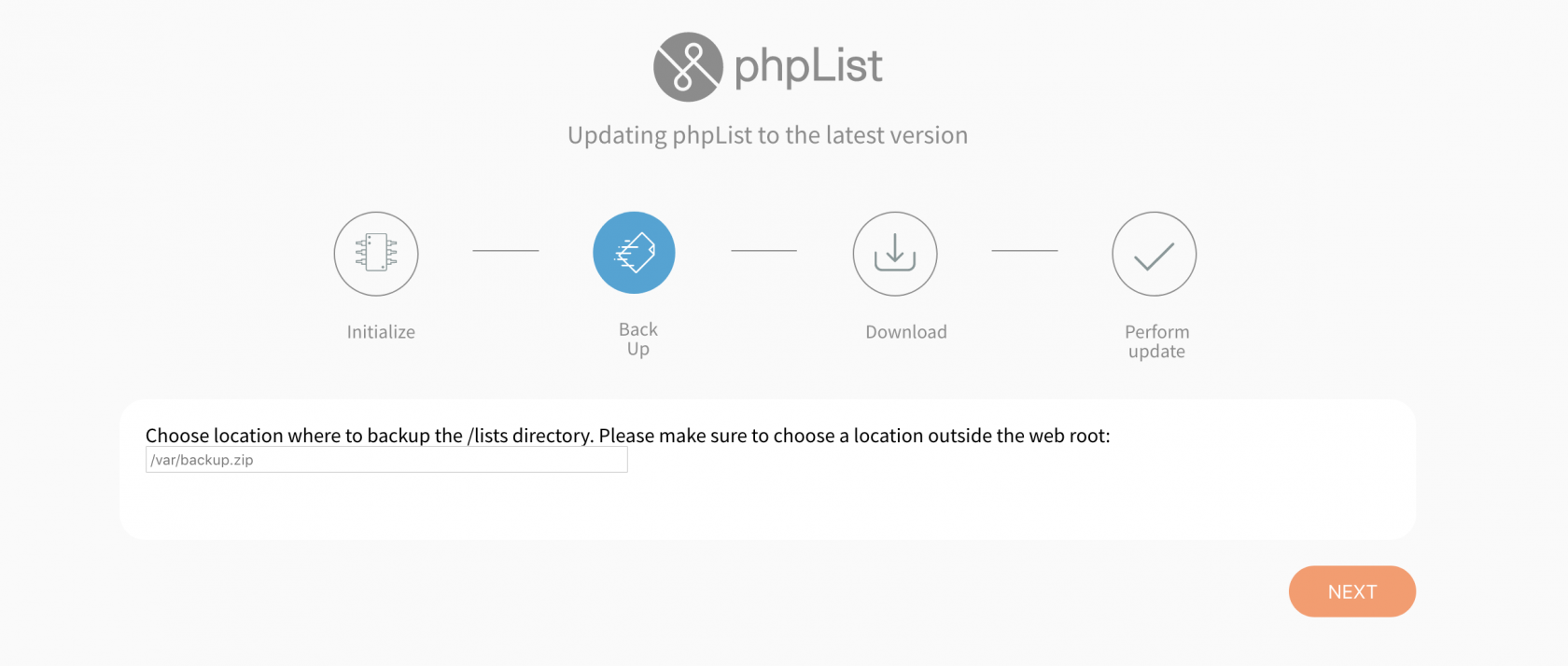](https://www.phplist.org/manual/uploads/images/gallery/2019-06/DlTfsnIhI5B3Whxw-phpList_automatic_updater_yes_back_option.png)
#### Download
The new version is downloaded to a temporary folder. Please wait until the download is finished.
*Note: The automatic Updater doesn't check for available space before proceeding with the download and the update will fail if there is not enough space for all files. Depending on how many of the files were downloaded it can show "Downgrade is not supported".*
[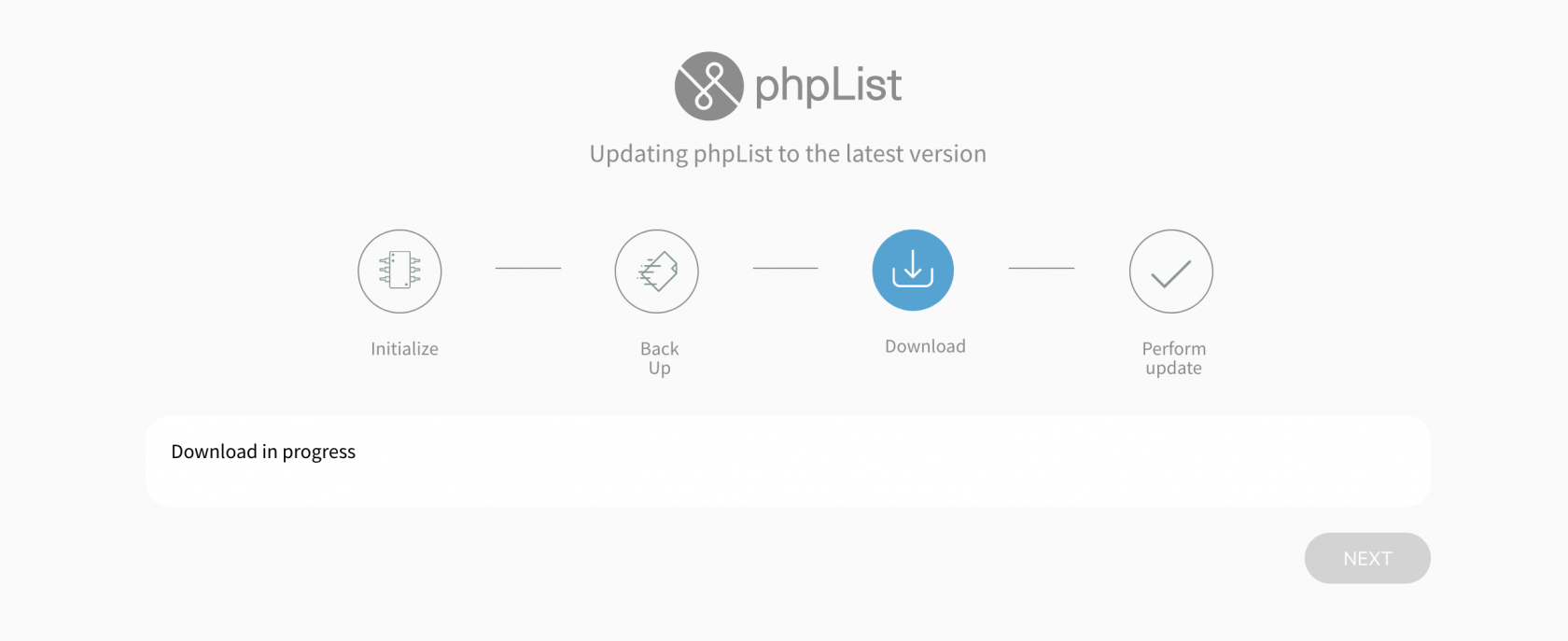](https://www.phplist.org/manual/uploads/images/gallery/2019-06/K5JkOV5LYh2nEOcv-phpList_automatic_updater_download_in_progress.png)
#### Perform update
This is the last phase and several steps are performed in background without user interaction as listed below:
1. The maintenance mode is enabled so that no other actions are performed while running the automatic updater.
2. The PHP entry points are replaced with "Update in progress" message
3. Old files are deleted except config, updater and temporary directory
4. The new files are moved in place
5. The new PHP entry points are moved in place
6. The updater code is moved to a temporary directory
7. The temporary files are deleted
8. The maintenance mode is disabled
9. The new updater code is moved in place
10. The updated sessions is deauthenticated
#### Done
"Updated successfully" is displayed. Redirect to the phpList dashboard by clicking "Next" button or alternatively click on phpList logo.
[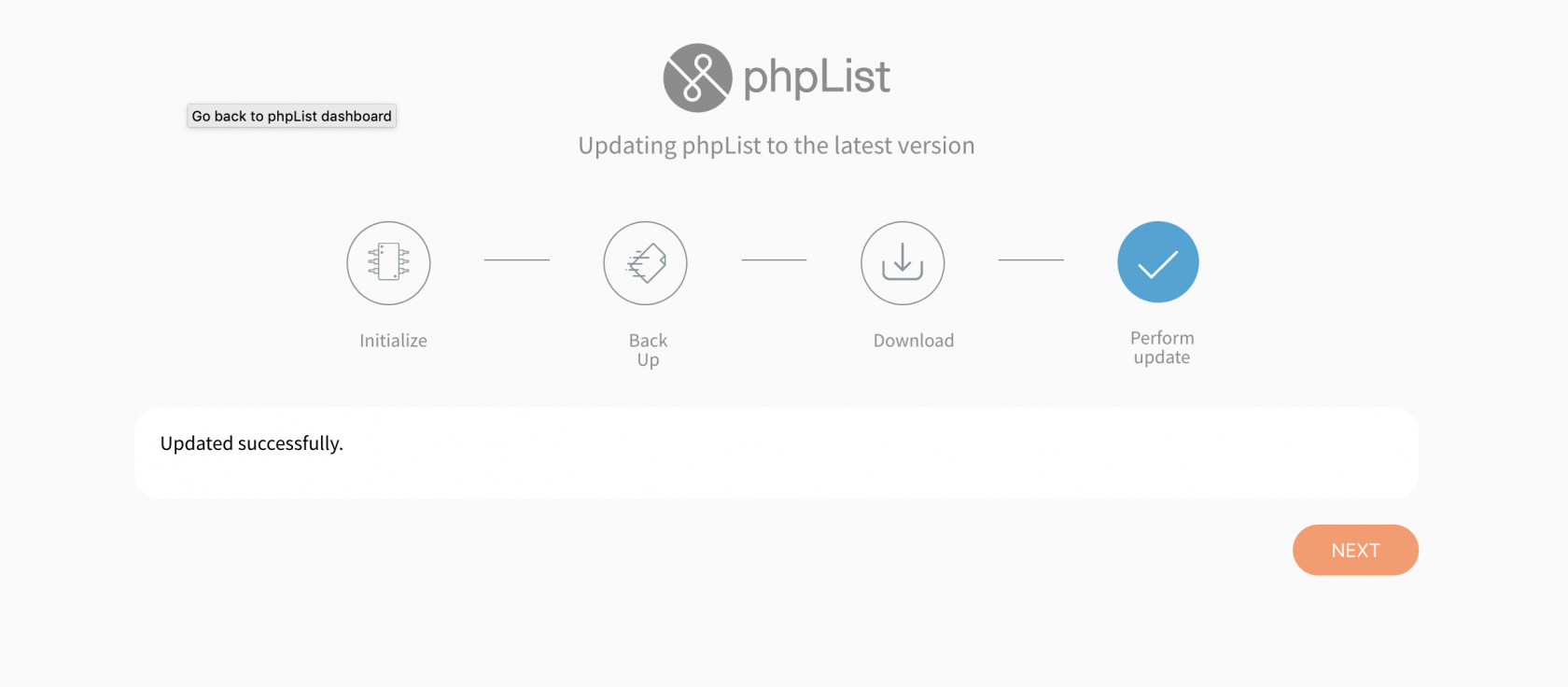](https://www.phplist.org/manual/uploads/images/gallery/2019-06/7mBl1WghGllni2QV-phpList_automatic_updater_updated_successfully.png)
#### What the updater doesn't do
The updater is at the moment solely focused on replacing the files of the core installation. It does neither:
- Upgrade the database (this uses the existing database migration code)
- Upgrade the plugins (this uses the existing plugin updater)
#### Notes
- It is possible to override the backup checks by reloading the page when the backup check fails. Do not reload the page unless you wish to proceed without a backup in this case.
- When the update process fails you should manually remove actions.txt file inside the config folder in order to reset the process and be able to try again.
- The config directory is required to be writable because the "current step" of the automatic updater is saved inside it.
### Disabling Automatic Updater
For admins who run phpList in a controlled environment it is necessary to be able to disable the automatic updater. To disable the automatic updater add the following in your config file:
`define('ALLOW_UPDATER', false); `
#### Report bugs
Please report issues [ here ](https://mantis.phplist.org/)under automatic updater category.
#### Source code
The source code is available [ here ](https://github.com/phplist/updater/). Feel free to contribute.
# Installing using an auto-installer
This page concerns phpList self-hosted users only. If you have a registered account at the phpList Hosted service, please contact hosted@phpList.com.
#### Softaculous, Fantastico, etc
If your web provider offers Softaculous, Fantastico or other similar software installers, then you may choose to use the. These installers do the bulk of the work for you and can be faster than installing phpList manually.
Log on to your web space, (cPanel/Plesk etc) and click on Softaculous/Fantastico then find the **phpList** installation and choose the **Install** option. *Please note, for this example I have used Softaculous installer.*
[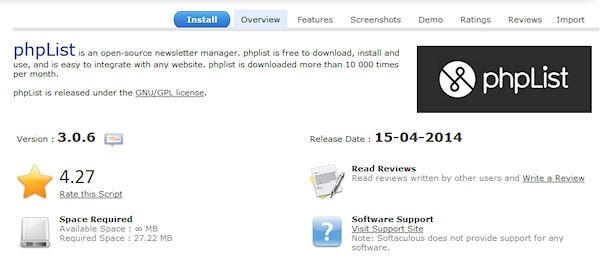](https://www.phplist.org/manual/uploads/images/gallery/2019-06/mQfXfHjEAIpQ132j-phplist_overview.jpg)
On the Install page you can choose your settings. In the order shown in the image:
- **Protocol** http:// is the norm
- **Domain** if you have more than one domain on your hosting/web space, choose that here
- **Directory** you should set the directory that you wish your phpList installation to be placed in. ***This should usually be left blank*** *however in this example we are using test/phplist1.* Any variations will become part of the URL to your phpList install, so it is best to keep it simple
- A database name is suggested next. You may change it within limits to a name that makes more sense to you if you wish. 8 characters are usually the maximum here as it will be prefixed to your hosting username (eg:user234\_phplst1 in my example).
Important! If you have only one database available to all your websites, then it is very important to use a unique identifier here, one that makes sense to you as belonging to this phpList installation. If you have access to a number of databases, then it's an advantage to use one per installation.
- Ignore the settings for the Cron job for the time being, there is some information on this in a later chapter
- Site Settings: chose the name for your site, and change the default Table Prefix if you wish
- Finally, enter your username (admin by default), user password, make it a good strong one. Real name and email and then click on the Install button.
[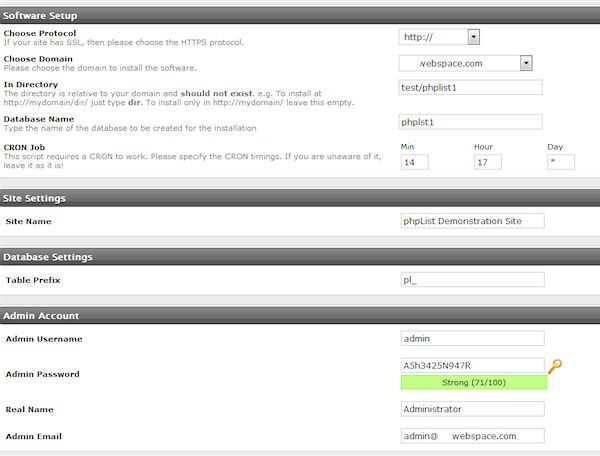](https://www.phplist.org/manual/uploads/images/gallery/2019-06/qT9WaU7DlQBbsO5k-phplist_setup.jpg)
Wait for it to complete installing your phpList and you will get a final page offering the links to the public "front end" and the Admin "back end"
That's it, you've installed phpList with Softaculous or Fantastico.
One final thing to remember is that if you install phpList using this method, you can update phpList to a later version in a matter of minutes via the Update option offered in Softaculous/Fantastic. Do however make a backup of your config/config.php file before starting the update especially if you have customised your settings.
## Feedback
Discuss this chapter [here](https://discuss.phplist.org/t/installing-using-an-auto-installer-manual-chapter-feedback-and-discussion/213).
# Configuration: verify settings
This page concerns phpList self-hosted users only. If you have a registered account at the phpList Hosted service, please contact hosted@phpList.com.
The configuration process starts after installation when you see this screen:
[](https://www.phplist.org/bookstack/uploads/images/gallery/2019-06/JWqG7k3dwrqX756U-configuration.png)
This chapter deals only with the **Verify Settings** instruction, because attributes, lists, subscribe pages and subscribers are dealt with in other chapters.
The **Settings** page discussed in this chapter is normally accessed through **Config** > **Settings** There are lots of settings you can change at any time, however, it's good to have an overview after install.
To start your settings verification click **Go there** next to **Verify settings** in your configuration overview, or navigate to **Config** > **Settings** from the main menu.
*Please note you do not need to click save for every item, keep editing and click save just once at the end.*
## General Settings
These settings will have been completed for you during installation. This example is taken from a personal website/blog.
[](https://www.phplist.org/bookstack/uploads/images/gallery/2019-06/OmhYt1OADIEGfZ26-Screenshot-from-2019-06-29-21-36-44.png)
If any of these is incorrect, change it by clicking on the edit icon:
[](https://www.phplist.org/bookstack/uploads/images/gallery/2019-06/uReubvtiE9YWEHDO-Screenshot-from-2019-06-29-21-25-17.png)
### \[WEBSITE\] placeholder
Once you have set your website address, it will be used to complete the \[website\] placeholder if you use this in your template or content.
## System settings
It is important that you keep your installation secure: this means keeping it uptodate. This setting, when set as "Yes" will notify you whenever a new Release Candidate is available. When you are notified of a new version, you should update as soon as you can for security reasons.
[](https://www.phplist.org/bookstack/uploads/images/gallery/2019-06/OqzZ7JkbO0VZdNDN-Screenshot-from-2019-06-29-21-27-56.png)
## Security settings
On this section you will be able to see your secret for the remote queue processing. More details on the remote queue processing you will find on the **Methods of Sending (Browser, Cron, Command-line)** page.
[](https://www.phplist.org/bookstack/uploads/images/gallery/2019-06/fCDCVEs4f8wTcx67-IMG_20190629_214131.png)
## Reporting settings
These settings establish who will be notified, by email, of events in your phpList install. These include **system messages**, such as notices of new subscribers, or **reports** such as when your campaign sending starts and finishes.
[](https://www.phplist.org/bookstack/uploads/images/gallery/2019-06/cJZQih2HYOucEnak-IMG_20190629_214200.png)
It may be that you have a team of people or just an individual, some standard emails, like , or specific secondary accounts, like phpList\_admin@mydoimain.com.
You can change these settings any time, but it's good take some time to decide how you want to manage your system now.
You can also choose to send yourself notifications about subscriptions among other things. To edit this setting click the edit icon, choose **Yes** from the dropdown and click **save changes**.
[](https://www.phplist.org/bookstack/uploads/images/gallery/2019-06/DI22PUpOQdzoZ1xe-IMG_20190629_215736.png)
## Campaign settings
This section specifies many of the defaults for your campaigns, for example, which email to display in the **From: line** of your campaigns (the sender).
[](https://www.phplist.org/bookstack/uploads/images/gallery/2019-06/ICFao12YFMbYWKHI-Screenshot-from-2019-06-29-21-31-55.png)
While you can change some of these options during the composition of each individual campaign, they will always display as stated here during the next new campaign.
If you will often use the same details, it is simpler and safer to specify them correctly here so you don't need to remember to add/edit these details every time you send a new campaign.
*The settings regarding html template and the default footer are dealt with in the chapters about templates.*
## Transactional settings
These are the settings for the automatic emails that get sent by phpList to your subscribers when they perform an action. For example, when they subscribe or change their details. The emails in this section are usually noreply@mydomain.com.
[](https://www.phplist.org/bookstack/uploads/images/gallery/2019-06/wMliUsTYkjfRzCcq-Screenshot-from-2019-06-29-21-33-30.png)
Noreply is used because it is common for subscribers to reply to these emails, for example asking to be unsubscribed. Subscribers should be encouraged to use the automated processes provided by phpList, which can unsubscribe them without any additional work by the list manager (you!).
In addition to specifying the email addresses to be used for transactional messages, this section also deals with the content of these emails. These are ready-made for you, however, you may wish to customize them to reflect your circumstances or brand identity.
*If you do this, make sure not to remove any of the important information included in the default messages, especially the placeholders in \[square brackets\].*
[](https://www.phplist.org/bookstack/uploads/images/gallery/2019-06/BeGoh498QaSvS6fv-Screenshot-from-2019-06-29-21-34-02.png)
## subscription-ui settings
This section deals with the design of subscribe pages. This section is dealt with in the chapters on subscribe pages.
[](https://www.phplist.org/bookstack/uploads/images/gallery/2019-06/BbXIRpiBa5SAHTP0-Screenshot-from-2019-06-29-21-34-32.png)
## Segmentation settings
This section allows you to edit your list category organization. This is dealt with in the chapter about categories.
## Subscription settings
This section provides you with the links to various functional pages within your phpList install. Most of the time you should not edit these settings. They provide a useful reference.
## Composition settings
This area changes depending on which plugins you are using, and has some useful tweaks for your WYSIWYG editor. For example you can specify the width of the editor. This might be useful if you plan to compose your campaigns on a tablet computer or smart phone.
## You're done!
You should now see a green thumbs up next to your settings verification. Don't forget, you can come back to this page at any time to update your settings, and refer back to this guide for help.
[](https://www.phplist.org/bookstack/uploads/images/gallery/2019-06/NKiRmoHi4L0rwM6l-phpList_config_done.png)
If you wish carry on with the rest of your set up, see the chapters corresponding to each item in the list, for example attributes or adding subscribers.
## Feedback
Discuss this chapter [here](https://discuss.phplist.org/t/configuration-verify-settings-manual-chapter-feedback-and-discussion/214).
##
##
# Upgrading a manual installation
This page concerns phpList self-hosted users only. If you have a registered account at the phpList Hosted service, please contact hosted@phpList.com.
You should upgrade your phpList installation frequently. By keeping up-to-date you can take advantage of the latest features in phpList which will make your work easier and help you advance your work.
Often, a new version will include security updates which are important to protect your data and the personal details of your subscribers.
*Upgrading from phpList 2 (orange) to 3 (grey) works well - if you are still using phpList 2 please upgrade as soon as soon you can.*
## Overview
If you installed phpList manually, this is the correct installation method for you. The process consists of the following steps:
- [Download](https://www.phplist.org/download-phplist/) the archive containing the new version to your server (e.g. to your home directory)
- Decompress the files
- Back up your database using your preferred method (e.g. using [Mysqldump](https://www.linode.com/docs/databases/mysql/use-mysqldump-to-back-up-mysql-or-mariadb/))
- Copy your [config.php file](https://www.phplist.org/manual/books/phplist-manual/page/installing-phplist-manually#bkmrk-edit-the-phplist-con)
- Remove your old `lists` directory and replace it with the new one
- Copy your backed-up `config.php` file over the default one in the new `lists/config/` folder
- Login to the phpList admin interface and automatically upgrade the database following the prompt
## When to update
You can sign up for email notification about new versions of phpList by [subscribing to our announcements list](http://announce.phplist.org/?p=subscribe&id=1).
When normal configuration/settings have been maintained, phpList will check for updates every 7 days. You can adjust the frequency of checks on the **Config** > **Settings** page, accessed via the main menu.
When a new version had been released you will receive a notice on your dashboard.
You can navigate to your **Dashboard** from any page in phpList by clicking the link at the top of the **Navigation** sidebar.
[](https://www.phplist.org/manual/uploads/images/gallery/2019-06/LAc3q6F3faOpTscU-IMG_20190629_210414.png)
If you see a notification saying "**A new version of phpList is available!**" then it's time to upgrade.
## Downloading the new version
From your Dashboard notification, click **Download**.
[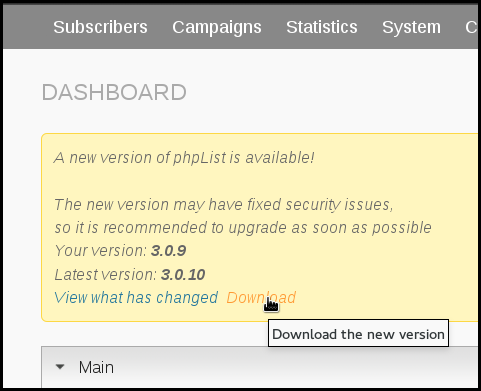](https://www.phplist.org/manual/uploads/images/gallery/2019-06/NcLFMz9jYew90sSz-new_version_notice_phpList_dashboard.png)
This will take you to [www.phplist.org/download-phplist/](https://www.phplist.org/download-phplist/), where you click **DOWNLOAD ZIP** or **DOWNLOAD TGZ**.
[](https://www.phplist.org/manual/uploads/images/gallery/2020-10/F9wSIJ2su7LLXauu-Download-phplist.png)
You will be redirected to SourceForge, where your download will start after a few seconds.
Choose a place on your computer to store the file and click **Save** (your own operating system/browser may work differently).
[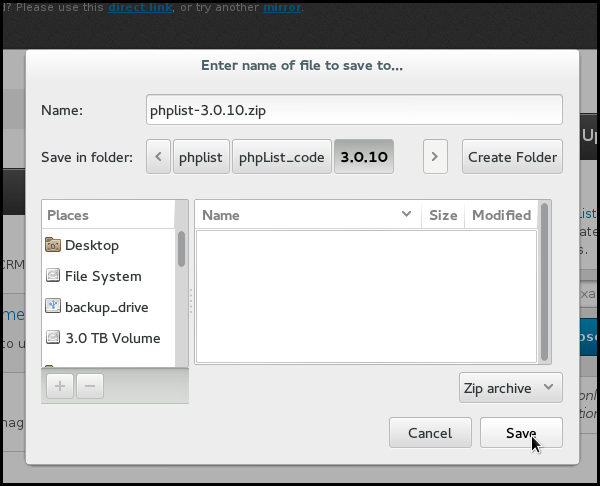](https://www.phplist.org/manual/uploads/images/gallery/2019-06/N0D74qD9nL4Awf9a-new_version_download_phplist_2.png)
## Unzipping phpList
Once you have downloaded phpList to your computer, unzip it. You can usually do this by right clicking and choosing **Extract Here** (Linux, as in screenshot), double clicking the folder (mac) or right click "extract all" (windows).
[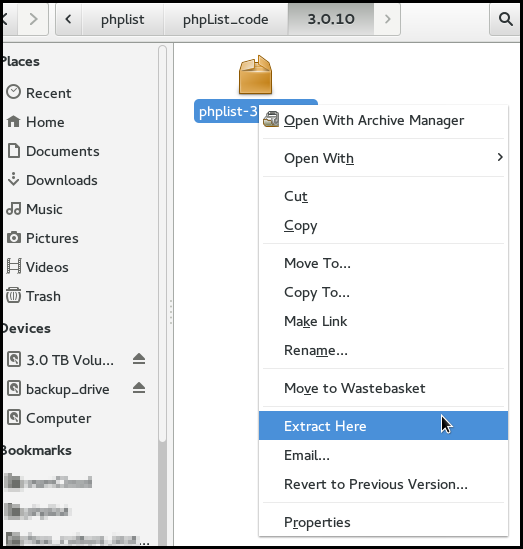](https://www.phplist.org/manual/uploads/images/gallery/2019-06/gJacZUonjh0N4KGO-new_version_download_phplist_3.png)
Next you must back up your installation, this is a vital step as it will keep your data safe is anything goes wrong with the upgrade process.
## Back up your database
The method of doing this will depend on your hosting provider. In this example we use cpanel. Click on the **MySQL Databases** icon.
[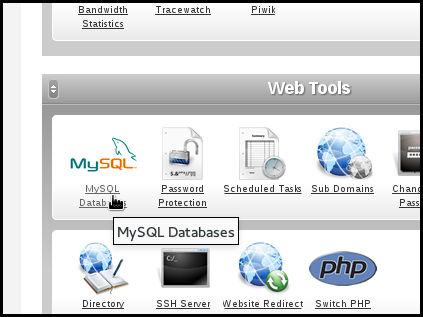](https://www.phplist.org/manual/uploads/images/gallery/2019-06/EITEzzyP79jhugiy-database_backup_phpList_1.png)
Locate your phpList database and click **Backup**.
[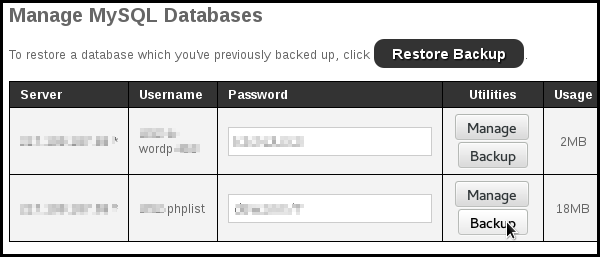](https://www.phplist.org/manual/uploads/images/gallery/2019-06/gO3oetP9S2o0zdit-database_backup_phpList_2.png)
Choose to **Save File** and click **OK**.
[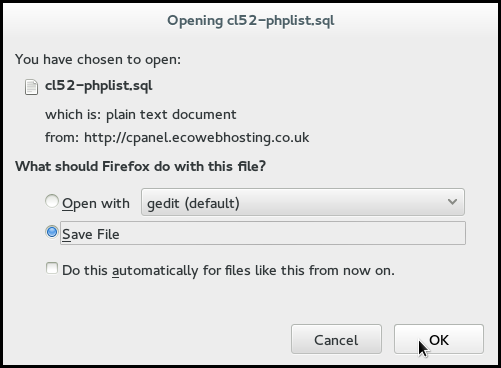](https://www.phplist.org/manual/uploads/images/gallery/2019-06/BlGemX8R5jtzNlsn-database_backup_phpList_3.png)
Choose a location on your computer to save your database too, and click **Save**.
[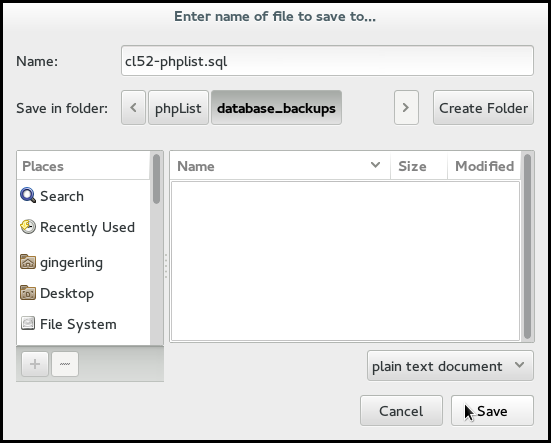](https://www.phplist.org/manual/uploads/images/gallery/2019-06/RhRCn1r92aYiBFNB-database_backup_phpList_4.png)
## Backing up your config.php
You also need to back up your config.php., which is usually located at **public\_html/lists/config/config.php** on your server. *You will need this file again later.*
You can do this using an FTP client. In the screenshot below we used Filezilla and the config.php file was simply dragged and dropped onto into the backup folder.
[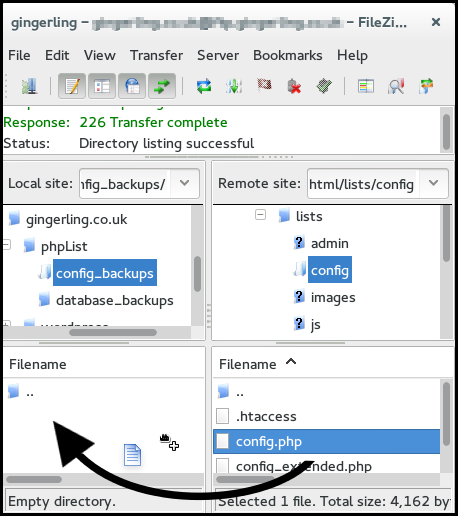](https://www.phplist.org/manual/uploads/images/gallery/2019-06/HyKZf1ANHnNZcT9h-config_backup_phpList.png)
*If you have customized/altered any other files for some non-standard scenario you should back them up too.*
## Upload the new version
Next, you need to upload the new version files to replace the files from the previous version. You can do this using an FTP client. This is similar to installing for the first time. In the screenshots below we used Filezilla.
First, we selected all the files within the **public\_html/lists** folder on our pc, then we uploaded them to the **public\_html/lists** folder on our server.
[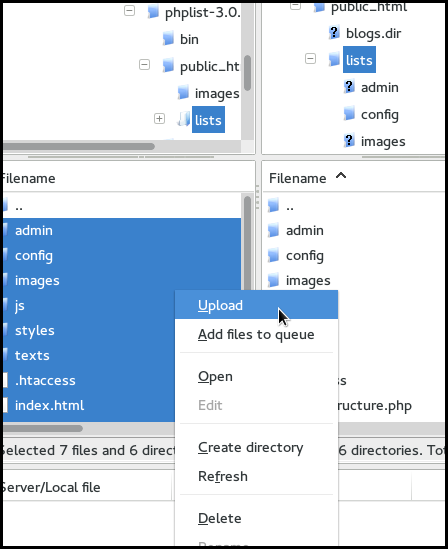](https://www.phplist.org/manual/uploads/images/gallery/2019-06/WQWvjfungjpsJiyN-phpList_upgrade_1.png)
You need chose to overwrite all files.
[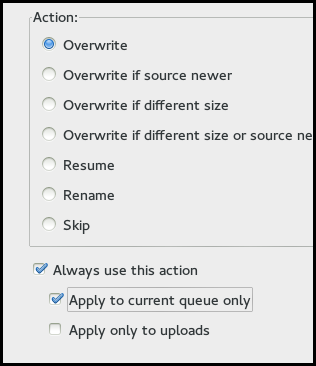](https://www.phplist.org/manual/uploads/images/gallery/2019-06/FNIEVG8F76x8bJen-phpList_upgrade_2.png)
## Replace new config.php with your own
Now you need to replace the new **config.php** file with the one you backed-up earlier, which has your system details already set up.
We did this using an ftp client.
[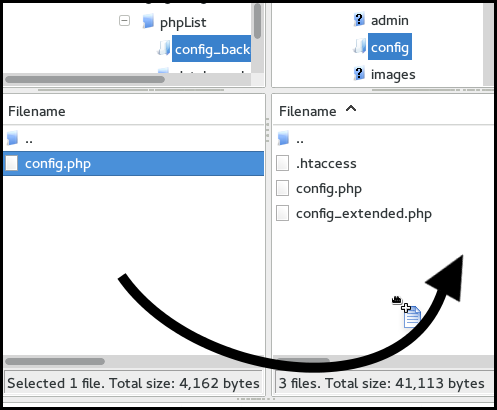](https://www.phplist.org/manual/uploads/images/gallery/2019-06/21YtkFjPlO8AYPr6-phpList_upgrade_3.png)
## Update your database
Finally, log in to your installation (http://yourdomain.com/lists/admin).
You will see a big red box at the top of the screen telling you to upgrade your database. Click **Upgrade**.
[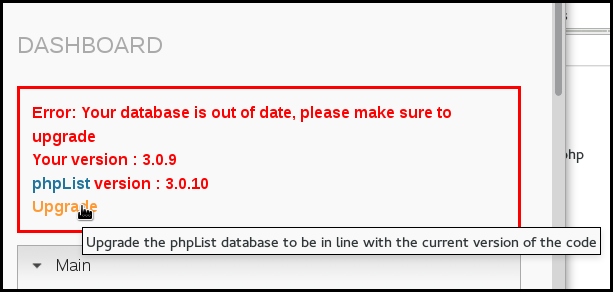](https://www.phplist.org/manual/uploads/images/gallery/2019-06/SVqhiDmQaqJRa0Oe-phpList_upgrade_4.png)
Read the text, and click **Upgrade**.
[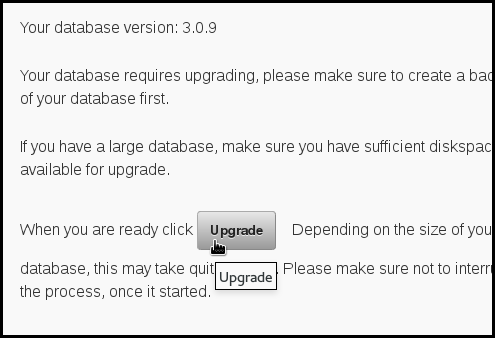](https://www.phplist.org/manual/uploads/images/gallery/2019-06/pLMLAkgkZusQl0Nk-phpList_upgrade_5.png)
You will see a progress bar, and when the process has finished you will be told that you have successfully upgraded.
[](https://www.phplist.org/manual/uploads/images/gallery/2019-06/t3tMfUHCTXRj5eeZ-phpList_upgrade_6.png)
## Feedback
Discuss this chapter [here](https://discuss.phplist.org/t/upgrading-manually-manual-chapter-feedback-and-discussion/215).
# Upgrading an auto-installed installation
This page concerns phpList self-hosted users only. If you have a registered account at the phpList Hosted service, please contact hosted@phpList.com.
### Auto Installer Upgrade.
Providing you have used your web based auto installer (Softaculous/Fantastico) to initially install your phpList, you can simply update it by visiting the installers page and click on the upgrade link. NB: This will only appear when an update is available.
[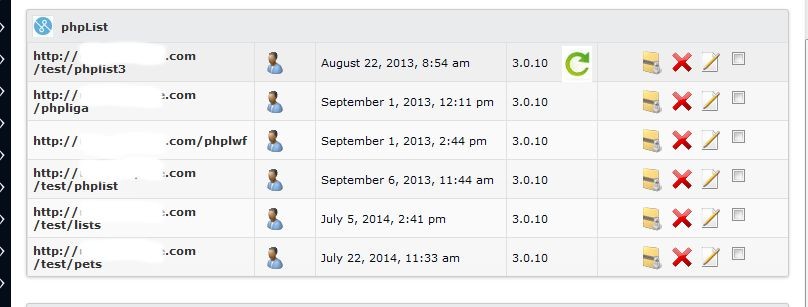](https://www.phplist.org/manual/uploads/images/gallery/2019-06/6Anj0DF1LMKK80jc-upgrade.jpg)
Simply click the green upgrade icon and let the system upgrade your installation. Once completed, simply restore your customised files and the upgrade is complete.
## Feedback
Discuss this chapter [here](https://discuss.phplist.org/t/upgrading-an-auto-installed-installation-manual-chapter-feedback-and-discussion/216).
# Common Installation Errors
This page concerns phpList self-hosted users only. If you have a registered account at the phpList Hosted service, please contact hosted@phpList.com.
## Possible Errors
#### Error 500:
The .htaccess file must be present in the lists/ directory and must contain the line "DirectoryIndex index.php" as this ensures phpList looks for index.php rather than the default index.htm(l).
Also because this file tries to be all things to all servers if you get an Error 500 report when first running phpList the issue could be that there are lines that start "php\_value" they have a better than 50:50 chance of crashing your installation with the dreaded Error 500. In this case, either remove the lines completely or add a hash "#" to the start of any lines beginning with php\_value (so it would look like this #php\_value) and resave the .htaccess file.
#### MySQLi error:
If you receive an error referring to MySQL or MySQL then you need to change this line
```PHP
$database_module = "mysql.inc"
```
to
```PHP
$database_module = "mysqli.inc"
```
the line in question is around 700-710 of the full config.php file
From version 5.5 of PHP, the mysql\_ functions have been deprecated.
## Feedback
Discuss this chapter [here](https://discuss.phplist.org/t/common-installation-errors-manual-chapter-feedback-and-discussion/217).
# Modifying Administrator Permissions / Subadmins
The administrator (You – throughout the guides) is responsible for managing an individual instance of phpList. Not all admins have equal rights. Some can use all the functions in phpList, some can only use a few functions. These rights are called permissions, and they are set by *SuperAdmins*.
SuperAdmins have all permissions on the system: They can create, edit and remove administrators, and change the admins' permissions, including the permissions of other SuperAdmins. Restricted Admins, on the other hand, are admins who have restricted permissions on the system. Example: One admin may be allowed to send messages, another may be allowed to view users, etc. It is important to set the permissions properly depending on the needs of your admin.
Permissions, or admin privileges can be set during the process of modifying an Admin’s functions. This can be performed in a variety of ways. You can access ‘Manage administrators’, 'Import administrators', and 'Configure administrator attribute' from the dashboard in the “Config” option on the left of your screen.
#### [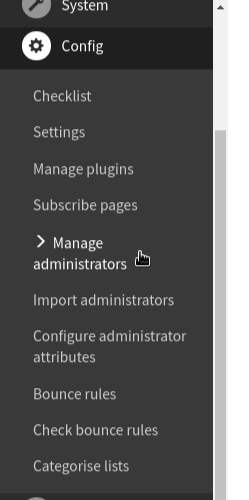](https://www.phplist.org/manual/uploads/images/gallery/2019-08/3GzFzGtSVfRSLVL6-IMG_20190814_162320.png)
#### Manage administrators
Select the “Config” menu dropdown in the title bar, and choose **Manage Administrators.** The Manage Administrators page displays the current users with administrator privileges. From this page, you can search to find an administrator, add a new administrator, or import a list of admins. By default the only administrator is that one account which was used when you initially installed phpList.
[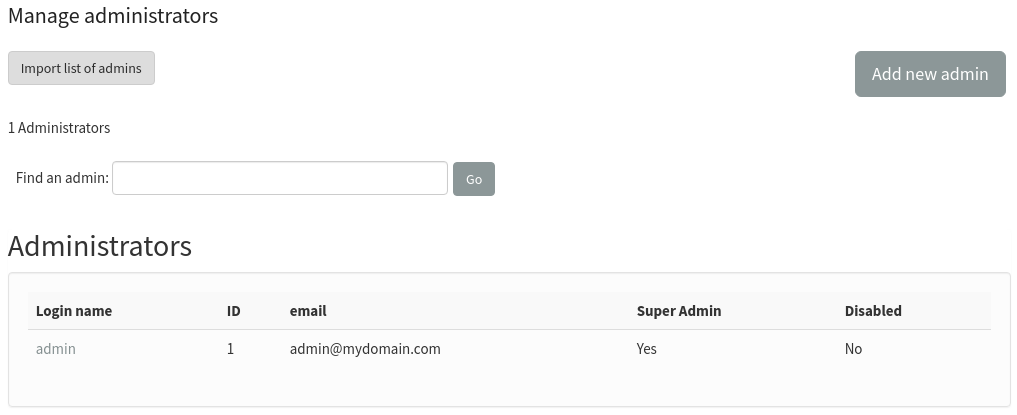](https://www.phplist.org/manual/uploads/images/gallery/2019-08/k68f166nBj6sO7Xu-Screenshot-from-2019-08-14-11-28-27.png)
The “Add new admin” page provides you with a variety of fields that need to be filled. Fill out the corresponding fields and select the appropriate privileges for this administrator by selecting or removing checkmarks next to the privileges section. Check “Yes” for the update password in order to send a reset password link on the email set for the sub-admin. Select **Save Changes** to finalize the creation of the new administrator.
[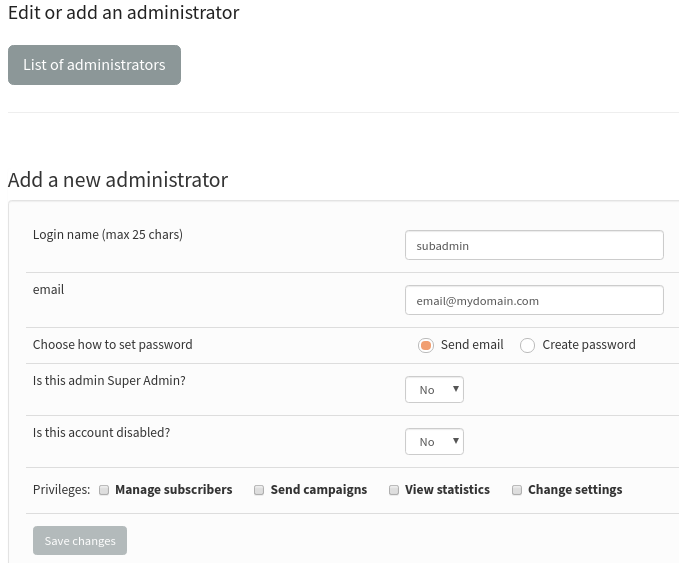](https://www.phplist.org/manual/uploads/images/gallery/2019-08/Jvm6XNhfVFwxtwAh-Screenshot-from-2019-08-14-15-33-49.png)
#### Import administrators
Instead of adding multiple admins one-by-one, you can import a list of admins directly by importing a file. The columns need to have the following headers: **email, loginname, password.** Any other columns will be added as admin attributes. **Warning**: the file needs to be plain text. Do not upload binary files like a Word Document.
[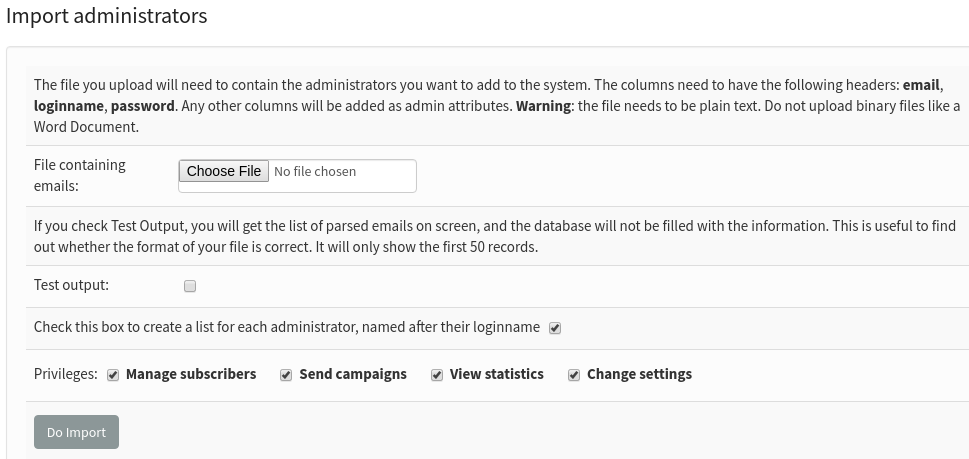](https://www.phplist.org/manual/uploads/images/gallery/2019-08/509BpGVHYWEWsjmz-Screenshot-from-2019-08-14-11-29-24.png)
#### Configure administrator attributes
Configure admin attributes by either navigating through the ‘Config’ and selecting **Configure Attributes for Administrators** from the dashboard. Administrator attributes are similar to attributes for subscribers, but they pertain to a different “user.”
[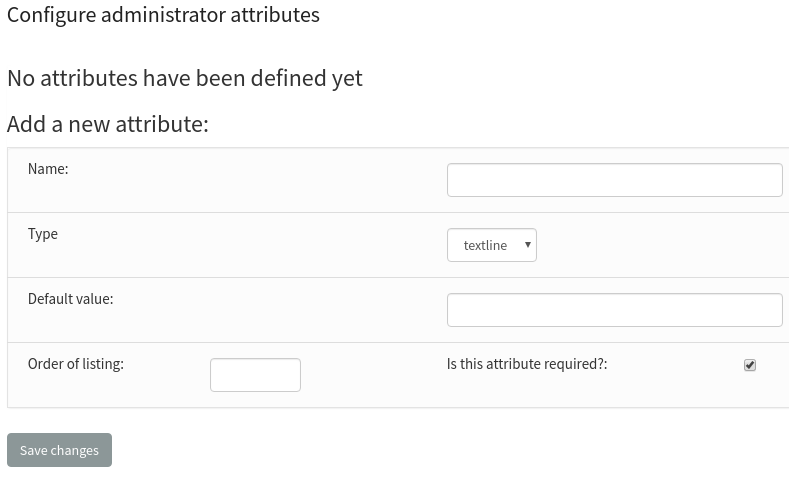](https://www.phplist.org/manual/uploads/images/gallery/2019-08/g7N5SHxowFdanChF-Screenshot-from-2019-08-14-16-00-41.png)
# Sending
# Methods of Sending (Browser, Cron, Command-line)
This page concerns phpList self-hosted users only. If you have a registered account at the phpList Hosted service, please contact hosted@phpList.com.
Setting up phpList for sending is a complex topic, there are many (many) variables, most of which which are out of the control of phpList developers, such as your hosting provider and server configuration.
In our early chapters, we have assumed that you are sending from the browser, to a small list, and that your phpList has been configured already.
### How sending works
Once your campaign is ready, you need to tell phpList to send the campaign. There are two steps to this:
1\. Submit the message to the queue.
When creating the campaign, the last tab of the workflow is the 'SEND' tab. Pressing the 'start campaign' button submits the campaign to the sending queue.
2\. Process the queue, either manually via the browser or command line, or automatically via a cron job or remote queue processing system.
### Manual sending using the browser
This is the simplest way to send. You must:
- Leave the browser open while your process the queue
- Leave your computer active (not asleep) while you process the queue
- Be aware that your hosting provider may not allow emails to be sent this way by default, or may suspend your account if you send volumes which breach their terms and conditions.
This method of sending works essentially as described in the chapter on Sending your first campaign. Using the default configuration file settings, either click the **Process Queue** button which is presented as the final step of the campaign workflow, or use the **System** > **Process queue** option from the main menu.
Once you begin sending you must leave the browser open: if the browser is closed while the message is sending, the queue processing will stop. To continue sending where you dropped off, you will need to open the browser, log into phpList, and "System"/"Process queue" again, leaving the browser open.
The system will send the queue using the settings in your config file (config.php), which controls the send rate, the envelope header, and so forth. You should talk to your hosting provider about these settings, they may want you to send in small batches or have a cap on the number of mails you can send each hour.
### phpList.com remote queue processing
A wide explanation of how the phpList remote queue processing works is on the [Resources page](https://resources.phplist.com/system/remote_processing). Additionally, here you can can find some of the most[ frequently asked questions](https://resources.phplist.com/system/remote_processing#possible_concerns_or_issues).
One way to bypass the issue of leaving your browser open without creating a cron job is to use the phpList.com remote queue processing system.
This means that once you click to process the queue, phpList.com will keep your system sending after you close your browser: you are still sending from your server, and according to the settings in config.php - phplist.com just keeps your system "awake" for you.
You will be prompted to consider this process the first time you send. If you have previously sent messages then visit **http://yourdomain/lists/admin/?page=hostedprocessqueuesetup** to get started.
You should see the following page.
Click **Create Account**.
[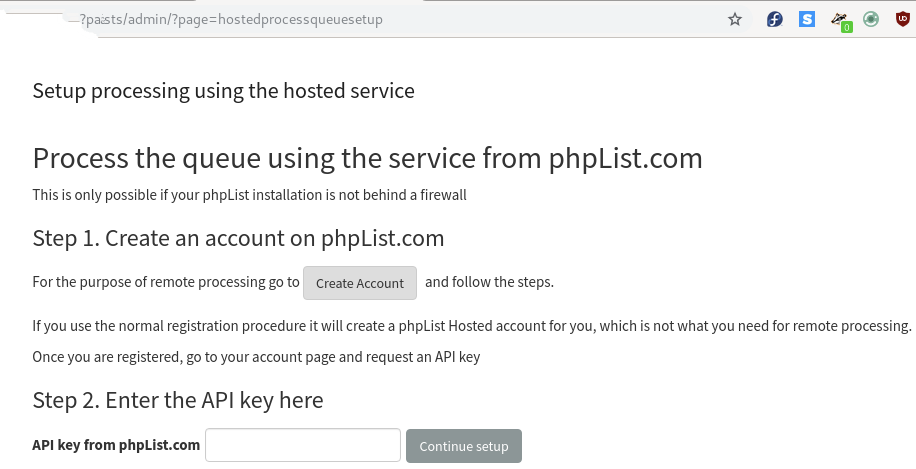](https://www.phplist.org/manual/uploads/images/gallery/2019-06/6iOtGsQCuKFXNzGC-IMG_20190628_151900.png)
This opens a window with a phpList.com page enabling you to create a special phpList.com account. Fill out your details and click **Create account**.
[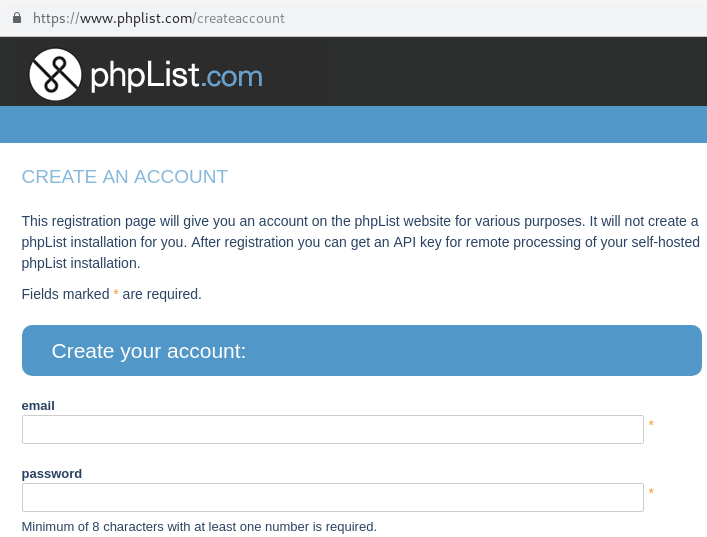](https://www.phplist.org/manual/uploads/images/gallery/2019-06/9AUYL6QINigTcYbW-Screenshot-from-2019-06-28-14-56-19.png)
You then need to go to your email account and click the link in the confirmation email.
[](https://www.phplist.org/manual/uploads/images/gallery/2019-06/nLk7gKLV8BfDdu2w-Screenshot-from-2019-06-28-15-04-50.png)
Click **Continue to your account** to go to your new account.
[](https://www.phplist.org/manual/uploads/images/gallery/2019-06/BrLbFerfFfAtj8WP-Screenshot-from-2019-06-28-15-12-22.png)
Click **Generate new key** to get your API key.
[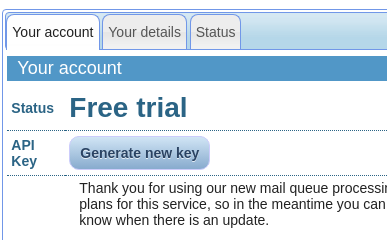](https://www.phplist.org/manual/uploads/images/gallery/2019-06/C8zL9VlBepVhlWt2-Screenshot-from-2019-06-28-15-12-46.png)
Copy the API key.
[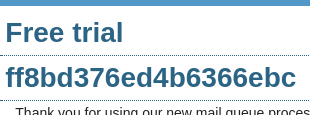](https://www.phplist.org/manual/uploads/images/gallery/2019-06/AbnE0dggyallBi2r-Screenshot-from-2019-06-28-15-13-26.png)
And paste it into your phpList installation, into the **Enter the API key here** box on **http://yourdomain/lists/admin/?page=hostedprocessqueuesetup**
[](https://www.phplist.org/manual/uploads/images/gallery/2019-06/ltJktDBqIoHqJZOm-Screenshot-from-2019-06-28-15-13-53.png)
Click **Continue setup.**
[](https://www.phplist.org/manual/uploads/images/gallery/2019-06/Rw9EFhZ99AMQzWR0-IMG_20190628_152502.png)
The process is now complete. When you add a message to the queue, it will be processed according to your settings.
#### Queue processing from a remote computer using a secret (Config > Settings > Secret for remote processing)
This is essentially the same system as above, but you don't use the phplist.com service, you use another server of your choosing. Documentation for this is [here](https://resources.phplist.com/system/remote_processing?s%5B%5D=secret).
### Automatic queue processing using the command line and Cron jobs
#### Background
A more advanced phpList configuration is to configure automatic queue processing from the command line of the computer (shell terminal). These are the most powerful ways of sending and they have many advantages. However, setting them up can be complicated for a variety of reasons including:
- Restrictions of hosting companies, such as GoDaddy, Hostgator and others
- Features of your virtual machine (VM) hosting account
- (In)Ability to ssh into the server to test commands
- PHP settings configured by your hosting company
- Working through a web based interface such as cpanel, or plesk to test and setup the required exact commands needed
- Limited access and permissions due to account type and user limitations
- Every hosting company sets this up a little differently, so require a setup specific to your exact situation.
If you don't understand, or give up trying to understand all these details, look for qualified third party support to configure this and/or offer hosted solutions that include automatic queue processing.
#### The Command line
The core of setting up the automatic processing is the command line that will 'do the deed'.
***For queue processing, the general format is:***
/usr/bin/php /home/mydomain/lists/admin/index.php -pprocessqueue -c/home/mydomain/lists/config/config.php
***Breaking this down:***
**/usr/bin/php** This is the command that invokes php. Your path may vary, as well as the exact php command ( php-cli or php-cgi). The exact path to the php command will need to be changed to match your system.
**/home/mydomain/lists/admin/index.php** This is the fully qualified path to the index.php file in the /lists/admin directory of your phpList installation, as seen by the php command (above). Getting this right usually requires some experimenting, and/or asking your hosting provider. The '/home/mydomain' part will need to be changed to match the layout of your system.
**-pprocessqueue** This specifies the action that you want to perform (processqueue)
**-c/home/mydomain/lists/config/config.php** This is the fully qualified path to the config file with your settings. The '/home/mydomain' part will need to be changed to match the layout of your system.
Once you determine the exact command line that will process the queue on your machine, then you need to run that command periodically via a cron job (also called a 'scheduled task' in the cpanel interface).
#### Setting up a cron job to periodically run the Command Line
See the chapter ["Setting up your Cron"](https://www.phplist.org/manual/books/phplist-manual/page/setting-up-your-cron).
## Feedback
Discuss this chapter [here](https://discuss.phplist.org/t/methods-of-sending-browser-cron-command-line-manual-chapter-feedback-and-discussion/225).
# Setting up your Cron
This page concerns phpList self-hosted users only. If you have a registered account at the phpList Hosted service, please contact hosted@phpList.com.
### What is cron
Cron is a time based task scheduler on Unix-like operating systems. For more information check the [Wikipedia page](http://en.wikipedia.org/wiki/Cron "Explanation of CRON"). This chapter will describe how to set this up on Linux. On other Unix systems the set up will be similar.
### Why set up cron
When you set up the cron, two of the most time consuming parts of phpList will become automated. These are processing the queue and processing the bounces. Once you set up the cron, you will not have to do these in your browser, but they will happen automatically. Sending a campaign will become as easy as sending a normal email from your desktop.
### Caveats
The method described in this chapter requires the CLI version of PHP. This may not be available on all systems. There are some "hacks" to make it work with other versions of PHP, but this is non-intentional functionality and therefore not described here.
### Step 1: set up commandline
The easiest way to set up the cron is to set up a commandline script that will handle all phpList commands. There is an example in the "bin" directory in the phpList archive file.
Let's call the commandline script "phplist" and edit it with your favourite text editor:
```
$ nano phplist
```
and type (or copy-paste) the content (note the line breaks; the following command should be pasted literally as two lines):
```
#!/bin/bash
/usr/bin/php /home/website/public_html/lists/admin/index.php -c /home/website/public_html/lists/config/config.php $*
```
You will need to change the above content to fit your system:
**\#!/bin/bash** -> the shell that you want to use
**/usr/bin/php** -> the path to the PHP-cli commandline interpreter, this can vary per system. Debian based systems (including Ubuntu) should install the "php-cli" package.
**/home/website/public\_html/lists/admin/index.php** -> the path to your phpList installation, pointing to the index.php file in the admin directory of phpList
**/home/website/public\_html/lists/config/config.php** -> the path to your config file
Once you have constructed your commandline file, place it somewhere in your path, e.g. in /usr/local/bin and make it executable.
```
chmod 755 /usr/local/bin/phplist
```
From then on, you can process phpList on commandline, for example with
```
phplist -pprocessqueue
```
### Step 2: set up the crons
Once you have the commandline script, you can set up the crons with your favourite cron editor. On Linux, you type "crontab -e" in order to edit your cron entries.
```
0-59/5 * * * * phplist -pprocessqueue > /dev/null 2>&1
0 3 * * * phplist -pprocessbounces > /dev/null 2>&1
```
The above example will process the queue once every 5 minutes and process the bounces once a day. That will be sufficient for most systems.
The example also discards any output, which you will want to do. You can always check the output by running the above commands manually from the shell-prompt without
```
> /dev/null 2>&1
```
On CentOS 7 you need to specify the full path to the bash script. Your cron entries should look like this:
```
0-59/5 * * * * /usr/local/bin/phplist -pprocessqueue > /dev/null 2>&1
0 3 * * * /usr/local/bin/phplist -pprocessbounces > /dev/null 2>&1
```
### Step 3: tell phpList
Once you've set up the cron and it is working, you can tell phpList and some links will disappear. Put the following two lines in your config file:
```
define ("MANUALLY_PROCESS_BOUNCES",0);
define ("MANUALLY_PROCESS_QUEUE",0);
```
This will hide the links to process the queue and bounces from the phpList interface.
### Remote queue processing
The remote queue processing is often called “phpList cron job” due to its similarity of other automatic cron jobs. Before version 3.1 there was not a standard option to process the queue from a different location than the same server your phpList instance is installed. From version 3.1.1 onwards there is an option to remotely process the queue. It is always highly recommended to use the latest phpList version for security updates and for your own convenience as latest versions offer more functionalities.
In **Config -> Settings** under the **Security** section, there will be an option called "Secret for remote processing". The first time, it will generate a random code, which you can use, or you can set your own. To run the queue remotely, all you need to do is load the following page:
http(s)://yoursite.com/lists/admin/?page=processqueue&secret=XXXX
Where the XXXX is the value that is set for the "Secret for remote processing"
### Use the Hosted Service
phpList.com now has a “secret” way to get our servers to process your queue for you. There are no payment plans and if you use this, you will help us to tweak the way it works, and in return we will process your queues without charge.
We offer this, because the last thing we'd want is that the queue processing is an obstacle for using phpList. From any point of view, but mostly performance, we advise the use of commandline processing because that is the most powerful way of sending. phpList Hosted is using commandline for everything. But in some cases this may not be an option. This is where our service hopefully fulfills a need.
To use the phpList.com queue processing service sign up at [https://www.phplist.com/](https://www.phplist.com/createaccount).
Once you signed up, get your API key.
The first time you try to manually process your queue, you will get the option to set up processing with phpList.com. You can use that to set up the API key.
Alternatively go to:
```
http://www.yoursite.com/lists/admin/?page=hostedprocessqueuesetup
```
From then on, when you place a campaign in the queue, or requeue an existing one, it will activate the processing from our servers. We will run the queue very often and make sure your campaigns are sent.
If you place an embargo on a campaign, the hosted queue processing service will detect this and wait until your embargo has passed to send your campaigns.
We do keep track of the statistics, and we will give you a summary in your account pages. The phpList.com service uses the exact same system as the normal remote processing outlined above and we have no other access to your system.
### Notes
There's no danger in overloading your server. When a second queue processing command is activated when the previous one is still active, phpList will detect this and bail out. Therefore there will always be one active queue sending process at any time. This is also important to ensure that the sending limits, set with Batch processing, will be honoured.
### Appendix
#### How safe is this?
Is it not easy for someone to steal my secret? Particularly when you call the parameter “secret”.
It is quite safe, but you need to determine this for yourself. The output of the page when using the remote secret is minimised to only the statistics. If an “attacker” gets hold of your secret, all they would do is help you process your queue. In fact, if you run the queue this way yourself, you will be logged out from phpList. The access with the secret is restricted to processing the queue and nothing else. We will later on extend this to processing bounces as well. In comparison, using a “username=X&password=Y” processing URL would allow anyone snooping that data to have access to your entire phpList system.Also, if you use HTTPS, chances of someone stealing your secret are way lower.
#### What about timeouts, how long will the request last?
When run from a webpage, phpList, by default, will only run the queue processing for one minute. It will try to send as many mails as possible in that time. Then you will need to run it again.
## Feedback
Discuss this chapter [here](https://discuss.phplist.org/t/setting-up-your-cron-manual-chapter-feedback-and-discussion/226).
# Scheduling
In the campaign workflow you will find the scheduling tab.
If you want to send a campaign straight away, and there is no need to stop sending before a specific time, then you can leave these details unchanged and your campaign will simply send.
If your needs are more complex, read on.
**Important information**
Scheduling settings interact with your sending method. If you are only able to process your queue from within the browser because you have no cron or command-line access, then the embargo time feature will not work for you. To send a campaign from the browser you must *always* open your browser to process the queue and keep it open until you have finished, even if you have used an embargo time.
## Scheduling tab
Below is an image of the scheduling tab. We we will work though it from top to bottom:
[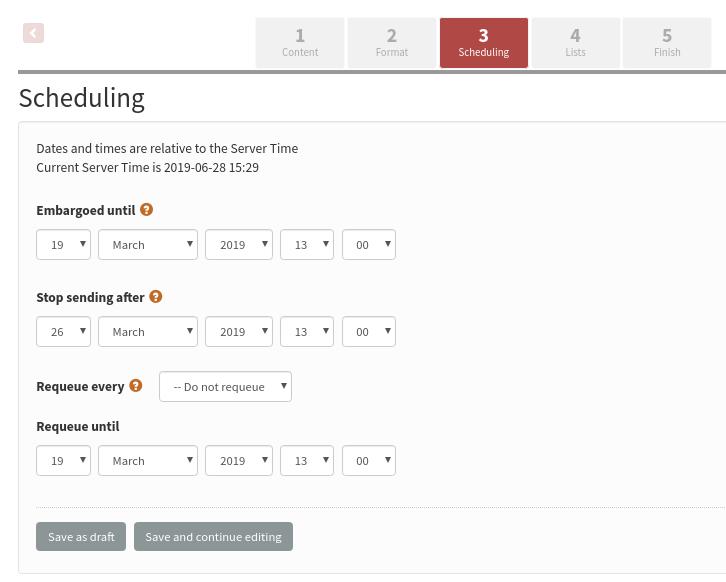](https://www.phplist.org/manual/uploads/images/gallery/2019-07/qonixQ284d4tOzEM-Screenshot-from-2019-06-28-15-29-35.png)
## Server time
The server time may not be the same as your local time. All of the times in the scheduling page are relative to server time. Changing this time is an advanced feature.
## Embargoed until
The campaign will not be sent until this time has passed. If you have a campaign which you wish to send at a later date, perhaps when you out of the office or away from your desk, then this is the feature you should use.
Embargo time is initially set to the nearest hour *before* you started your new campaign: this effectively switches off the embargo feature by default. To use the feature you must set the time in the future. Simply set the date and time to the time you want to send, relative to your server time which is stated above. Then place the campaign in the queue as normal. If you are using a cron job then the campaign will automatically start sending at the desired time.
[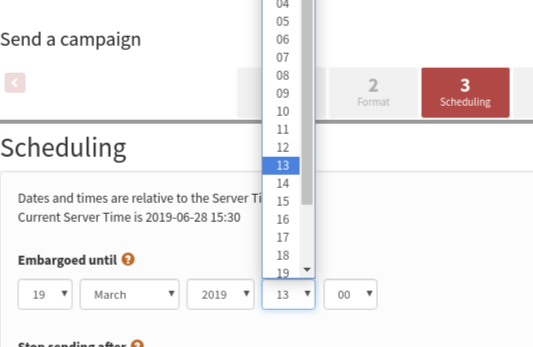](https://www.phplist.org/manual/uploads/images/gallery/2019-07/mduI6TVBFl3kSmf7-IMG_20190629_204617.png)
## Stop Sending After
This feature is used when the topic of a campaign is time sensitive, for example, a special offer with an expiration date or an event with a specific time. If the campaign would become irrelevant to anyone who received it after a particular time, then this is the feature you should use.
The primary use of this feature is when your list size exceeds your sending capacity within the timeframe you need to send your campaign in. For example, if you have a list of 10,000 subscribers and can send 1000 emails in an hour but the campaign becomes irrelevant in 8 hours time, you need to stop sending before everyone on your list has received a copy of the mail.
##### Re-Queue
The re-queue setting is used to send a campaign to subscribers who join a list *after* the campaign is sent. Remember, a campaign will never be sent to the same subscriber twice.
[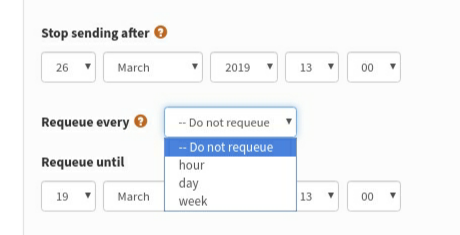](https://www.phplist.org/manual/uploads/images/gallery/2019-07/tOkAi0CtvytP7iUw-IMG_20190629_204640.png)
As an example, you create a monthly newsletter on the first of January, and send it to a list. Over the month you expect another 50 people to sign up, or be added to your list manually, and you would also like them to automatically receive a copy of the campaign. You would set up your campaign to **re-queue every** day and to **re-queue until** 31st of January.
## Feedback
Discuss this chapter [here](https://discuss.phplist.org/t/scheduling-manual-chapter-feedback-and-discussion/227).
# Sending a web-page
To send a web page rather than a message to your subscribers, log in to your phpList admin pages, then choose to **Send a Campaign Admin>Campaigns>Send a Campaign**
From this page, click on **Send a New Campaign** (or edit an existing Campaign). In this example, I'll use **Send a New Campaign**.
[](https://www.phplist.org/manual/uploads/images/gallery/2019-07/qO82wa0bKivxgVe6-Screenshot-from-2019-06-28-15-35-06.png)
This results in:
[](https://www.phplist.org/manual/uploads/images/gallery/2019-07/EW52izC3RSAUiaH2-Screenshot-from-2019-06-28-15-35-54.png)
Choose **Send a Webpage** rather than **Compose message** and you should see this:
[](https://www.phplist.org/manual/uploads/images/gallery/2019-07/g9FMp5pOJwvtOycV-Screenshot-from-2019-06-28-15-36-35.png)
In the send a web page - URL box, enter the path of the webpage you wish to send. Click outside the box and the URL is validated.
If you get this message, then check and double check that the page you have entered actually exists. The URL does look correct, but the page does not in fact exist.
[](https://www.phplist.org/manual/uploads/images/gallery/2019-07/eSV8u0RDbTOuIzWt-Screenshot-from-2019-06-28-15-38-45.png)
Once the page to be sent has been validated, simply select the template for your message (optional), the list to which you wish to send to (required), check that the embargo time is correct and send the campaign out.
### Display Issues
Be aware that most email readers, especially those web-based ones (Hotmail/Outlook, Gmail etc) will not show images by default, it will be up to your subscribers to decide if they wish to receive images in emails by (usually) clicking on a link in the email reader. Don't assume that your images will automatically appear, so make sure your webpage includes ALT Text for each image in your page when designed.
## Feedback
Discuss this chapter [here](https://discuss.phplist.org/t/sending-a-web-page-manual-chapter-feedback-and-discussion/229).
# Sending plain text
phpList always generates a plain text version of your campaign, which is then included in the html campaigns as a matter of course. This is part of the normal working of email functionality. phpList also gives you two additional features:
- Your subscribers can choose to receive plain text emails only
- You can edit the plain text version to improve it.
You can see the plain text version embedded in the source of your email by clicking **View Source** in your email client (exact instructions vary wildly)
[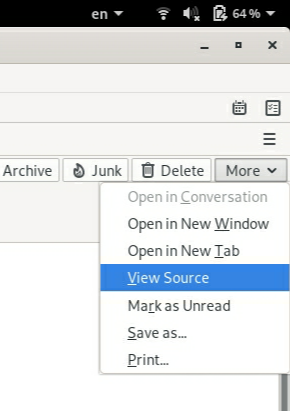](https://www.phplist.org/manual/uploads/images/gallery/2019-07/aFqzsKIzH4ODzL3q-IMG_20190730_140501.png)
As you can see there is a plain text version in and amongst the html and other code.
[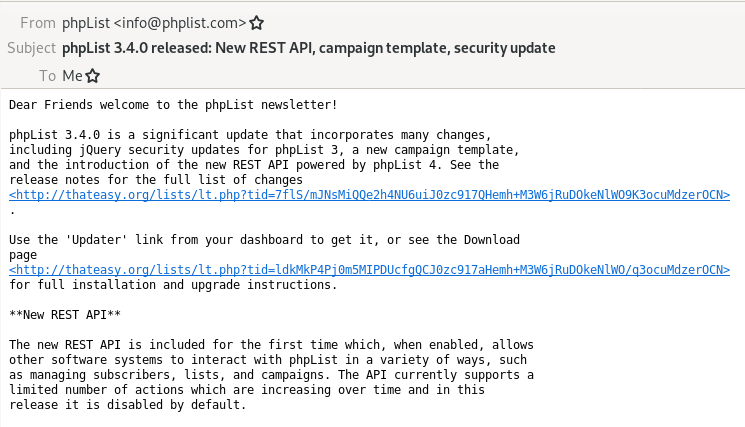](https://www.phplist.org/manual/uploads/images/gallery/2019-07/02AFYDk9lWpUdYya-Screenshot-from-2019-07-03-13-37-58.png)
## Why edit the plain text version?
The automatically generated plain text version may not be very attractive. It is good practice to provide a quality plain text version because it:
- displays better in some email software
- makes your emails more accessible for people with visual impairments.
To assess the state of your default plain text version, you can click to view your emails only in plain text. In a desktop email client this is usually **View** > **Message Body As** > **Plain text.**
[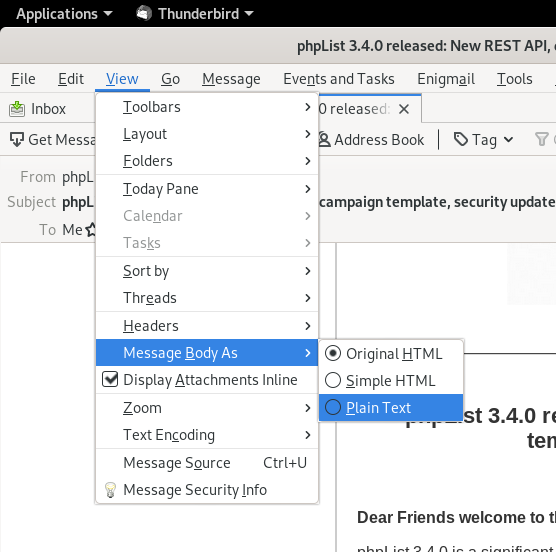](https://www.phplist.org/manual/uploads/images/gallery/2019-07/RE0YFwfGgiDzUTvX-IMG_20190730_140446.png)
You can then see your email as it would be displayed to someone who is only able to receive plain text messages.
[](https://www.phplist.org/manual/uploads/images/gallery/2019-07/HdP2abT6NrLt4cDi-Screenshot-from-2019-07-03-13-39-21.png)
To improve this email and send a version formatted especially for these subscribers only takes a few extra moments and, as you can see, provides a much better quality of message.[](https://www.phplist.org/manual/uploads/images/gallery/2019-07/02AFYDk9lWpUdYya-Screenshot-from-2019-07-03-13-37-58.png)
##### Enabling plain text editing
Some installations do not show the **Text** tab, which is used to manually configure your text-only email content. If your tabs look like this, you'll need to change the configuration:
[](https://www.phplist.org/manual/uploads/images/gallery/2019-07/cF3hCNunIjkiUDBQ-Screenshot-from-2019-07-30-14-16-28.png)
To activate the **Text** tab in your installation, add the following lines to your config.php file:
> \# Manual text part, will give you an input box for the text version of the message
>
> \# instead of trying to create it by parsing the HTML version into plain text
>
> define('USE\_MANUAL\_TEXT\_PART',1);
An extra tab will now display in your campaign workflow.
 [](https://www.phplist.org/manual/uploads/images/gallery/2019-07/VnGW5t76Uv8xAgfE-activate_manual_text_tab.png)
## Create your plain text version
Once you've created your HTML version in the **Content** tab (tab 1) click the **Next** button**.**[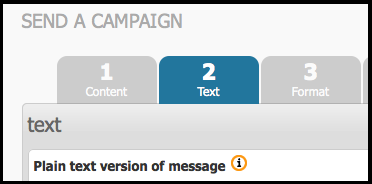](https://www.phplist.org/manual/uploads/images/gallery/2019-07/KAnBglRwTOBWgofW-manual_text_tab_actiaved.png)
You should now be in the second tab, **Text**.
[](https://www.phplist.org/manual/uploads/images/gallery/2019-07/Mq3oUr9SKg8nWRHd-IMG_20190730_140427.png)
You can manually compose the plain text version, or you can generate it automatically by using the **generate from HTML** button**.** *Some special characters in your html email may cause this automatic generation to fail. You can paste your text into this tab if you need to.*
[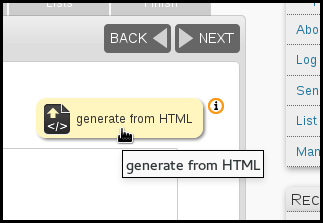](https://www.phplist.org/manual/uploads/images/gallery/2019-07/g1ymRlA2iPUmcQBZ-generate_plain_test_version_phpList.png)
The empty **Plain text version of message** box will now contain a text only version of your html message.
The content should be the same as the html version. However images in the html version will automatically be removed and replaced by text descriptions and URLs are replaced by links. You can edit the message further if required, to make it as attractive and legible as possible.
Once you are happy with your plain text version, click **Save and continue editing** button, at the bottom of the text editing box, and carry on with testing and sending your campaign.
[](https://www.phplist.org/manual/uploads/images/gallery/2019-07/9fxJcVqXlUeZeIfN-Screenshot-from-2019-07-30-14-27-58.png)
When you send tests, you will receive two emails, one text and one html.
**The HTML version:**
**[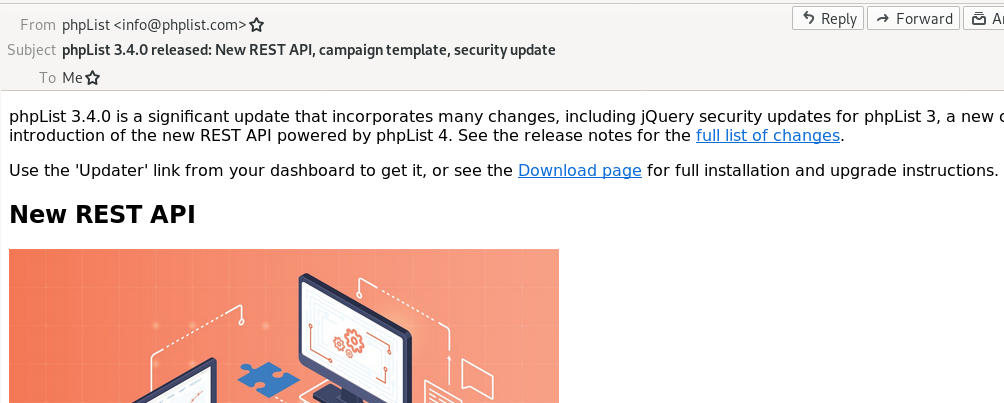](https://www.phplist.org/manual/uploads/images/gallery/2019-07/xEAgBYdcTlUFjo5A-Screenshot-from-2019-07-30-14-30-53.png)**
**The Plain text version**
**[](https://www.phplist.org/manual/uploads/images/gallery/2019-07/nerN0mtywtgQPP85-Screenshot-from-2019-07-03-13-37-58.png)**
## Format tab: ONLY send plain text?
On the format tab there is a radio button for sending in either HTML or Text. Typically you will want to select the "HTML" radio button, which sends a version of the message that each subscriber specified when they joined your list.
However, *if you want to send the text version of the message, select the "Text" radio button.* This will override the user preferences, and send all subscribers the text version of the email.
[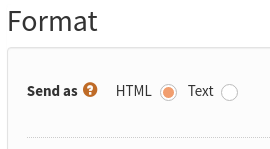](https://www.phplist.org/manual/uploads/images/gallery/2019-07/ayq5CmdRNNOO5ISc-Screenshot-from-2019-07-30-14-33-37.png)
## Feedback
Discuss this chapter [here](https://discuss.phplist.org/t/sending-plain-text-manual-chapter-feedback-and-discussion/230).
# Bounce Management
## Introduction to bounce management
Whenever an email is sent via the internet, regardless of the email software used, the email is transmitted by an MTA (Mail Transport Agent). In most cases the MTA is the internet provider’s SMTP mail server, sending to the MTA of the email’s recipient, through intermediary MTAs.
If the email cannot be delivered to its recipient, the last MTA that tried to transmit the email generates an error email, called a bounce message, which is sent back to the sender’s email.
Usually, this bounce message contains a specific error code that explains why your email could not be delivered to its recipient.
phpList implements bounce management which handles these bounce messages, and provides automatic actions depending on the error code, like removing an incorrect email address.
## Setting up basic bounce management
Basic bounce management counts bounces and unconfirms a user after a given number of consecutive bounces.
### Setting your bounce address
In order to use bounce management, you need to provide an email address where the bounce messages are sent to (e.g.: bounce@example.com). This email address is usually called the Return Path. Note that this email address will only be added to the email headers, and will not be shown to your users.
Once you have set up your return path email address, you may edit the config.php by adding the following:
**$message\_envelope = 'bounce@example.com;**
By default this setting is commented out (it has a # in front so will not be actioned).
[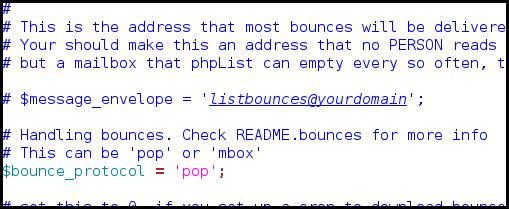](https://www.phplist.org/manual/uploads/images/gallery/2019-06/OuwsiH4470LzgbKK-bounce_config_1.png)
You will need to uncomment it (remove the hash) and change the email to reflect your new bounce email.
[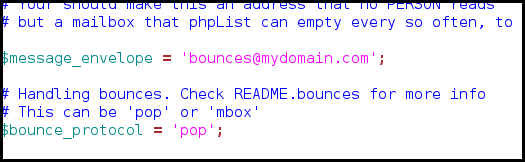](https://www.phplist.org/manual/uploads/images/gallery/2019-06/arNeOEtDuivSGWzn-bounce_config_2.png)
### pop or mbox
phpList can fetch emails from the bounce mailbox via two protocols, mbox protocol where mails are accessed directly within a folder on the server, and pop3 protocol where mails are downloaded just like a mail client program would do it. The latter one is usually the simplest option, especially if you don’t host your phpList setup yourself.
You can specify which procotol to use in config.php with the following:
**\# This can be 'pop' or 'mbox'**
**$bounce\_protocol = 'pop';**
When accessing the bounce mailbox via mbox protocol, we need to tell phpList where the mbox files are. Edit config.php and add the following:
**\# when the protocol is mbox specify this one**
**\# it needs to be a local file in mbox format, accessible to your webserver user**
**$bounce\_mailbox = '/var/spool/mail/listbounces';**
When accessing the bounce mailbox via pop3 protocol, we need to tell phpList which server provides the emails, and the username and password for the mailbox in config.php like this:
**\# when the protocol is pop, specify these three**
**$bounce\_mailbox\_host = 'pop.example.com';**
**$bounce\_mailbox\_user = 'popuser';**
**$bounce\_mailbox\_password = 'password';**
Additionally, you might want to set the default pop3 port and encryption with the following line (standard config):
**$bounce\_mailbox\_port = "110/pop3/notls";**
Or enabling ssl on port 995 without verifying certificate common name of the certificate:
**$bounce\_mailbox\_port = "995/pop3/novalidate-cert"**
### Setting up mailbox purge
Unless you’re doing some tests, you would want to delete bounce messages once they are fetched, so they won’t be counted twice:
**$bounce\_mailbox\_purge = 1;**
You may also want to delete messages from the mailbox that could not be processed because they do not match a user in the system. Messages are still downloaded into phpList, so it’s safe to delete them from the mailbox.
**$bounce\_mailbox\_purge\_unprocessed = 1;**
You can define how many bounces in a row it needs for a user to be marked unconfirmed.
Be aware that deleting processed bounce messages from phpList with advanced bounce rules will disable this functionality.
**$bounce\_unsubscribe\_threshold = 5**
## Downloading and processing bounces
Downloading and processing bounces can be handled in the user interface under **System** > **Process Bounces**.
You may also setup a cron task to download and process bounces on a regular basis, see the chapter about cron tasks.
In that case, you might want to disable the Process Bounces menu entry by adding the following:
**define ("MANUALLY\_PROCESS\_BOUNCES",0);**
**define('BLACKLIST\_EMAIL\_ON\_BOUNCE', 1**);
## Advanced bounce management
Advanced bounce management enables the automatic performance of various actions depending on the kind of bounce error code that is returned by the MTA.
To enable it just add the following in config.php
**define('USE\_ADVANCED\_BOUNCEHANDLING',1);**
Once this is set up, you may proceed in the phpList interface to **System** > **Manage Bounces** > **List Bounces Rules**
[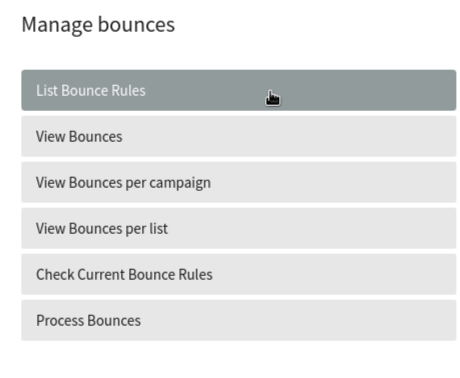](https://www.phplist.org/manual/uploads/images/gallery/2019-06/zJan2JgSkIVFO89Z-IMG_20190629_205308.png)
From there you may create new bounce rules, based on regular expressions that will trigger phpList actions.
Regular expressions are sequences of characters that match a search pattern. While this manual won’t explain the use of regular expressions, we will analyse the examples given here.
Bounce emails generally contain a header and a mail body that may, depending on the MTA that sent the email, give a reason why the initial email could not reach its recipient.
An example bounce email could look like the following:
**Final-Recipient: rfc822; someuser@example.com**
**Original-Recipient: rfc822;someuser@example.com**
**Action: failed**
**Status: 5.2.1**
**Remote-MTA: dns; mx1.example.com**
**Diagnostic-Code: smtp; 550 5.2.1 This mailbox has been blocked due to**
**inactivity (UserSearch)**
What we see here is the recipient’s MTA telling us that the user’s mailbox is blocked, probably because it’s not been used for a long while. There are some excellent articles about MTA responses on the internet. Every MTA programme has its own return messages. Also, you may have noticed that the return messages usually come with a 3 digit code, 5.2.2 in this example.
This code is the error code corresponding to the return message, but some MTAs just give bogus codes, especially when they think your email is spam.
Now let’s create our first bounce rule:
[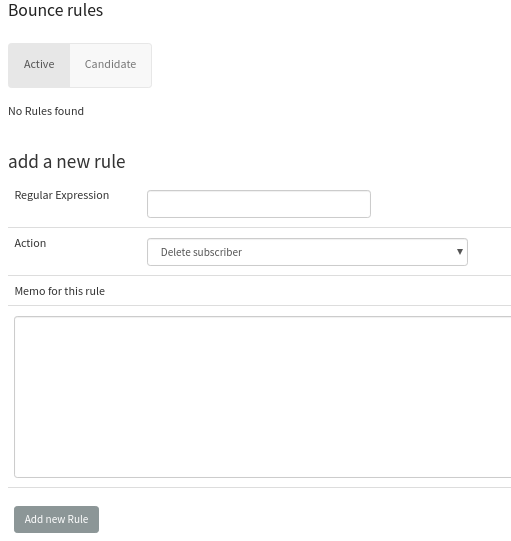](https://www.phplist.org/manual/uploads/images/gallery/2019-06/OlpOPB7p8hVuKkfE-Screenshot-from-2019-06-28-15-50-13.png)
The regular expression could be the exact sentence the MTA return message contained, in brackets.
Now phpList provides multiple actions that can be triggered if a bounce email matches our regular expression:
- Delete subscriber
- Unconfirm subscriber
- Blacklist subscriber
- Blacklist email address
- Delete subscriber and bounce
- Unconfirm subscriber and delete bounce
- Add subscriber to the do-not-send list and delete bounce
- Add email address to the do-not-send list and delete bounce
- Delete bounce.
In our case, we can assume that our subscriber’s email address haven’t been used for a long while, and that it’s safe to unconfirm the subscriber.
Now we have a choice between “unconfirm subscriber” and “unconfirm subscriber and delete bounce”. The only real difference between both options is that deleting the bounce message will also remove it from bounce statistics (using the BounceStatisticsPlugin).
Once we finished our rule, we may add it and try it against our bounces.
Back in phpList, we can check if our rule matches any of our actual bounces, by going to **System** > **Manage Bounces** > **Check Current Bounce Rules**.
The system will then tell us how many bounces are caught by our rules.
Now you may have a big list of bounces that aren't caught by the rule, and some of them are pretty similar to the rule.
We may have multiple bounce messages that could say “account is disabled” or “This account has been disabled” which basically means the same as “mailbox has been blocked due to inactivity” of our first rule.
Way may create two other rules to deal with these bounces, or improve our regular expression to match all these messages with the same rule.
Regular expressions use the pipe symbol “|” as OR statement, meaning the following regular expression:
(black|white) would match any text that has the words black or white in it.
Now let’s improve our first rule by adding all our MTA return messages that basically mean the same thing:
[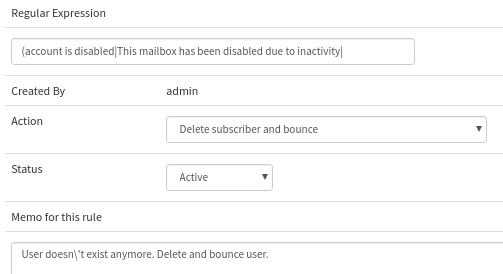](https://www.phplist.org/manual/uploads/images/gallery/2019-06/JHl94P4EBPymgIhA-Screenshot-from-2019-06-28-15-53-20.png)
The actual regular expression I used here is:
(account is disabled|This mailbox has been blocked due to inactivity|This account has been disabled|The email account that you tried to reach does not exist|This is a permanent error .\* local delivery failed)
Note that the .\* is a wildcard token that means there can be up to zero characters between “This is a permanent error “ and “ local delivery failed”.
This rule can now deal with any of these 5 return messages.
Good starter rule set:
[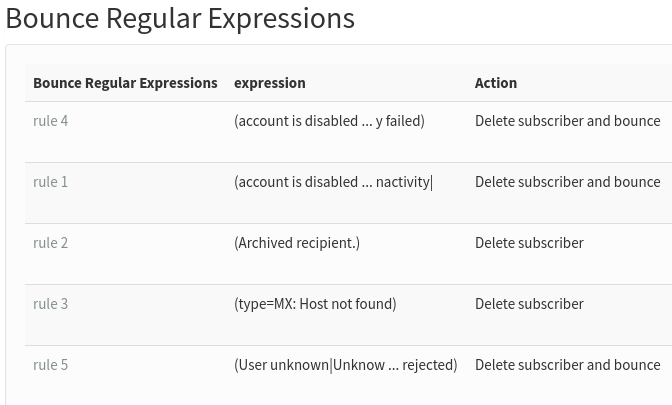](https://www.phplist.org/manual/uploads/images/gallery/2019-06/B0V0V8h5myaY3TX4-Screenshot-from-2019-06-28-15-58-25.png)
## Rules to copy
**(Archived recipient.)** Delete subscriber
**(delivery error: dd This user doesn't have a yahoo.fr account|This user doesn't have a yahoo\\.fr account)** Delete subscriber
**(type=MX: Host not found)** Delete subscriber. No mail records for the domain.
**(sorry, no mailbox here by that name|Mailbox disabled|address not found in table|User mailbox is not local|mailbox not allowed|Mailbox syntax incorrect|RESOLVER\\.ADR\\.RecipNotFound)** Delete subscriber and bounce. No ambiguity here, we can also delete the bounce message.
**(account is disabled|This mailbox has been blocked due to inactivity|This account has been disabled|The email account that you tried to reach does not exist|This is a permanent error .\* local delivery failed)** Delete subscriber and bounce. Same as above
**(User unknown|Unknown user|Unknown address|No such recipient|No such user|The email account that you tried to reach is disabled|Recipient not found|Recipient unknown|Invalid recipient|Address unknown|Recipient address rejected)** Delete subscriber and bounce. Same as above
## Feedback
Discuss this chapter [here](https://discuss.phplist.org/t/bounce-management-manual-chapter-feedback-and-discussion/231).
# Plugins
# phpList plugins
Your phpList can be extended, adapted and customized by the use of plugins.
You can:
- Use plugins from the **[phpList plugin library](https://resources.phplist.com/plugins/start)**, which are developed by the phpList community
- Develop your own plugin, or pay a developer to build it for you
- Contribute your plugin back into the plugin library.
This chapter will show you how to install, enable/disable and delete a plugin.
In the example used, we will change the choice of editor used in our install by installing the CKEditorPlugin and disabling the fckphplist plugin.
## The plugins page
To get to the plugins page from the main menu, click **Config** > **Manage plugins**.
[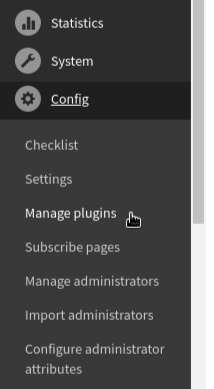](https://www.phplist.org/manual/uploads/images/gallery/2019-06/vrvkSkV0V7r58Rcn-IMG_20190628_144142.png)
You will see a list of the plugins you currently have installed. To find a new plugin, click the **Find plugins** link.
[](https://www.phplist.org/manual/uploads/images/gallery/2019-06/W7VvCe2g6ikZycES-Screenshot-from-2019-06-28-14-28-21.png)
The plugin library will then open in a new page. You can access the Plugin library at [https://resources.phplist.com/plugins/start](https://resources.phplist.com/plugins/start)
[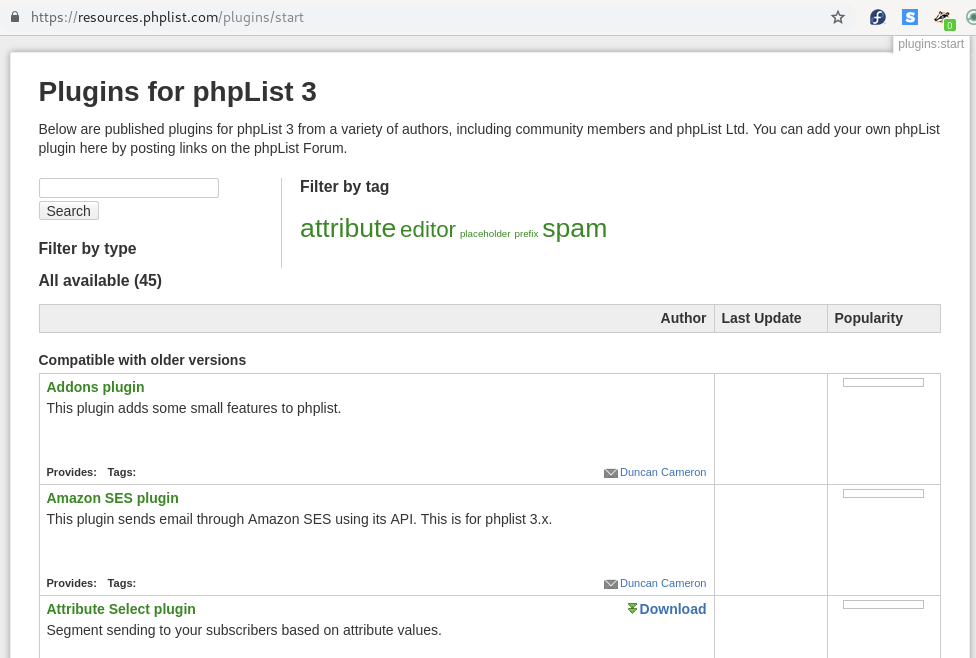](https://www.phplist.org/manual/uploads/images/gallery/2019-06/aautYWHMsHYCrrov-Screenshot-from-2019-06-28-14-29-26.png)
## Getting the plugin URL from the plugin library
Once you have clicked the **Find plugins** link, you will see the plugin library. Scroll down or search to find the desired plugin.
In this example, we are installing the "Attribute Select Plugin".
Right click on the **Download** link and choose the option to copy the URL. The wording of this option will depend on your browser: in this case it reads **Copy Link Location**.
[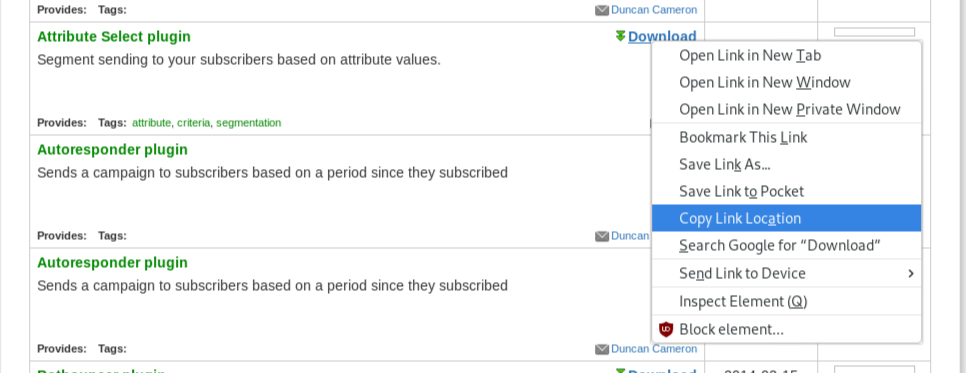](https://www.phplist.org/manual/uploads/images/gallery/2019-06/3ZRvD66ZfMBxekpz-IMG_20190628_144334.png)
## Installing the plugin
Return to your phpList (it should be in the browser tab to the left of the plugin library). Paste the url into the box labelled **Plugin package URL** and click the **Install plugin** below.
[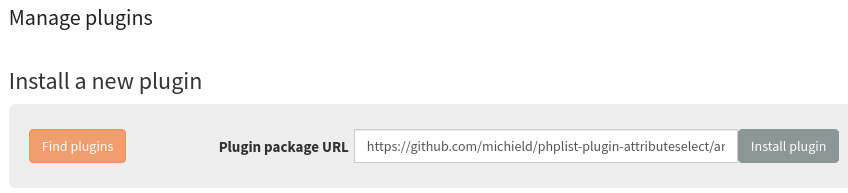](https://www.phplist.org/manual/uploads/images/gallery/2019-06/b9kMcu14u41aEFhZ-Screenshot-from-2019-06-28-14-33-43.png)
You will see the plugin install. Click **Continue.**
[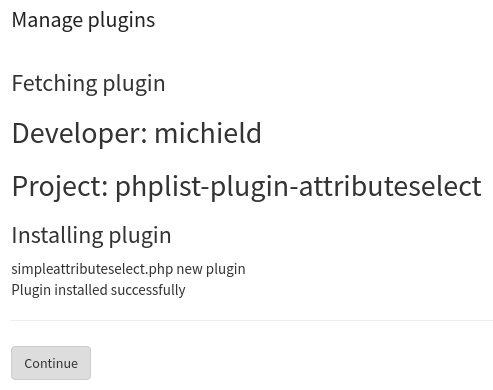](https://www.phplist.org/manual/uploads/images/gallery/2019-06/3FhmFKcLQCKOhHxH-Screenshot-from-2019-06-28-14-34-04.png)
## Turning plugins on and off
Once you are on the plugins page, either from **Config** > **Manage plugins** on the main menu, or after installing a plugin and clicking **Continue**, you can turn plugins on or off.
A green tick icon indicates that the plugin is enabled (on), and a red round icon indicates that the plugin is disabled (off).
To disable (turn off) a plugin, click on the "Disable" button on your right.
[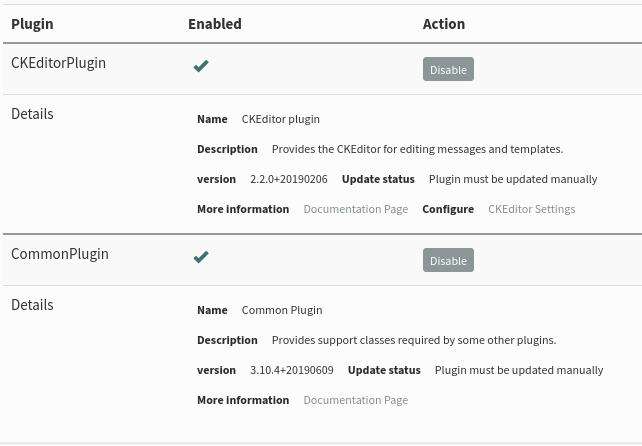](https://www.phplist.org/manual/uploads/images/gallery/2019-06/2qCQT32N01LOTTQe-Screenshot-from-2019-06-28-14-36-23.png)
This will now turn red: the plugin is now disabled.
[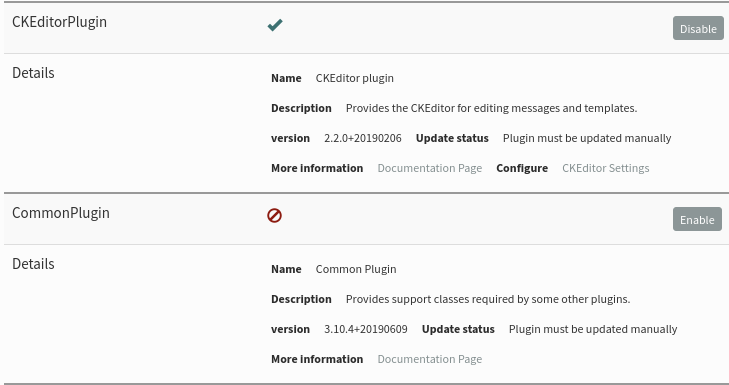](https://www.phplist.org/manual/uploads/images/gallery/2019-06/dmrQjXCrcGzAfzE8-Screenshot-from-2019-06-28-14-36-58.png)
## Feedback
Discuss this chapter [here](https://discuss.phplist.org/t/phplist-plugins-manual-chapter-feedback-and-discussion/232).
# Translations
# New Page
# Setting up phpList in your own language
There are two "faces" of a phpList install, which can be set up in different languages:
1. What the administrators see, when sending campaigns for example.
2. What subscribers, or potential subscribers, see, for example subscribe pages.
## Changing language in the administrator interface
At all times there is a language selector on the bottom left side of your phpList, right above the "Log out" button. This sets the language of the administrator interface and is set to English by default.
[](https://www.phplist.org/manual/uploads/images/gallery/2019-06/YYNJ8YzOFGS0bRXp-IMG_20190628_141743.png)
To change this simply select your preferred language from the drop down.
[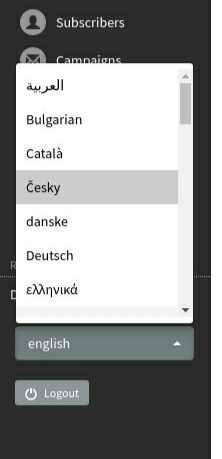](https://www.phplist.org/manual/uploads/images/gallery/2019-06/RXESDk7s7OnddoK9-IMG_20190628_141805.png)
If this is the first time you have used the language this might take a little time.
The phpList interface will then be displayed in your language to the fullest extent possible: if there are some words missing or incorrectly translated, you can improve the translation. Below you can see how the phpList dashboard looks in german.
[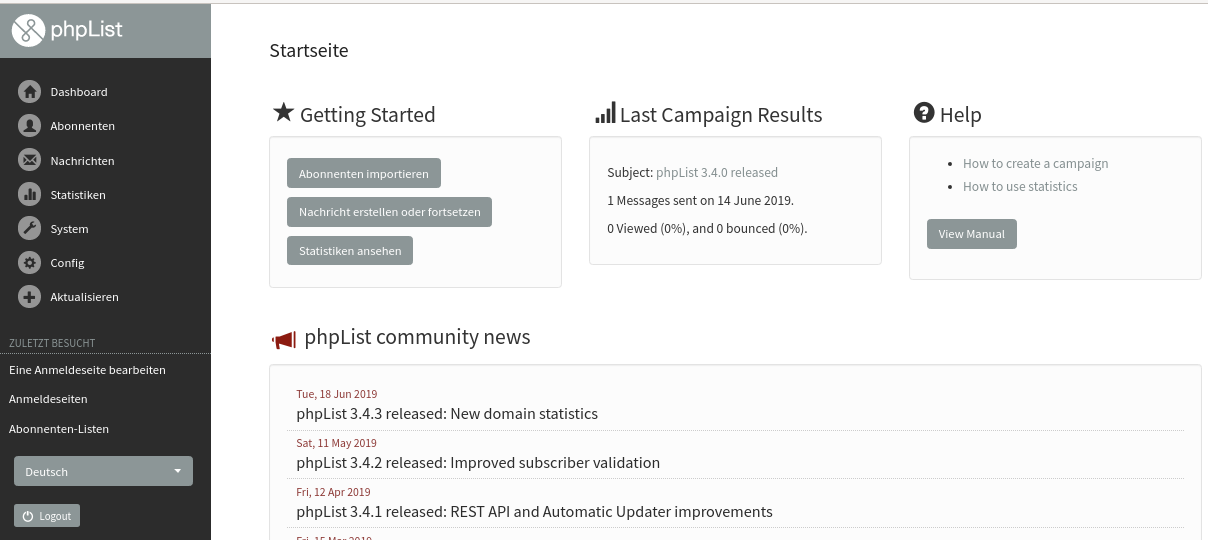](https://www.phplist.org/manual/uploads/images/gallery/2019-06/tceNcf6zJiwb1u2t-Screenshot-from-2019-06-28-14-23-36.png)
## Public/Subscriber facing language
You can set a default language for all subscriber facing pages, and/or set the language of each subscribe page on a case by case basis.
If all of your subscribers are likely to speak the same language, for example, German, then you can set German to be the default language for subscribe pages. Then each new page you create will be in German by default.
### Default Subscriber facing language
To change the default language for all subscribe pages, change english.inc to your language file. This file is found in lists/texts/.
The change is made in lists/config/config.php, right at the beginning of the file.
# select the language module to use
\# Look for <country>.inc files in the texts directory
\# to find your language
\# this is the language for the frontend pages
$language\_module = "english.inc";
Subscribe pages
If you send campaigns in more than one language then you can set a different subscribe page for each language manually.
When you create a new Subscribe Page you can choose the display language from the dropdown menu.
[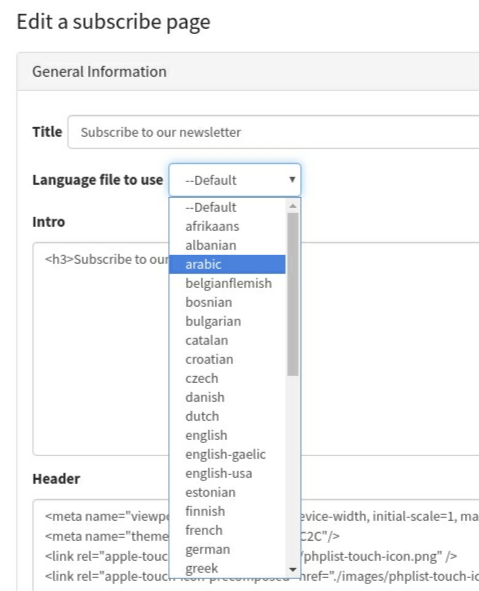](https://www.phplist.org/manual/uploads/images/gallery/2019-06/LNw5TOP4Zf0uoOfq-IMG_20190628_141826.png)
We suggest you name your list and the subscribe page, for example, "Newsletter - in Danish" to help keep your pages and lists organised.
## Feedback
Discuss this chapter [here](https://discuss.phplist.org/t/setting-up-phplist-in-your-own-language-manual-chapter-feedback-and-discussion/233).
# Send speed
# Setting the Send Speed (Rate)
Many people are running phpList on hosted servers they do not own or manage. These are usually shared boxes: that is, one computer has lots of web sites on it. This means that if one web site attempts to dominate the CPU or otherwise behave in a non-community-minded, limited resource way, everyone suffers.
For this reason, most hosting providers will limit the number of emails a single site may send. Either limiting the number of emails per hour or per day. This is their job, to make sure that one person's use doesn't impact needlessly the other sites on that machine.
Another, perhaps, better reason providers will limit your email resources is that they don't want to host spammers. So, what does this mean to you, a non-spammer? **You must check with your hosting provider before sending your first mailing.** Ask: Is there a daily limit? Is there an hourly limit? Odds are that there is. Then use the following settings in the config.php file to safely live within these limits.
#### Limiting the speed rate
At full speed phpList (up to version 2.10.5) will send about 3000 personalized messages per hour, or about 5000 non-personalized messages per hour. Given that most shared hosting providers will not allow that message volume to be sent and will impose an hourly or daily limit, phpList offers two methods to deal with these message limits: *mailqueue batch* processing and *mailqueue throttle* processing. The choice in using batches or throttling is basically a personal preference, although throttling may be better suited for servers running PHP-cgi (see [The three interfaces of PHP](https://www.phplist.org/manual/PhpInterfacesInfo.html)).
##### Mailqueue throttle
The `MAILQUEUE_THROTTLE`setting inserts a pause (in seconds) between each message, i.e. it will space messages apart by a number of seconds. While you can use this setting to avoid overloading the server with a sudden burst of messages, you can also use it as an alternative to batch processing. For instance, if you impose a pause of 10 seconds between messages, you will in fact send no more than 360 messages per hour.
Example:
```
# batch processing disabled:
define("MAILQUEUE_BATCH_SIZE",0);
# Batch_period is not effective when batch processing is disabled:
define("MAILQUEUE_BATCH_PERIOD",3600);
# Pause between messages (in seconds) to send no more than 360 messages per hour:
define('MAILQUEUE_THROTTLE',10);
```
##### Mailqueue batch processing
With batch processing, two primary settings work together to say: Send no more than N emails every T seconds. Where: N is `MAILQUEUE_BATCH_SIZE` T is `MAILQUEUE_BATCH_PERIOD` These settings force phpList to "restrain itself" and avoid sending out all messages in one go.
So, say you have an hourly limit of 400 emails. Should you set the batch size to 400? No! Why? What about other emails, such as confirmation requests, system messages, or emails sent by other applications you might have running on this site?
No, you want to back away from that "400", which is a best case scenario. Instead, give yourself some safe breathing room. For example, if you get 24 new sign-ups a day then you should subtract 5 or so to be safe, thus 395. Running other software that sends notifications? back it down. A comfortable number for a small installation would be 20-40 down from your hourly limit.
Example:
```
# Send a batch of 360 messages per batch period:
define("MAILQUEUE_BATCH_SIZE",360);
# batch period is set to 3600 seconds (=1 hour):
define("MAILQUEUE_BATCH_PERIOD",3600);
# Pause between messages (in seconds) to avoid overloading the server:
define('MAILQUEUE_THROTTLE',1);
```
If your server is running PHP-cgi, you may have issues with timeouts (see [The three interfaces op PHP](https://www.phplist.org/manual/PhpInterfacesInfo.html)). In that case, you could try a shorter batch period of for instance 10 minutes.
Example:
```
# Send a batch of 60 messages per batch period:
define("MAILQUEUE_BATCH_SIZE",60);
# batch period is set to 600 seconds (= 10 minutes):
define("MAILQUEUE_BATCH_PERIOD",600);
# Pause between messages (in seconds) to avoid overloading the server:
define('MAILQUEUE_THROTTLE',1);
```
If you are manually processing the message queue -i.e. by using your browser- you may want to consider settings that use small batches and a short batch period, like this one which will send 10 messages and then reload the browser to send the next 10. However, this will not restrict the sending to any limits, so there's a good chance you will go over the limits of your ISP.
Example:
```
# define("MAILQUEUE_BATCH_SIZE",10);
# define("MAILQUEUE_BATCH_PERIOD",1);
```
#### Relevant sections in config.php
this block in config.php
```
# batch processing
# batch processing
# if you are on a shared host, it will probably be appreciated if you don't send
# out loads of emails in one go. To do this, you can configure batch processing.
# Please note, the following two values can be overridden by your ISP by using
# a server wide configuration. So if you notice these values to be different
# in reality, that may be the case
## if you send the queue using your browser, you may want to consider settings like this
## which will send 10 messages and then reload the browser to send the next 10. However, this
## will not restrict the sending to any limits, so there's a good chance you will
## go over the limits of your ISP
# define("MAILQUEUE_BATCH_SIZE",10);
# define("MAILQUEUE_BATCH_PERIOD",1);
## if you send the queue using commandline, you can set it to something that complies with the
## limits of your ISP, eg 300 messages an hour would be
# define("MAILQUEUE_BATCH_SIZE",300);
# define("MAILQUEUE_BATCH_PERIOD",3600);
# and then you need to set the cron to run every 5 minutes
# define the amount of emails you want to send per period. If 0, batch processing
# is disabled and messages are sent out as fast as possible
define("MAILQUEUE_BATCH_SIZE",0);
# define the length of one batch processing period, in seconds (3600 is an hour)
# Please note: this setting has two consequences:
# 1. it will enforce that the amount of emails sent in the period identified here does not exceed the amount
# set in MAILQUEUE_BATCH_SIZE
# 2. there will be a delay of MAILQUEUE_BATCH_PERIOD when running the queue.
#
# number 1 is mostly when using commandline queue processing (strongly recommended)
# number 2 is when using browser queue processing. The browser will reload to send the next
# batch after the amount of seconds set here
define("MAILQUEUE_BATCH_PERIOD",100);
# to avoid overloading the server that sends your email, you can add a little delay
# between messages that will spread the load of sending
# you will need to find a good value for your own server
# value is in seconds (or you can play with the autothrottle below)
define('MAILQUEUE_THROTTLE',0);
```
#### Experimental settings: auto throttle and domain throttle
```
# Mailqueue autothrottle. This will try to automatically change the delay
# between messages to make sure that the MAILQUEUE_BATCH_SIZE (above) is spread evently over
# MAILQUEUE_BATCH_PERIOD, instead of firing the Batch in the first few minutes of the period
# and then waiting for the next period. This only works with mailqueue_throttle off
# it still needs tweaking, so send your feedback to mantis.tincan.co.uk if you find
# any issues with it
define('MAILQUEUE_AUTOTHROTTLE',0);
# Domain Throttling
# You can activate domain throttling, by setting USE_DOMAIN_THROTTLE to 1
# define the maximum amount of emails you want to allow sending to any domain and the number
# of seconds for that amount. This will make sure you don't send too many emails to one domain
# which may cause blacklisting. Particularly the big ones are tricky about this.
# it may cause a dramatic increase in the amount of time to send a message, depending on how
# many users you have that have the same domain (eg hotmail.com)
# if too many failures for throttling occur, the send process will automatically add an extra
# delay to try to improve that. The example sends 1 message every 2 minutes.
define('USE_DOMAIN_THROTTLE',0);
define('DOMAIN_BATCH_SIZE',1);
define('DOMAIN_BATCH_PERIOD',120);
```
#### Tips & tricks from the forum
- [Fractional values in throttle setting](http://forums.phplist.com/viewtopic.php?p=11182#11182)
- [Throttled Sending Instead of Batches](http://forums.phplist.com/viewtopic.php?p=11369#11369)
# API integrations
# API and integrations
This page concerns phpList self-hosted users only. If you have a registered account at the phpList Hosted service, please contact hosted@phpList.com.
phpList is a stand-alone solution which can also be integrated into other systems, workflows, and applications. This can be as simple as automatically adding a sign-up form for a newsletter list to your Wordpress blog, or as complex as using phpList as one of many components in a larger automated enterprise resource planning system.
## Application Programming Interface (API)
phpList 3.4.0 and later includes a REST API which, when enabled, allows other software systems to interact with it in a variety of ways, such as managing subscribers, lists, and campaigns.
### System requirements
The REST API has different server requirements than phpList 3 — it may not be compatible with your environment even if you are already using phpList 3 successfully. The most significant difference is the requirement of PHP 7. Apache users must also have support for `.htaccess` files and ` mod_rewrite` enabled in order to use the API securely.
For the full list of requirements please see the [System Requirements](https://github.com/phpList/base-distribution#phplist-4-base-distribution) of phpList 4.
### Enable the API
- Open the following file with a text editor: `public_html/lists/base/config/config_modules.yml`
- Change `false` to `true` on the following line: `{ view_response_listener: { enabled: false } }`
- Delete this folder entirely: `public_html/lists/base/var/cache`
### Access the API
By default the base URL for API requests is `http://my-website.com/lists/api/v2/`. So, to authenticate a new API session you could use the following URL: `http://my-website.com/lists/api/v2/sessions`. This access URL can be changed by editing your webserver configuration.
### Test the API
To check if the API is enabled and working properly, you can try authenticating a new session from a Linux or Mac terminal using the `curl` command-line utility. Substitute the example phpList installation URL, and phpList admin username and password, in the following command, and copy and paste it into your terminal:
```
curl --request POST --url http://my-website.com/lists/api/v2/sessions --header 'Content-Type: application/json'--data '{"login_name": "admin","password": "phplist"}'
```
The output should be similar to the following, with a different expiry date, key, and id:
`{"expiry":"2019-03-31T18:16:42+00:00","key":"24244871cf45aa2f1c0dbddf82b9912b","id":6}`
If instead, you see a message in HTML stating '403 Forbidden', then you should check your webserver's permission configuration.
Non-superuser administrators cannot authenticate via the REST API.
Given valid login data, this will generate a login token that will be valid for 1 hour.
The login token then can be passed as basic auth password for requests that require authentication.
### Examples of API clients/ implementations
To demonstrate how to use the API some example clients are available in different programming languages. See the [REST API Client Examples](https://github.com/phpList/RestAPIclientSimpleExample) repository for details.
### Example API clients
Demo implementations of the API in various languages can be found in the dedicated [repository](https://github.com/phpList/RestAPIclientSimpleExample).
### Enable API logging
The following steps will enable logging of API requests and errors:
- Edit the following file: `public_html/lists/base/vendor/phplist/core/config/config_prod.yml`
- Remove the pound (`#`) from the beginning of every line from line 4 onwards to uncomment them
### Supported API actions
For complete documentation of all supported REST API actions please see the [API Blueprint](https://github.com/phpList/rest-api/blob/master/docs/Api/RestApi.apib).
# Troubleshooting Techniques
# New Page
# Troubleshooting Techniques
This page concerns phpList self-hosted users only. If you have a registered account at the phpList Hosted service, please contact hosted@phpList.com.
This page gives you some hints on how to troubleshoot a problem in phpList.
#### Where to go first
The first place to go for help is [phpList.org](https://phpList.org), especially [phpList.org/users](https://phpList.org/users) - this page has the most up-to-date list of support resources and will guide you through the process of getting help step by step.
#### Describing your problem
One of the biggest barriers to problem solving is being able to describe the problem clearly and in enough detail. There is a useful article [here](http://community.phpList.com/how-to-get-help-on-the-forums/) to help you with that - it's especially worth a read if you are "not very technical".
## Enable error reporting
#### Verbose phpList logging
You can tell phpList to log more information about all its behaviour by enabling [verbose mode](https://resources.phplist.com/system/config/verbose) in your config.php file:
```PHP
define('VERBOSE', true);
```
Then check the following page for logged events, such as generating messages for sending: System -> Log of Events.
#### PHP Error reporting
By default phpList has error reporting disabled. This behaviour will even suppress errors and exceptions from appearing in your web server's logs.
To enable error reporting, change the following files:
1. public\_html/lists/admin/index.php
2. public\_html/lists/admin/init.php
From:
```PHP
error_reporting(0)
```
to
```PHP
error_reporting(1)
```
#### Even more error output
If the above doesn't show you the clues you're looking, add these to your `config.php` file for maximum output verbosity (warning: don't try this on a production website; it will likely add potentially sensitive debugging text to your phpList web pages):
```PHP
xdebug_enable();
$GLOBALS['show_dev_errors'] = true;
ini_set('display_errors', 1);
ini_set('display_startup_errors', 1);
error_reporting(E_ALL);
$developer_email = 'your@email-address.com';
$GLOBALS['show_dev_errors'] = true;
```
#### If you have an error message
If you have an error message, try pasting it into a search engine. All our forums and documentation are fully indexed by search engines, and your solution is likely to pop up in the results.
#### Don't give up!
If you have a problem that is hard to solve, it could be a "bug." In this case, take a look at the bug reporting process described on the community site - our developer team may be able to fix your problem in the next version.
## Feedback
Discuss this chapter [here](https://discuss.phpList.org/t/troubleshooting-techniques-manual-chapter-feedback-and-discussion/234).
# Contributing to phpList
# Development
[](https://www.phplist.org/manual/uploads/images/gallery/2022-01/S6NBPx0vImLsxRmk-contribute-to-development.png)
phpList has been built with the collective efforts of the Open Source community that write code, help QA, report bugs, and translate the software.
### Developing phpList
##### Release Candidates (Beta)
phpList has a rapid Agile release cycle. Every 2 months a new Release Candidate (Beta version) will be released including changes from GitHub and new Translations. From the day an RC is released, usually, a new stable version will be released in 10 days. In case bugs are found in the RC, another RC will be released with a fix. This will continue until we have a stable RC that we can turn into a final, stable release for production.
All the phpList development happens in public repositories on GitHub. If you would like to submit a change:
1. create a new branch (try giving the branch a descriptive name)
2. make any changes you would like on that new branch
3. create a Pull Request asking to merge your branch with Master
4. Sign [Contributor License Agreement](https://www.phplist.com/cla) (CLA)
- the official Download page
- Docker Hub
- SourceForge